Estimated Read Time: 6 minutes
Sections in this article:
- Gatekepeer Agents
- Insights
- Gatekeeper Chat
- AI in the Word Add-in
- Extract
- Intake
- Enrich
- Configure AI Services
- Monitor AI Savings
Introduction
Gatekeeper AI and Gatekeeper Agents help organisations strengthen compliance, accelerate contracting and drive savings while staying audit-ready. These features must be enabled by an administrator before they are available for users.
Gatekeeper Agents
Gatekeeper Agents are your digital workers that carry out specific tasks within Gatekeeper workflows. Each Agent performs a different role that is purpose-built to your requirements. To learn more, see Gatekeeper Agents Overview.
Insights
For many users logging in to Gatekeeper, reading contracts and understanding the legal terminology may not be easy tasks to perform. Insights helps teams to understand complex documents at a glance:
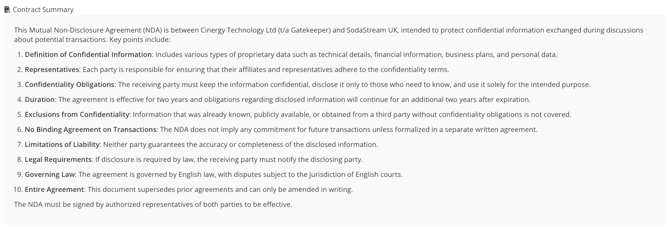
- Summaries: Gatekeeper AI automatically generates a plain-language summary from the uploaded agreement, instantly clarifying what your contract says and requires.
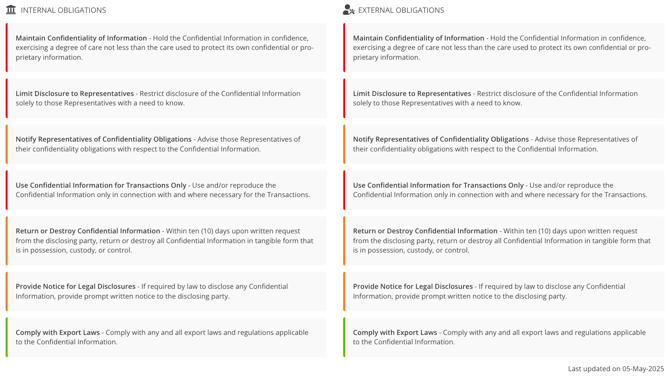
- Obligations: Gatekeeper AI identifies and extracts the specific commitments and responsibilities outlined in your contracts, such as deliverables, payment terms, renewal actions, or notice periods. These are split into internal and external obligations.
To learn more, see Generate AI Insights.
Gatekeeper Chat
Gatekeeper Chat lets you query and analyse your contract and vendor data using plain language questions. Rather than building filters or saved views manually, you can ask questions directly and receive answers drawn from the Vault in real time.

To learn more, see Gatekeeper Chat Overview.
Gatekeeper Chat in the Word Add-in
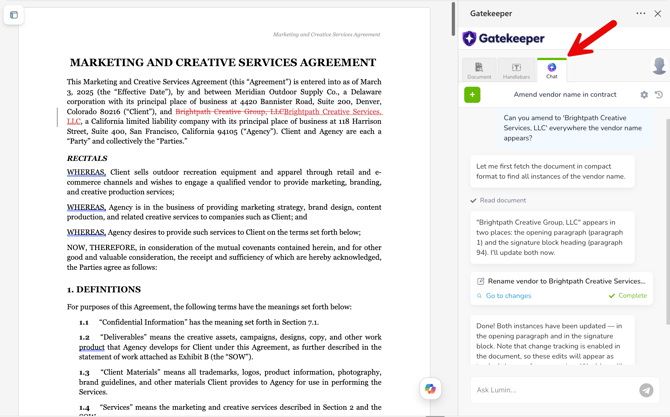
The Chat tab of the MS Word add-in is an AI chat built into your document, allowing you to ask questions about the open contract, and make edits to the document. Additionally, when connected to the Gatekeeper MCP, it can read your wider contract and vendor data and write changes back to records, all without leaving the page.
To learn more, see An Introduction to the Gatekeeper Word Add-in.
Extract
Extract allows you to create new contract records by automatically extracting key metadata from uploaded documents. This saves time, reducing manual work, boosting compliance, and removing the data duplication issues that are normally associated with manual data entry.
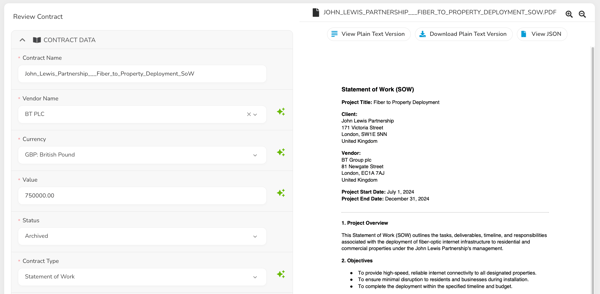
To learn more, see Create Contracts Using Extract.
Intake
Intake is built directly into workflows and the Employee Portal module, and runs in real time when a document is uploaded as part of a contract request. It allows you to upload a file as part of a request form and automatically populates the workflow card with key metadata.
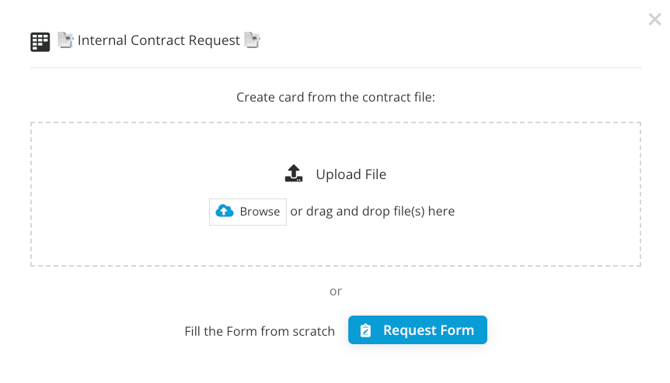
To learn more, see Create Workflow Cards with Intake.
Enrich
Enrich retrospectively extracts and populates empty fields in contract records that already exist in your Gatekeeper repository. This is particularly useful for legacy records with incomplete metadata.
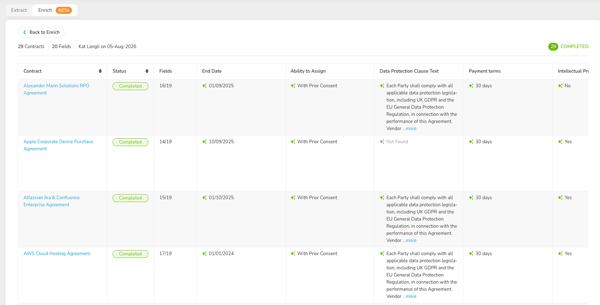
To learn more, see Populate Contract Data with Enrich.
Configure AI Services
Note: Users must be a Global Administrator with the Configuration additional permission to complete these steps.
To manage your tenant's AI services:
- From the navigation menu, expand the Settings option, then click Configuration.
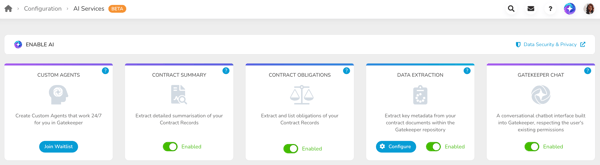
- Click AI Services.
- Enable the relevant toggles to switch on the features.
Note:
-
Enabling the Data Extraction toggle will switch on Extract, Enrich, and Intake.
- Enabling a toggle switches that feature on for everyone in the tenant. You can't turn a feature on or off for specific users or teams.
Configure Default Contract Values
Before using Extract and Enrich, you must configure the default values. These are fallback values that are used to populate contract records when Gatekeeper AI cannot extract a value from the uploaded document. These act as a backup, and will only be applied if no value is found during extraction. To configure this:
- From the navigation menu, expand the Settings option, then click Configuration.
- Click AI Services.
- On the Data Extraction tile, click Configure.

- Set the default values for each field by selecting the relevant option from the dropdown list.
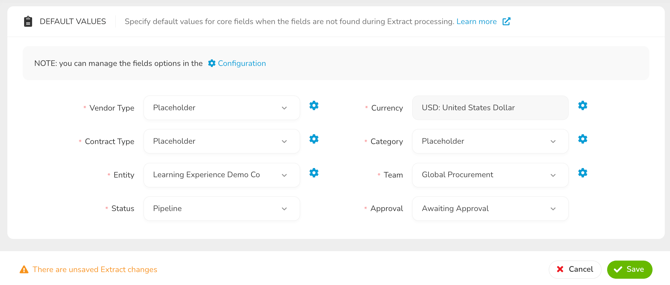
- To amend the options available for each field, click the cog icon to navigate to each configuration page.
- Once finished, click Save.
You can amend these values, but changes will only apply to files uploaded after the update. Files that have already been processed will not be affected.
Tip: You could add an extra option to your dropdown lists, for example, Unknown or Default. Setting this as the default value allows you to filter and review contracts where data was not extracted.
Monitor AI Savings
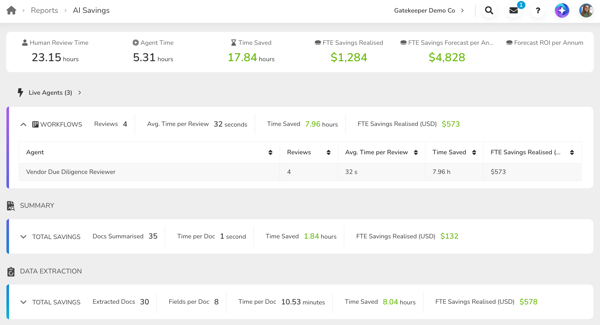
The AI Savings report highlights the time saved and bottom-line impact of implementing AI throughout contract and vendor management processes. This is broken down into Gatekeeper Agents, AI Summaries, and AI Data Extraction. This report quantifies how your team is reclaiming value by automating key tasks, and converts this into a projected yearly return.