
 Estimated Read Time: 6 Minutes
Sections in this article:
Configuration
- This article focuses on setting up SAML SSO using Microsoft Entra. For generic information, refer to Single Sign-On (SSO) using SAML v2.0.
- Before proceeding with the configuration of Single Sign-On (SSO) using SAML v2.0, follow the recommendations in our SSO Best Practices Guide.
Step 1: Prepare Gatekeeper for Configuration
- From the navigation menu, expand Settings, then click Configuration.
- Click Authentication.
- Select the Allow All Authentication Methods radio button.
- Click Save.
Note: Do not select the Require SAML 2.0 authentication radio button at this stage. Without configuring and testing this setting, you may lock yourself out of your Gatekeeper tenant.
If you have done this and locked your tenant, inform our Support team here.
Step 2: Set Up the Enterprise Application in Microsoft Azure
Note: If you have already set up an Enterprise Application while configuring SCIM, skip to Step 3.
- Log in to the Microsoft Azure Portal.
- Navigate to Enterprise Applications.
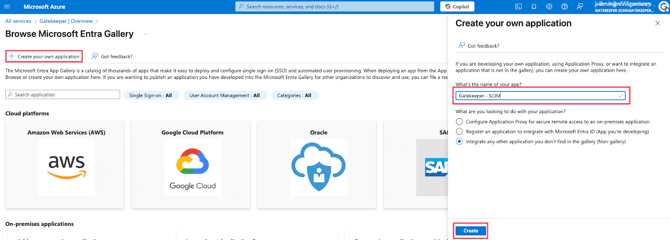
- Click New Application.

- Click Create your own application, then enter a name e.g. Gatekeeper.
- Select the Integrate any other application you don’t find in the gallery radio button, then click Create.
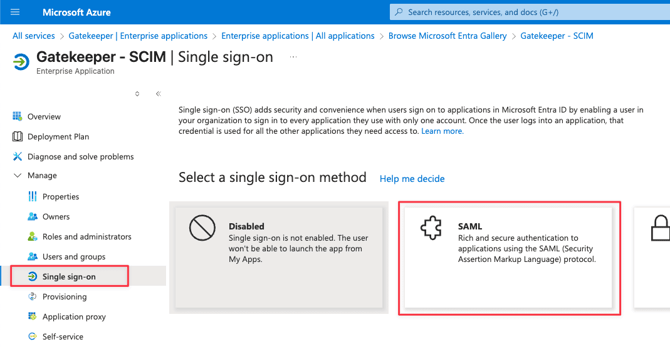
- From the navigation menu, click Single sign-on , then select SAML.
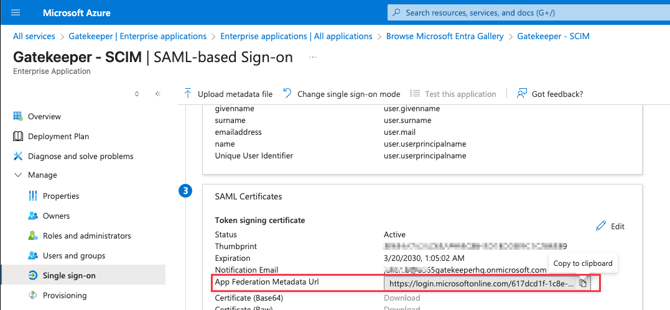
- From the SAML Certificates section, copy the App Federation Metadata Url.
Part 3: Complete Configuration in Gatekeeper
- Return to Gatekeeper, and from the navigation menu, expand Settings then click Configuration.
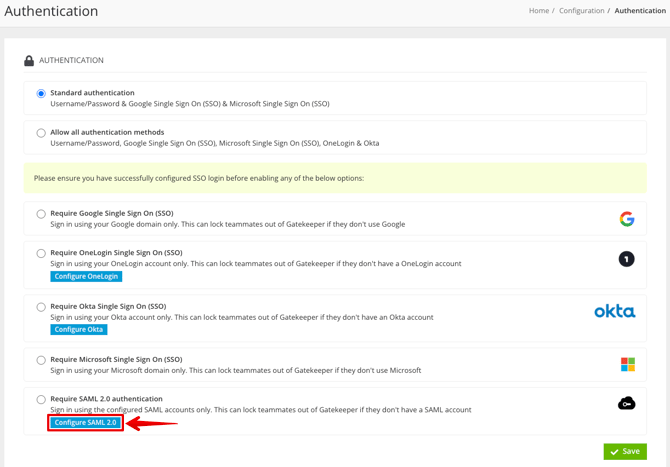
- Click Authentication, then click Configure SAML 2.0.
- Enter the App Federation Metadata Url that you copied earlier in the IDP metadata URL field.
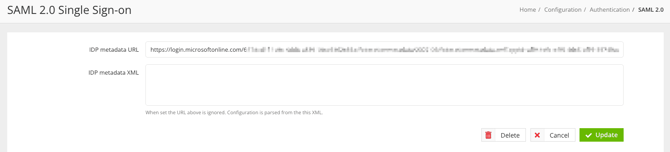
- Click Create. Gatekeeper then generates the required fields. Copy the following:
- Metadata url
- ACS (Assertion Consumer Service, Recipient) url
- Sso url
- Logout url
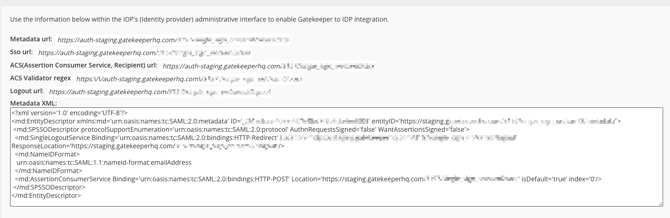
Part 4: Complete Configuration in Microsoft Entra
- Return to Microsoft Entra, then click Edit in the Basic SAML Configuration box.
- Enter the fields copied from Gatekeeper into their respective fields, then save the configuration.
- Add the Metadata URL to Identifier (Entity ID)
- Add the ACS(Assertion Consumer Service, Recipient) url to Reply URL (Assertion Consumer Service URL)
- Add the Sso url to Sign on URL (Optional)
- Add the Logout url to Logout Url (Optional)
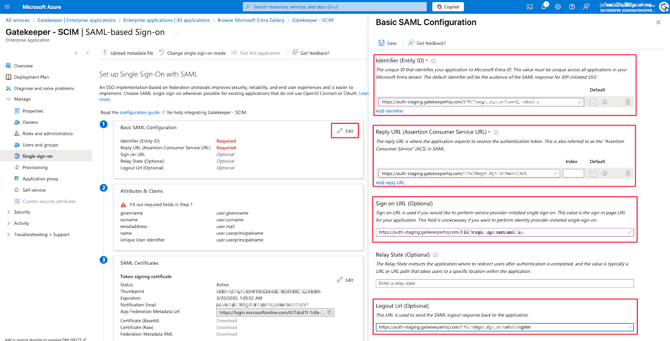
Verify that the certificate is now available in Microsoft Entra, indicating the SAML setup is complete.
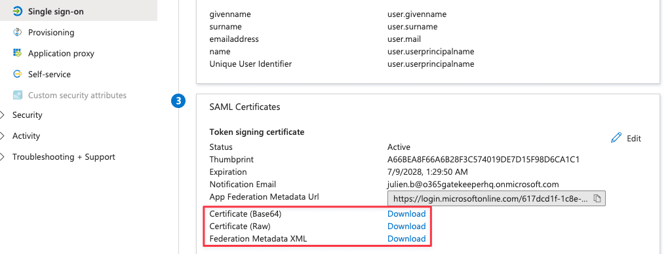
It's recommended to test the SSO connection by logging out of Gatekeeper, then logging back in via SSO.
You can verify that users can log in successfully by checking their login history. To find this, from the navigation menu, expand Settings, then click Users. Click on a user's name, then go to the Logins tab.
Renew the SAML Certificate
If you need to replace the SAML certificate in Microsoft Entra, follow the steps below:
- Navigate to the SAML settings page in Microsoft Entra.
- From the navigation menu, click Single sign-on.
- Click Edit on the SAML Certificates section.
- Click New Certificate. This will invalidate the existing certificate and generate a new one.
- Click the Copy icon on the App Federation Metadata Url field.
- Return to Gatekeeper, then from the navigation menu, expand Settings and click Configuration.
- Click Authentication, then click Configure SAML 2.0.
- Paste the copied URL into the IDP metadata URL field, then click Update.
- Alternatively, click Delete, then Save. You can then paste the copied URL into the IDP metadata URL field, then click Create.
Gatekeeper will fetch and save the new certificate.
FAQs