
 Estimated Read Time: 7 minutes
Sections in this article:
Using Google Docs in Gatekeeper
With Google Drive connected to your Gatekeeper account, you can edit documents stored in Gatekeeper directly using Google Docs.
This allows you to use the familiar editing, reviewing, and collaboration features of Google Docs, while still benefiting from Gatekeeper’s visibility and control over your documents and processes.
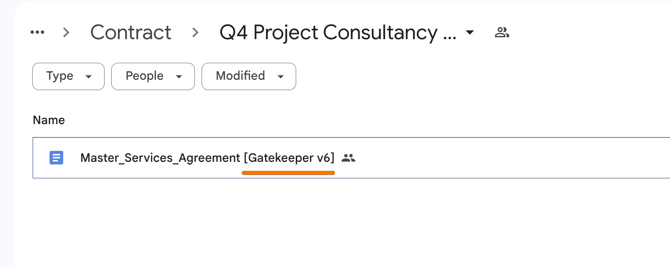
When a Gatekeeper file is edited in Google Docs, a version is also saved to your root folder in Google Drive. Gatekeeper will automatically create a subfolder named after the contract or vendor record where the document is stored.
See the demonstration below to learn more:
Using Google Docs from the Vault
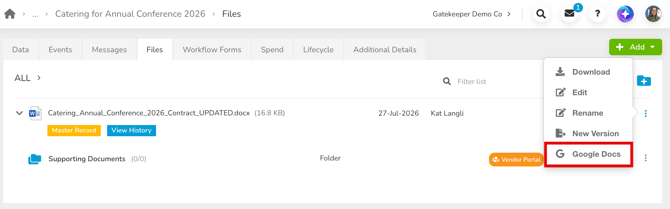
To edit a file from the Vault, navigate to the Files tab of the associated vendor or contract record, then expand the 3 dots and select Google Docs.
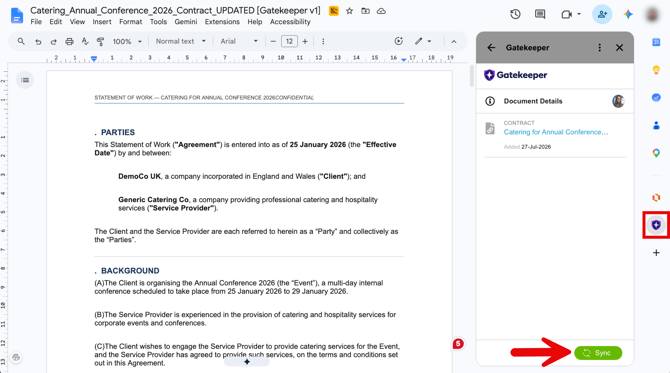
Once you have finished making changes, open the Gatekeeper plugin and click Sync.
Using Google Docs within a Workflow
The Google Docs integration can be used in a workflow, for example during a contract review process. This provides real-time editing and collaboration on documents, while Gatekeeper ensures structure, workflow automation, and a full audit trail throughout the process.
On a Workflow Card
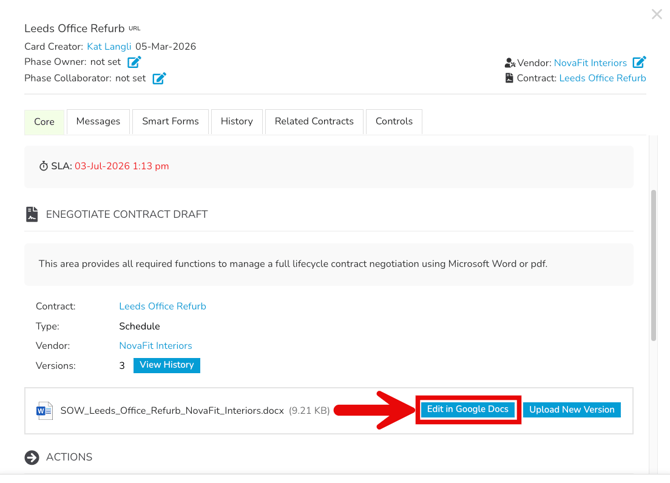
Users with access to a workflow card in a phase where the Submit Draft and Google Docs actions are enabled can use the Edit in Google Docs option. This opens the current draft version for editing in Google Docs.
Via Email
For users who interact with eNegotiate without logging into Gatekeeper, they can be emailed a link to collaborate on the draft:
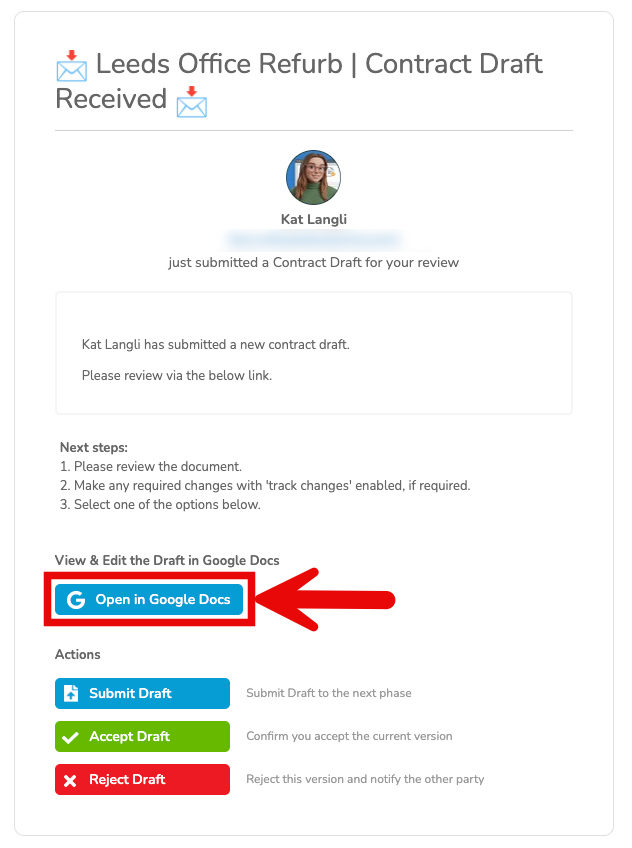
Within this email, recipients have the following options for engaging in the process:
- View & Edit Draft: used for opening the draft in Google Docs for reviewing and editing purposes
- Submit Draft: used to submit the draft to the next phase in the workflow if changes were made and the draft needs to be sent to the other party for further review.
- Accept Draft: used to confirm that you accept the current version and the document is ready to proceed to signature.
- Reject Draft: used to reject the current version, which will notify the other party
Note: The Accept Draft and Reject Draft options can be removed so the user can only make edits, then Submit Draft for further review.
AutoSync
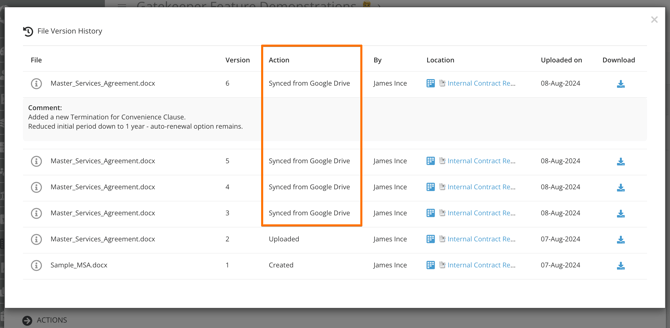
When editing a document in Google Docs, you can use the Gatekeeper sync plugin to manually update the file version in Gatekeeper with your changes. AutoSync provides a safety net for this process, ensuring changes are never lost even if you forget to sync manually.
If a workflow card containing a Google Docs draft moves to a phase where Google Docs editing is not enabled, or the phase uses Publish Contract Draft & Convert to PDF, Gatekeeper automatically captures any unsaved changes and stores them as a new file version.
Example
A contract draft (Version 5) is being edited in Google Docs during a workflow.
- The user finishes editing in Google Docs without clicking Sync from the Gatekeeper plugin.
- Back in the workflow card, Gatekeeper detects that changes have been made to the Draft.
- Without saving, the user clicks Submit (or Accept/Reject) to proceed to another phase of the workflow.
- If that phase does not have Google Docs enabled to continue editing the draft, Gatekeeper automatically saves a new version from the unsaved changes as version 6.
Configuration
Enable the Google Drive Connection
To enable the Google Drive connection, follow the steps below:
- From the navigation menu, expand Settings, then click Configuration.
- Click Document Management.
- Within the Google Drive tile, click Connect.
- Grant access to your Google Drive.
- Select your root folder. This is where Gatekeeper will store document backups. It's best to name the folder clearly so others with Google Drive access can recognise it easily. This helps prevent access issues caused by unclear file links.
Enable AutoSync
To use the Gatekeeper Google Docs add-in, the Gatekeeper app must be authorised to view and edit the file version stored in your Google Drive. This setting allows Gatekeeper to:
- Update the Google Drive document with the new version from negotiations
- Update the current workflow draft version with edits made in Google Docs
- Navigate to the root folder in Google Drive.
- Right-click the folder and click Share.
- Enter the following email address:
gatekeeper-google-drive@concrete-potion-405114.iam.gserviceaccount.com - Select Editor as the granted permission and deselect the Notify checkbox.
- Click Share.
Enable Workflow Google Docs Editing
To allow users to access Google Docs from cards on an eNegotiate phase:
- Click to edit the workflow phase where users will edit drafts using Google Docs.
- From Actions, select the Google Docs checkbox under the Submit Contract Draft action.
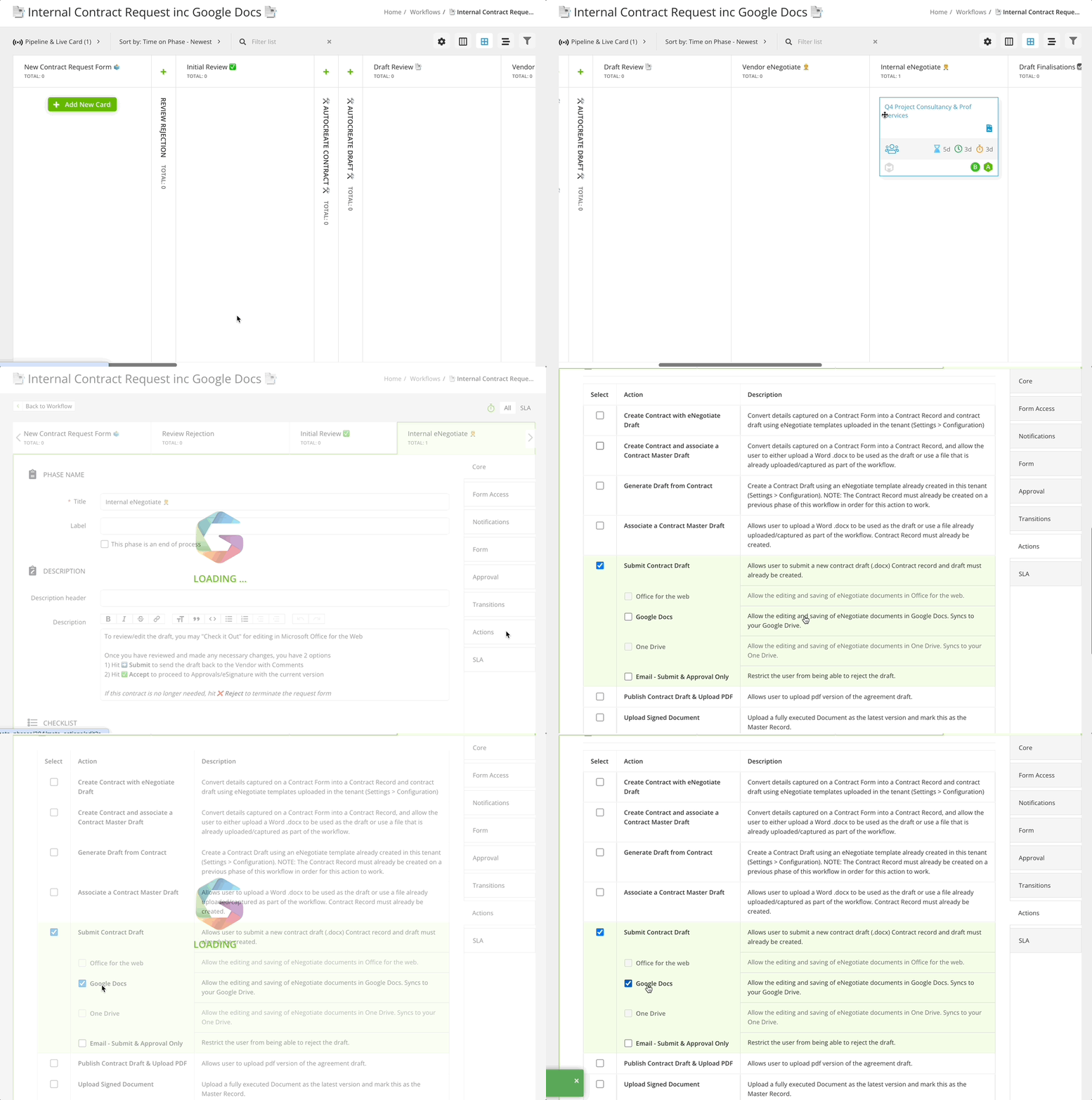
Note: To use the Submit Contract Draft action, a contract draft must first be created or associated with the contract on the workflow. For more information, see 📖 Configuring eNegotiate.
Enable Editing via Email
As vendors do not have access to workflows in Gatekeeper, enabling Google Docs editing via email provides them with a way to collaborate on eNegotiate drafts. To configure this:
- Follow the same steps as above to enable the Submit Contract Draft action with Google Drive.
- From Form Access, ensure the authorisation type is set to Vendor eNegotiate and select the relevant card owner. When assigned, this user will receive the draft and be responsible for reviewing and editing it.
- From Notifications, enable the toggle for the card owner.
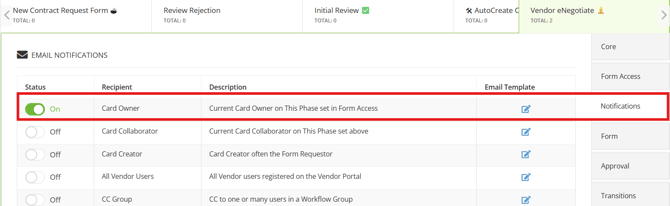
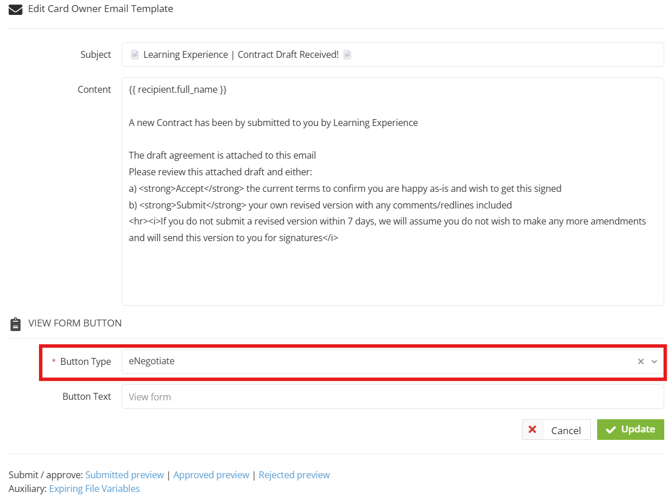
- Click the pencil icon to edit the email template and select eNegotiate as the Button Type.
Run Draft Negotiations from a Single Phase
Google Docs offers an alternative to the traditional, sequential method of contract negotiation. Instead of submitting drafts in turns, parties can edit and comment within the same document in real time. Gatekeeper's standard negotiation workflows reflect a clear review process:
- A workflow card reaches the phase owned by one party.
- That party is notified and makes their edits.
- They submit the revised draft.
- The card transitions to the next phase for the other party to review.
This method provides clear version tracking and ownership at each step. For teams that prefer a more collaborative approach, enabling Google Docs reduces the need for formal back-and-forth submissions. All feedback, edits and revisions can take place in a shared environment, streamlining the negotiation process.
Rather than using separate phases for each party's review, this approach runs the negotiation from a single phase:
- From Actions, enable the Submit Draft action and the Google Docs option.
- From Form Access, select Internal and assign the relevant card owner using the radio buttons.
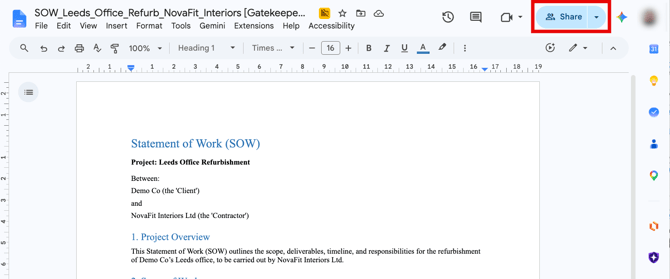
- When the card owner is editing a draft document in that phase, they can use the share option in Google Drive to add the vendor directly to the document.
FAQs