
 Estimated Read Time: 15 minutes
Sections in this article:
What is SCIM?
SCIM (System for Cross-domain Identity Management) is an open standard designed to automate the provisioning and management of users between identity providers (IdPs) and Gatekeeper. When a user is added, updated, or removed in your IdP, SCIM automatically reflects those changes in Gatekeeper, without the need for manual administration. This keeps user access and permissions in sync across both systems.
Note:
-
SAML and SCIM do different jobs: SAML controls how users log in, and SCIM controls which accounts exist and what access they have. Although SAML is not mandatory for SCIM to work, it’s highly recommended so users can log in to Gatekeeper with their IdP credentials. For details on how to configure this, see Single Sign-On (SSO) using SAML v2.0.
- SCIM is only available on selected plans. Contact your Account Director for further information.
How it Works
- Your IdP acts as the source of truth. You connect it to Gatekeeper using the Gatekeeper Base URL and a SCIM API key.
- You can connect Gatekeeper to any identity provider that supports SCIM. See the Microsoft Entra configuration guide or Okta configuration guide for specific guidance.
- Provisioning flows from your IdP to Gatekeeper. When someone is added, updated, or removed in your IdP, SCIM tells Gatekeeper to create, update, or revoke access for that user. This activity is logged in the user's status history.
- User permissions come from your mappings. Gatekeeper applies the mappings you set. If there is no match, the user is assigned to a fallback team with default access.
- Gatekeeper merges permissions when a user belongs to multiple groups, granting the highest permission level.
- When users are provisioned using SCIM, the user's email will be checked to see if it already exists in Gatekeeper.
- If the email already exists, your IdP links to that account and continues to manage it going forward.
- If it does not, a new user will be created in Gatekeeper.
Note: To configure SCIM with Gatekeeper, you’ll need:
- Administrator permissions in your chosen IdP
- The Global Administrator role in Gatekeeper, with the Configuration permission
User Profile Attributes Supported by Gatekeeper
Gatekeeper uses SCIM to synchronise user attributes that determine the account details, team membership, and user access. See the table below for a breakdown of the supported attributes:
| Attribute | Description | Notes |
|---|---|---|
| User's email address | Acts as the unique identifier for matching and updating user records in Gatekeeper, so cannot be changed. | |
| first name | User’s given name | |
| last name | User’s surname | |
| team | The department the user belongs to | This must match the team name in Gatekeeper exactly. This is case sensitive. |
| active | Indicates whether a user’s Gatekeeper access is enabled (true), or revoked (false) |
Team Attribute
To map an IdP field (such as department or team) to the user’s team field in Gatekeeper, use one of the following formats:
Attribute:urn:ietf:params:scim:schemas:extension:gatekeeper:2.0:User:teamNameOR
Name: urn:ietf:params:scim:schemas:extension:gatekeeper:2.0:User
Namespace: teamName
Access SCIM Configuration
To access the SCIM settings in Gatekeeper:
- From the navigation menu, expand Settings then click Configuration.
- Click System for Cross-domain Identity Management (SCIM).
Set the Fallback Team and Access Mapping
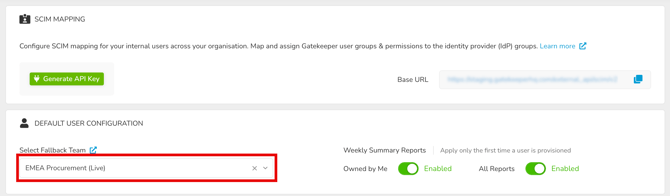
The fallback team acts as a safety net for user provisioning in Gatekeeper. If a user is provisioned through SCIM but their assigned team or group mapping in your IdP is missing, deleted, or not yet synced, Gatekeeper automatically places them into this fallback team.
It’s recommended to assign minimal permissions to the default fallback team. To do this:
- Select the relevant team from the Select Fallback Team dropdown list.
- Click the
 pencil icon on Default Mapping.
- Select the relevant permissions, then click Save.
Access the Base URL and API Key
The Base URL and API Key are the two core credentials that enable your IdP to communicate securely with Gatekeeper via the SCIM protocol. You will need these when configuring the connection. To locate your credentials:
- Copy the Base URL, then click Generate API Key.

- Copy the API Key. For security reasons, you won't be able to view the key again after clicking Copy & Save.

Configure Weekly Summary Report Settings
The Weekly Summary Reports settings control the default email report preferences applied when a user is first provisioned via SCIM. To manage this, enable or disable the Owned by Me and All Reports toggles as required.

Note: These settings apply only the first time a user is provisioned. Gatekeeper will not overwrite the saved preferences of existing users.
Manage Groups in Gatekeeper
After your first sync, groups created in your IdP will appear automatically in Gatekeeper. To manage the permissions that will apply to users in that group:
- Click the pencil icon on the relevant group.

- Select the roles and permissions required.
- Click Save.
Note: The IdP groups can be assigned:
-
both RBAC access groups and standard roles and permissions
View Users in an IdP Group
To view which users have been synced as part of an IdP group, click the name of the IdP Group.

The table displays all active and pending users belonging to this IdP Group. Archived users are not displayed. The following information is included to help with troubleshooting and group membership audits:
- Name: click this link to navigate to the user's profile page
- Status: Active or Pending
- Team: the Gatekeeper team the user belongs to
- Other IdP groups: all other groups the user is a member of
- SCIM ID: the unique identifier assigned by the IdP

Note: When users are provisioned via SCIM, Gatekeeper does not send an invitation email. Users will display with a Pending status, and can access the platform by logging in directly.
Revoke the API Key
If you need to rotate the API key, you can remove the current one, ensuring it can never be used again. To do this:
- Click Revoke Key.
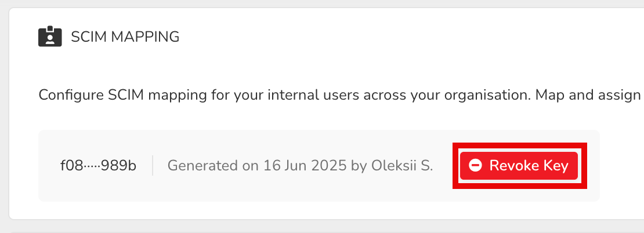
- Type Revoke as the confirmation phrase, then click Confirm.
This process cannot be undone. After revoking the API key, you can generate a new one by clicking Generate API Key.
Troubleshooting
Common Issues
User can't sign in even though they're provisioned:
- Check your SAML or authentication settings.
Team mapping issues:
-
Ensure the team or department name in your IdP matches the team name in Gatekeeper exactly. This mapping is case sensitive.
Group permissions not working:
- Remember that groups only appear after the first user is provisioned.
- Permission changes apply retrospectively to existing group members.
Provisioning not working:
- Verify the SCIM API Key and Tenant URL are correct.
Best Practices
It's recommended to follow these guidelines to support a successful SCIM configuration:
- Test with a small group first before rolling out to all users.
- Document group naming conventions for easier management.
- Set up an appropriate fallback team in Gatekeeper.
- Monitor provisioning logs regularly.
- Rotate your API key periodically by revoking and generating a new key for your SCIM integration.
FAQs