
 Estimated Read Time: 4 Minutes
Sections in this article:
Note: Access to the features in this article will depend on the configuration of your tenant.
What Are Projects?
In Gatekeeper, projects are dedicated spaces for managing work that involves multiple contracts, vendors, and events. They’re useful for temporary or goal-driven initiatives where everything needs to be tracked in one place.
For example, a project could be used to bring together all related contracts and vendors for an annual conference, such as venue hire, catering, and marketing support.
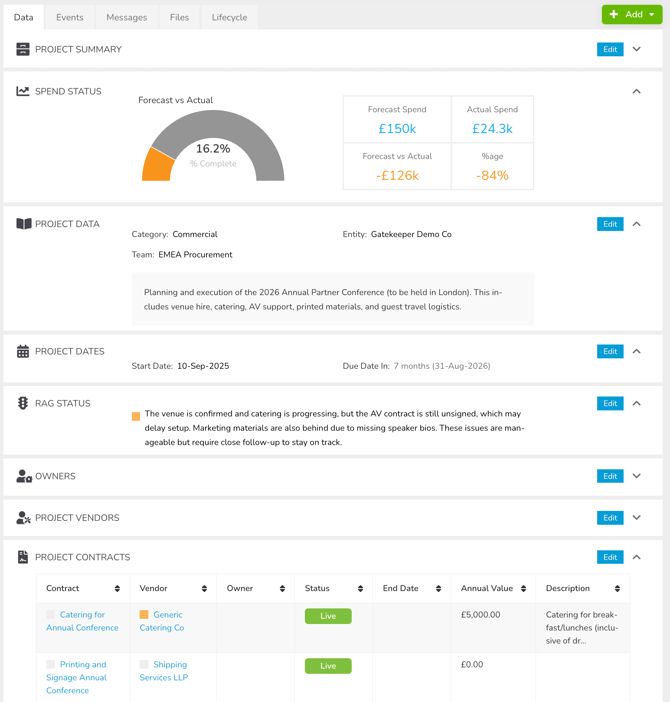
Within a project, you can:
- Assign a project manager and set a due date
- Track milestones using events
- Monitor progress using a RAG (Red, Amber, Green) status
- Upload files and exchange messages
You can also add custom data fields to capture any other project details relevant to your organisation.
View Projects
To view the list of existing projects, from the navigation menu expand the Vault then click Projects.
Note: Users must be a Global Administrator or Global Collaborator to view projects.
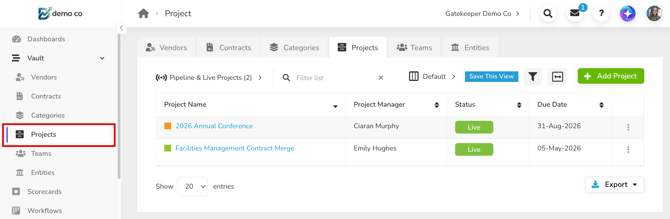
This will display the details of the project name and status, and you can configure extra columns to display the data you require.
To view a specific project, click on its name.
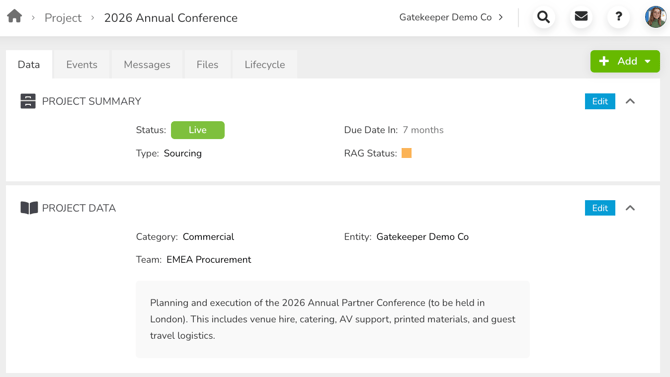
Click Add to add an event, message, or file, and use the tabs to view more details about the project:
- Data: Contains the project's key metadata, and lists any vendors and contracts linked to the project.
- Events: Shows events linked to the project.
- Messages: Keeps track of conversation threads linked to the project.
- Files: Displays any files uploaded directly to the project. Files uploaded to associated vendors or contracts will not appear here.
- Lifecycle: Provides a visual overview of key stages and actions in a timeline format.
Create a Project
To create a new project:
- From the navigation menu, expand the Vault and click Projects.
- Click Add Project.
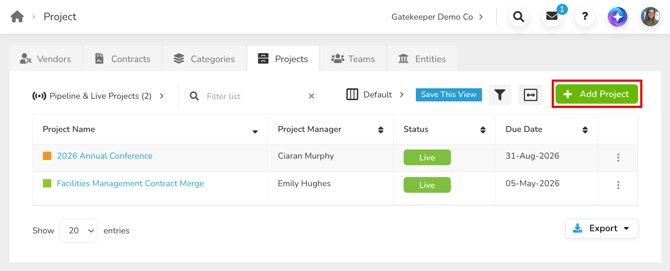
This will create a blank project record for you to populate. Once you have completed each section, click Save & Next to move on, or Save & Exit if no further input is needed.
Project Data
Complete the mandatory fields (Name, Status, and Type). You can also add optional details, such as associating the project with a category, entity, or team, and adding a description.
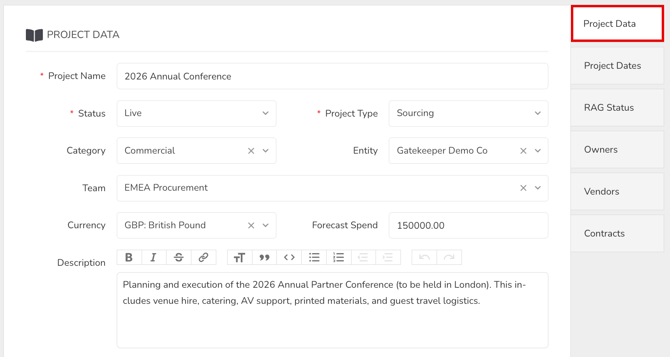
Note: The Currency and Forecast Spend fields are only available if the Spend module is enabled in your tenant.
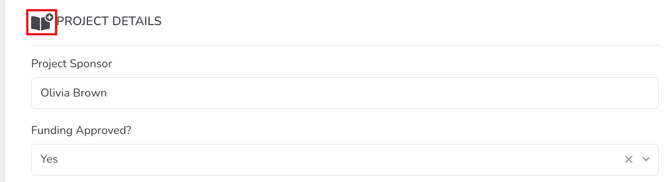
If any custom data groups have been configured, they will appear in this section and can be identified by the additional plus symbol:
Project Dates
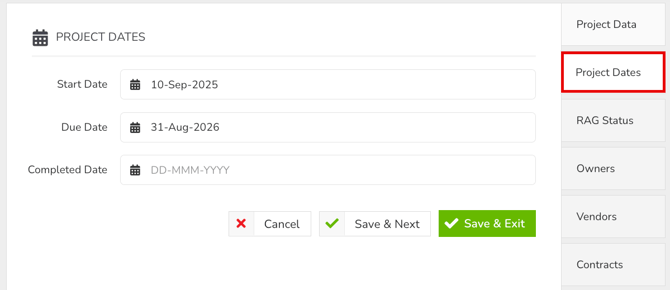
In the Project Dates section, enter the project's key milestones. The Completed Date can be left blank during creation, and updated later when the project is finished.
RAG Status
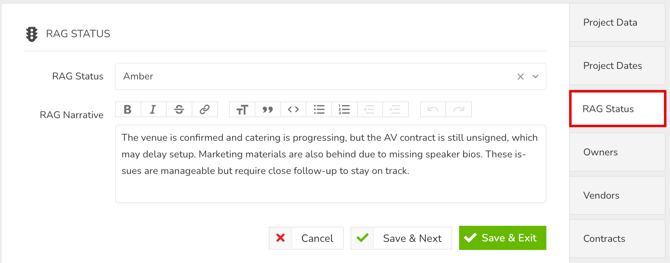
Apply a Red, Amber, or Green status to the project and add a description to explain the reasoning. This section can be left blank during creation and updated later to track performance over time.
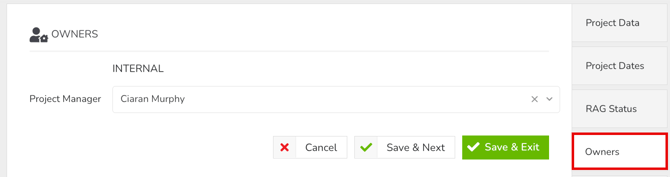
Owners
This is the person responsible for managing the project. You can select any user in Gatekeeper, but they'll only be able to access the project record if they have Global permissions.
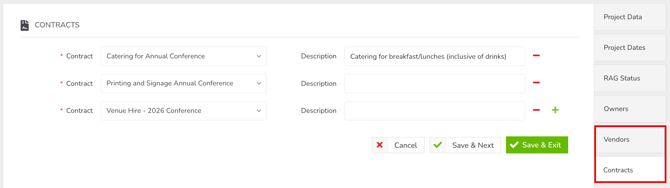
Vendors and Contracts
Within the Vendors and Contracts section, you can select existing records to associate with the project. Click the plus icon to add new entries, and enter a description if required.
Delete a Project
To delete a project:
- From the navigation menu, expand the Vault and click Projects.
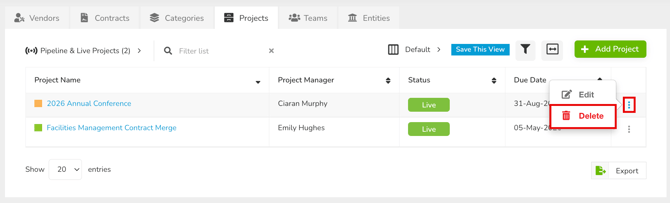
- Expand the 3 dots on the relevant project, then select Delete.
- Click OK to confirm the deletion.
Note: This process cannot be undone.