
 Estimated Read Time: 4 minutes
Sections in this article:
Markdown is a simple markup language that helps you customise workflow notifications by adding formatting, links, and images. It can also be used to add dynamic content, allowing you to insert variables (like contract names or dates) that update automatically.
Gatekeeper-Specific Dynamic Values
In addition to standard markdown, Gatekeeper supports specific markdown syntax to help you insert dynamic values into workflow notifications. See the table below for further details:
Formatting Options
See the table below for examples of how to format notifications:
| Markdown | Entered Text Example | Published Text Example |
|---|---|---|
 |
 |  |
[link text](linkurl) |
Please follow [this link](http://gatekeeperhq.com) to your portal | Please follow this link to your portal |
*italics* |
Text here *is italicised* | Text here is italicised |
**bold** |
Text here **is bold** | Text here is bold |
**_ italicised and bold_** |
Text here is ** italicised and bold** | Text here is italicised and bold |
`quoted` |
`This is quoted text` | This is quoted text |
*** OR --- OR ___ |
Text *** Text |
Text Text |
# Header 1 |
# This is a big title | This is a big title |
## Header 2 |
## This is a medium title | This is a medium title |
# Header 3#### Header 4##### Header 5###### Header 6 |
### These are smaller titles #### These are smaller titles ##### These are smaller titles ###### These are smaller titles |
These are smaller titlesThese are smaller titlesThese are smaller titlesThese are smaller titles |
Note: Formatting may not appear in emails as it does in Gatekeeper. Depending on mailbox security settings, some recipients may only receive plaintext. Bear this in mind when drafting email templates.
Conditional Logic Markdown
You can use conditional logic to tailor notifications based on how a card reached its current phase - such as approvals, rejections, or other transitions.
For example, if a contract is returned to a user for further review after rejection, the message should differ from one sent when the contract is reviewed for the first time.
These conditional statements can be configured using any of the boolean expressions from the dynamic values table.
If Scenarios
Use if scenarios when you only want to show content if a specific condition is true.
For example, if the notification uses the following markdown in the template:
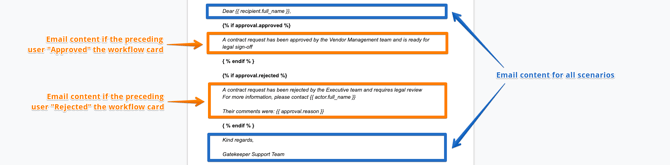
When the card is approved, the recipient will see:
Dear John Smith
A contract request has been approved by the Vendor Management team and is ready for legal sign-off
Kind Regards,
Gatekeeper Support Team
When the card is rejected, the recipient will see:
Dear John Smith
A contract request has been rejected by the Executive team and requires legal review
For more information, please contact Jane Smith
Their comments were: You seem to have put an extra few zeros on a price
Kind Regards,
Gatekeeper Support Team
If Else Scenarios
Use if else scenarios when you want to show one message if the condition is true, and a different message if it’s false.
For example, if the notification uses the following markdown in the template:
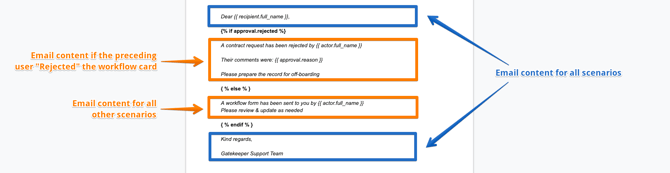
When the card is rejected, the recipient will see:
Dear John Smith
A contract request has been rejected by Jane Smith
Their comments were: This doesn't fit our budget
Please prepare the record for off-boarding
Kind Regards,
Gatekeeper Support Team
When the card was transitioned in any other way, the recipient will see:
Dear John Smith
A workflow form has been sent to you by Jane Smith
Please review & update as needed
Kind Regards,
Gatekeeper Support Team
Additional resources
For the initial setup instructions of Workflow Notifications, see Configure Workflow Notifications.
For information on other markdown formatting options, see this Markdown Cheatsheet.