
 Estimated Read Time: 6 Minutes
Sections in this article:
- Introduction
- Roles
- Permissions
- Workflow Groups
- eSign Permissions
- Vendor Permissions
- Sensitive Data Permissions
- Additional Permissions
- FAQs
Introduction
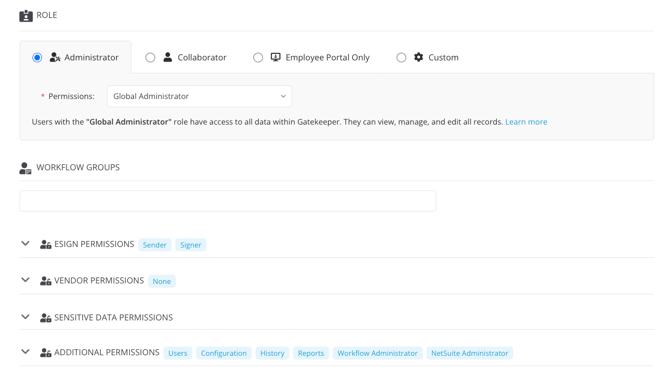
In Gatekeeper, roles and permissions control what a user can see and do across the core platform. These are set directly on the user's account, and define access to records in the Vault as well as other features such as configuration or user management.
Workflow access, however, is managed separately. It's assigned through workflow configuration and doesn't rely on a user’s core roles or permissions. For example, a user may have limited access to vendor records in the Vault, but can still interact with all vendors during a workflow.
Understanding this separation is key when assigning access:
- User Roles and Permissions: Define access to records in the repository, including contracts and vendors. These control visibility and editing rights.
- Additional Permissions: Grant broader access across Gatekeeper, such as configuration, or user management.
- Workflow Access: Control what users can see and do within workflow phases. This is assigned within individual workflows and controls which phases the user can interact with.
Note: For additional information on workflow access, see Workflow Authorisation Overview.
Roles
Roles define what actions the user can perform when navigating Gatekeeper.
| Role | Description |
| Administrator | Full read and write access. They can add, delete, and edit data. |
| Collaborator | Read-only access. They can perform certain actions, such as adding messages or files. See Collaborative Functions for a full breakdown. |
| Custom | Role Based Access Controls (RBAC) define custom roles, giving a greater level of granularity to user permissions. Availability may vary depending on your Gatekeeper plan. |
| Employee Portal Only |
A restricted level of access, where users have minimal visibility of contracts and vendors, but can submit requests via the Employee Portal. This role is only available if the Employee Portal is enabled in your tenant. |
Note: You cannot downgrade users to Employee Portal Only if they have already been granted access through one of the other roles.
Collaborative Functions
For a detailed breakdown of the actions available to collaborators, see the table below:
Permissions
Permissions define what a user can see when navigating Gatekeeper, i.e. which records they have access to.
| Permission | Description |
| Global | Users can see all data in your tenant, including contracts, vendors, teams, categories, and entities. |
| Own Team | Users can only see contracts and their associated vendors based on the team they've been assigned to. |
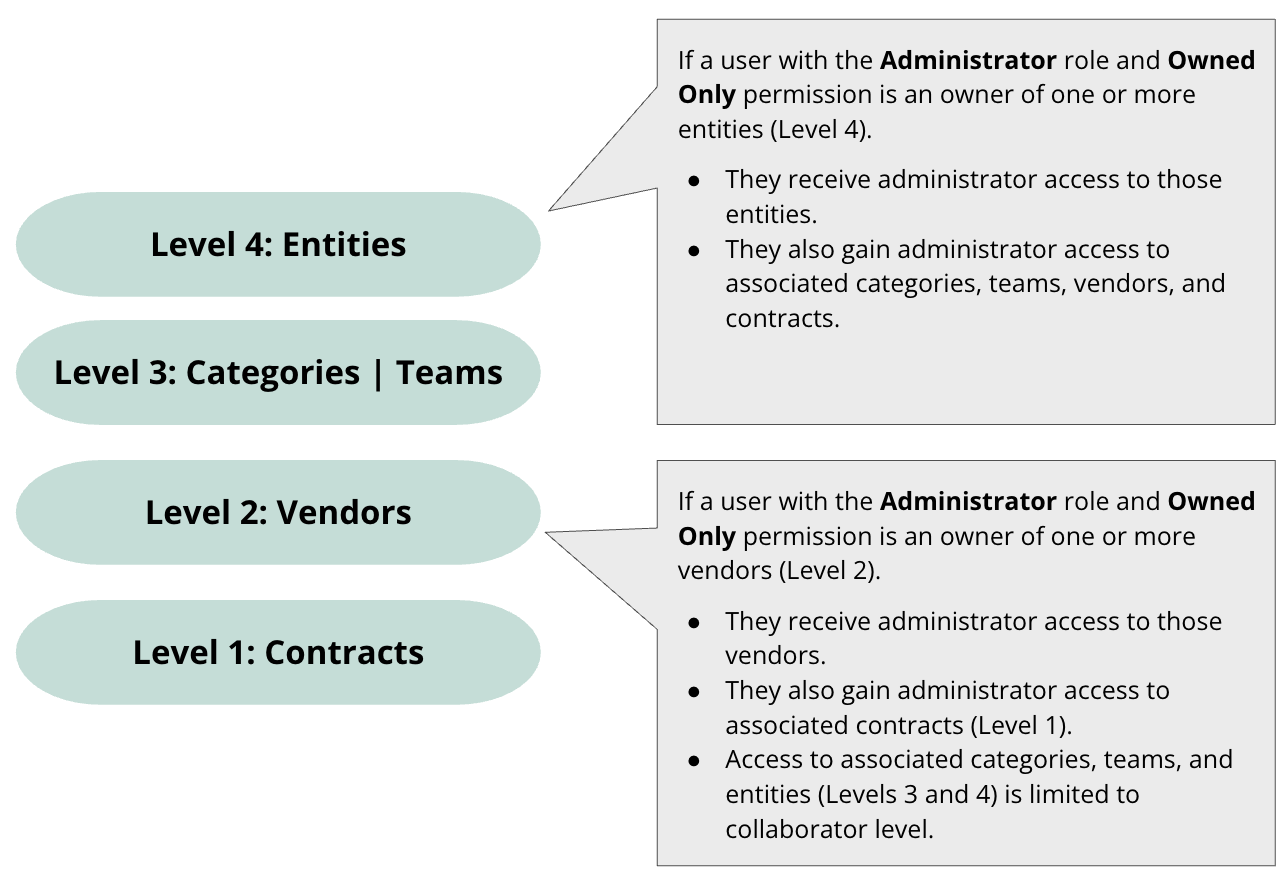
| Owned Only | Users can only see records that they are explicitly set as the owner of. See Owned Only Access for a full breakdown of this permission. |
Owned Only Access
For further details on Owned Only Access, see the description and diagram below:
Ownership by Secondary Access
In Gatekeeper, owners allow you to define who is responsible for individual objects, i.e. contracts, vendors, teams, categories, and entities. Users with the Owned Only permission have access to objects they directly own, and may also gain access to related objects through secondary associations.
Contracts sit at the base of the data structure, linking to vendors, teams, categories, and entities. This structure allows access to be inherited based on these associations. See the diagram below for some examples.
Workflow Groups
Workflow groups make it easy to assign ownership and route notifications to a specific set of people, without needing them to align to a team. For example, users could be assigned to a Senior Leadership workflow group. Adding a user to a workflow group gives them access to any phase that group is assigned to.
eSign Permissions
eSign permissions determine which users can send a document for eSign, and who can be set as a signatory.
| eSign Permission | Description |
| eSign Sender | Allows the user to send documents for eSign. |
| eSign Signer | Allows the user to be set as an authorised signatory within eSign. |
Vendor Permissions
Vendor permissions allow users to view vendor records without providing access to the related contract records.
| Vendor Permission | Description |
| Global Vendor Administrator | Grants administrator (read and write) privileges to all vendor records. |
| Global Vendor Collaborator | Grants collaborator (read-only) privileges to all vendor records. |
Sensitive Data Permissions
Sensitive data permissions allow users to view all custom data marked as sensitive. See Configure Sensitive Data for further information.
Additional Permissions
This area grants access to additional actions in Gatekeeper:
| Additional Permission | Description |
| Users* | Add users and manage their roles and permissions, including their own access. |
| Configuration* | Access to the Configuration area, allowing them to amend Gatekeeper settings. |
| History | Access an unrestricted history of all user activity in Gatekeeper. |
| Workflow Administrator | Manage all workflows within Gatekeeper, including creating new ones. |
| NetSuite Administrator | Sync vendor data from the Gatekeeper Vault to NetSuite. |
Note: Permissions marked with an asterisk* are only available for Global Administrators.
FAQs