Estimated Read Time: 6 minutes
Sections in this article:
- eSign Statuses
- Track eSign from the File Repository
- Track eSign from Contract or Vendor Records
- Track eSign on a Workflow
- View Detailed eSign History
- Contract Lifecycle Tab
eSign Statuses
When tracking an eSign process, the following statuses help you track progress at a glance. Refer to the table below for a definition of each status:
| Status | Definition |
| Draft | An eSign sender has started assigning signatories, but the document has not yet been sent for signing. |
| Awaiting Internal | The document is waiting on one or more internal signatories. |
| Awaiting External | The document is waiting on one or more external (vendor) signatories. |
| Awaiting Both | The document requires signatures from both internal and external parties. |
| Processing | All required signatures have been collected, and Gatekeeper eSign is finalising the PDF. This should only appear briefly. If it remains after refreshing the page, check that the file is not locked, as this can prevent Gatekeeper eSign from completing the update. |
| Completed | All required signatures have been received successfully. |
| Cancelled | A workflow user/eSign sender has cancelled the eSign process. |
| Declined | One of the signatories declined to sign the document. |
Track eSign from the Files Repository
You can track eSign progress on files across all records you have access to in Gatekeeper. From the navigation menu, click Files.
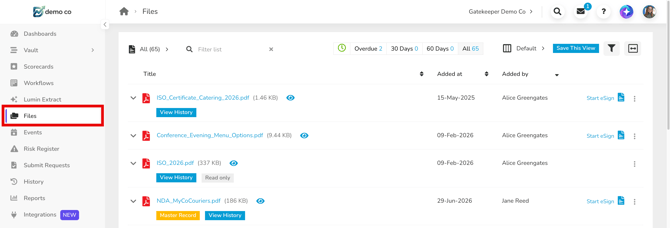
The following columns can be added to display key details about the eSign process:
- eSign: The stage in the eSign process this document is at.
- eSign Internal User: The internal signatory.
- eSign Vendor User: The vendor/external signatory.
- eSign Updated at: The last time the eSign process was updated.
For details on configuring the displayed columns, see File Repository Overview.
Click the eSign filter icon in the top left to filter files by eSign status.
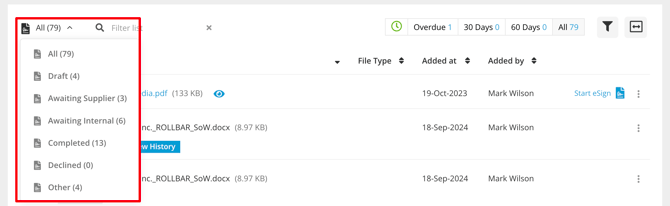
Click on the status of a file to view further details.
Track eSign from Contract or Vendor Records
Another way to track the eSign process is directly from the contract or vendor record's Files tab. To access this:
- From the navigation menu, expand the Vault, then click Contracts or Vendors depending on where your file is stored.
- Open the record with the eSign file, then click the Files tab.
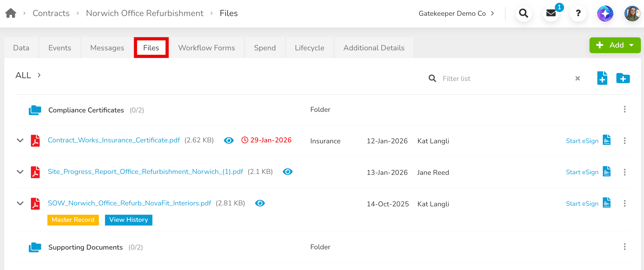
This will display the current status of the eSign request. Click on the status to view further details.
Track eSign from a Workflow
When an eSign has been initiated from a workflow card, a footer with the Gatekeeper eSign logo is displayed on the kanban board. This provides a quick view of the eSign status without needing to open the card:
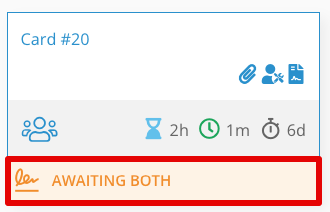
If a workflow card contains multiple eSign processes, each status appears in the footer:
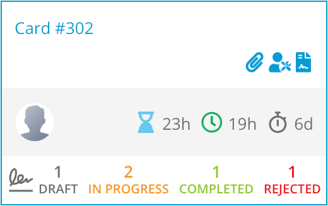
- Draft: An eSign sender has started assigning signatories, but the document has not yet been sent for signing.
- In Progress: The document has been sent and is awaiting internal, external, or both sets of signatures.
- Completed: All required signatures have been received successfully.
- Rejected: The eSign process has been cancelled, or one of the signatories declined to sign the document.
View Detailed eSign History
To view a detailed audit history of the eSign process, expand the View history section. For example, when at Awaiting Signature, you can view the status of each signatory.
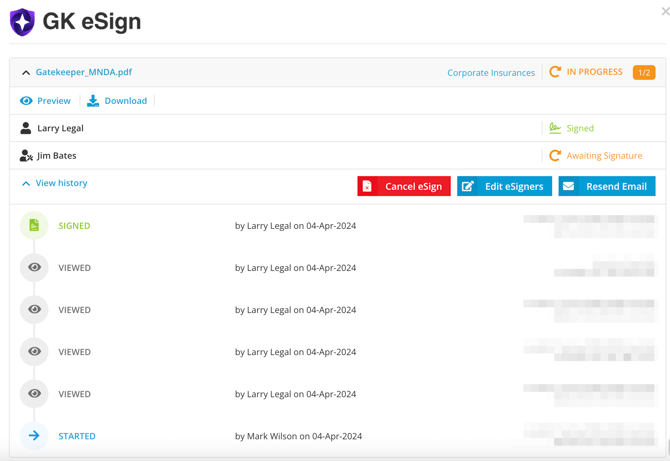
Once a signatory has signed the document, this updates to Signed. This window also displays the eSign history, including:
- when the process started
- who initiated the eSign process
- when the document was viewed
- when the document was signed and executed
This includes the user completing the action, with a date/time and location stamp.
Note: The location stamp may vary for users accessing Gatekeeper eSign via VPN or SSO, as it reflects the IP address of the data centre in use at the time of signing.
Contract Lifecycle Tab
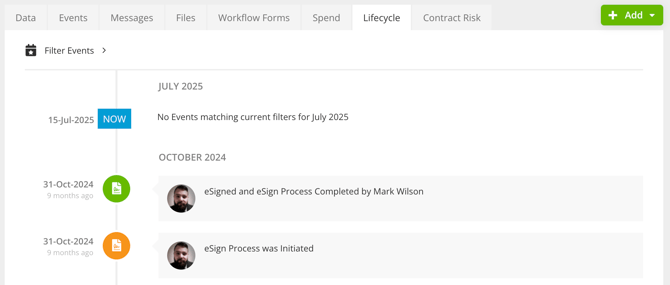
Additionally, you can view the history of the eSign process along with the rest of the contract record's history in the Lifecycle tab. This option only applies if the eSign process was initiated in a workflow.