
 Estimated Read Time: 5 Minutes
Sections in this article:
- General Troubleshooting
-
Internal User Troubleshooting (i.e. a member of the organisation who uses Gatekeeper)
-
Vendor/Supplier Portal User Troubleshooting (i.e. a prospect/partner of the organisation who uses Gatekeeper)
General Troubleshooting
When encountering a 404-error, which indicates that the requested web page or resource could not be found, you can follow these general troubleshooting steps to help resolve the issue:
- Refresh the page: Sometimes, a 404 error can occur due to a momentary issue, for example poor/lost internet or wifi connection. Try refreshing the webpage by pressing the F5 key or clicking the refresh/reload button on your browser.
- Check the URL: Verify that the URL you entered is correct. It's possible that a typo or an incomplete URL could lead to a 404 error. Ensure that you have correctly typed the domain name and the path to the specific resource.
- Clear browser cache: Cached data in your browser can sometimes cause conflicts and lead to 404 errors. Clear your browser cache, cookies, and browsing history to eliminate any potential conflicts. Restart your browser and try accessing the page again.
- Switch browser: Use a different web browser to access the webpage. This can help determine if the issue is specific to the browser you're currently using. If the page loads successfully in another browser, it may indicate a problem with your original browser, extensions or its settings.
Internal User Troubleshooting
The following scenarios relate specifically to internal users experiencing 404 errors.
- 404 errors can occur when clicking a link in an approval email notification, if the approval has already been actioned on the workflow card. Log in to Gatekeeper and navigate to the workflow to see if the card is approved.
- If you experience a 404 error when clicking a link in an email, this may be caused by your organisation's email security software. When the software 'opens' the link in the email to scan it, Gatekeeper recognises that the link has been used. As the link cannot be reused, the link will then be dead. To avoid this, you can request for security scans to be disabled on emails from no-reply@gatekeeperhq.com. Alternatively, you can alter the workflow to require users to log in, and visit the card to approve it. This would require all approvers to have a Gatekeeper user account they can log into.
Vendor User Troubleshooting
The following scenarios relate specifically to vendor users experiencing 404 errors.
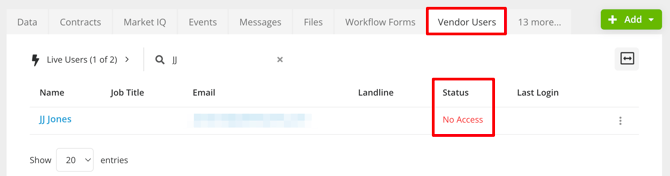
- 404 errors can occur when vendor users have not been invited to the Vendor Portal yet. Check their status from the Vendor Users tab of the relevant record.
- If the status is No Access, expand the 3 dots and select Edit. Then select the Invite into Gatekeeper checkbox, then click Save.
- If the vendor user has not been created, follow the steps in Inviting Vendors to the Vendor Portal to rectify this issue.
- If the status is No Access, expand the 3 dots and select Edit. Then select the Invite into Gatekeeper checkbox, then click Save.
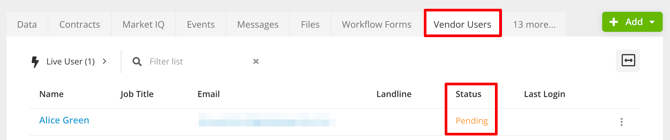
- 404 errors can occur when vendor users have not accepted their invitation to the Vendor Portal yet. Check their status from the Vendor Users tab of the relevant record. If this is pending, it means the invitation was sent, but has not been accepted. Expand the 3 dots and select Edit. Then select the Resend the invitation email checkbox and click Save.
- 404 errors can occur when a card has moved phases. Check the workflow card is on the expected phase.
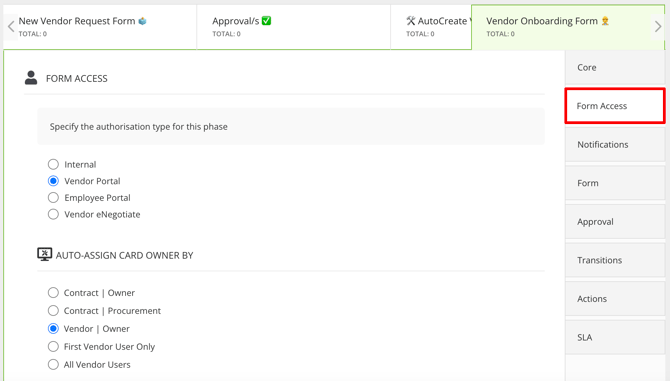
- 404 errors can occur when vendor users have not been granted appropriate access on a workflow phase. For example, the workflow may be incorrectly configured to grant access to a specific user rather than "All Vendor Users of xyz company". Check the configuration by clicking on the relevant workflow phase and navigating to the Form Access section.
- 404 errors may occur when a vendor user is trying to access an eNegotiate draft that has already been submitted, rejected, or approved.
If you still experience an issue after trying the above suggestions, please contact support with the relevant details.