
 Estimated Read Time: 7 minutes
Sections in this article:
For background on workflow access, please read the Workflow Authorisation Overview.
What is Form Access?
Form access controls who can access a phase and how card ownership is assigned when a card enters it. Each phase has its own Form Access configuration area, where you can:
- Determine how users can interact with the phase by setting the authorisation type
- Determine how card ownership is allocated when a card enters the phase using Auto-Assign Rules and/or selecting a Card Owner
Note: For an interactive introduction to workflow access in Gatekeeper, take our Workflow Access course. You must be logged into Gatekeeper to access this course.
What are Workflow Phase Owners?
Workflow phase owners are the individuals responsible for completing reviews, actions, and approvals on a card at a specific phase. Each phase has its own designated owner, configured in the phase settings.
Unless they have been granted other authorisation to the workflow, phase owners can only see and interact with cards while they are on the phases they own.
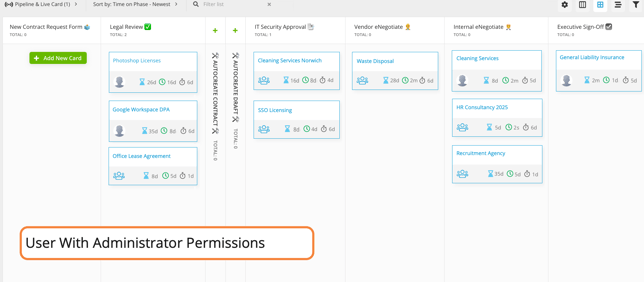
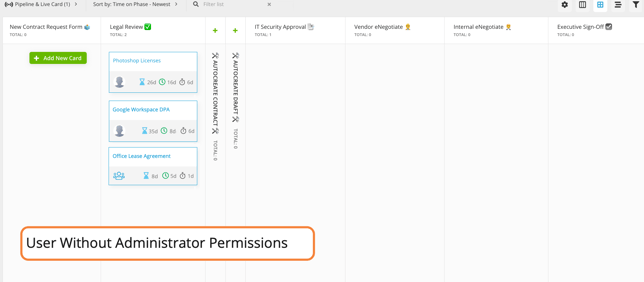
The example below shows two different user views of the same workflow:
- The Workflow Administrator can see all cards across all phases.
- The owner for the Legal Review phase can only see cards in that specific phase.
Configure Form Access
Note: Users must be a Workflow Administrator or Local Workflow Administrator to configure phase settings.
To set the authorisation type and assign owners for a workflow phase:
- Navigate to the relevant workflow and click on a phase to edit it.
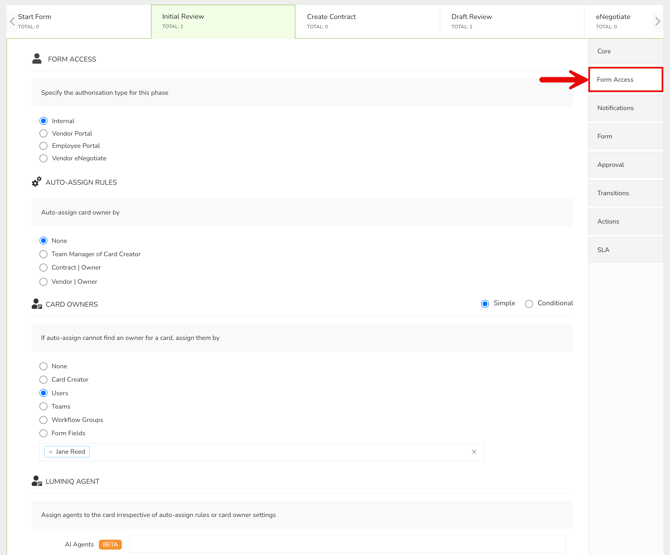
- Click Form Access.
- Select the relevant radio button for the authorisation type to set how users interact with the phase.
- Under Auto-Assign Rules and Card Owners, select the relevant options to determine how ownership is allocated. The options available in each section will update based on the authorisation type selected.
- If required, select a Gatekeeper Agent to work alongside the phase owner.
Note:
-
You can configure both Auto-Assign Rules and a Card Owner. Gatekeeper will first try to automatically assign the owner, and if no match is found, it will assign based on the option selected in the Card Owner section instead.
- Workflow Administrators, Local Workflow Administrators, and Local Workflow Cards Managers can act on behalf of phase owners directly from the kanban board, regardless of the phase's form access settings.
Authorisation Type
The authorisation type controls how users interact with the phase, for example where an intake form should be completed.
- Internal: available to internal users with a Gatekeeper login
- Vendor Portal: available to Vendor Portal users
- Employee Portal: available via the Employee Portal/Submit Requests dashboard, or contract change requests
- Vendor eNegotiate: enables eNegotiate for vendor users, allowing them to review and negotiate documents
Start phases have additional authorisation types that allow you to distribute request forms:
- Public Form: accessible to anyone with the link, without requiring a Gatekeeper login
- Touchless Contract Form: generates unique, personalised URLs that can be shared with vendors
- Vendor Portal Submit Requests: allows vendor users to submit workflow forms directly through the Vendor Portal.
Auto-Assign Rules
Auto-assign rules allocate a card to a user when it arrives at a workflow phase, based on the vendor or contract it is associated with. This is typically used when an individual needs to complete an action on a workflow card rather than a team. For example, if a contract is expiring, Gatekeeper identifies the owner linked to that contract, and auto-assigns them as the card owner on that phase to review it.
Depending on the authorisation type for the phase, you can select from the following to be auto-assigned as a phase owner:
-
None: no automatic assignment
-
Team Manager of Card Creator: the owner of the team that the person who submitted the card belongs to.
-
Vendor Owner: the vendor owner for the vendor record associated with the card. This will be the internal owner on Internal phases, and the external owner on Vendor Portal/eNegotiate phases.
-
Contract Owner: the contract owner for the contract record associated with the card. This will be the internal owner on Internal phases, and the external owner on Vendor Portal/eNegotiate phases.
-
Additional Vendor/Contract Owner Types: the additional owner types for the contract or vendor record associated with the card, if they have been configured. This will be the internal owner on Internal phases, and the external owner on Vendor Portal/eNegotiate phases.
- First Vendor User Only: the first vendor user added to the vendor record associated with the card.
- All Vendor Users: any active vendor user from the vendor record associated with the card.
Note: The card must be associated with an existing contract or vendor for auto-assign rules to allocate the card correctly.
Card Owners
Specific users or groups can be assigned as the owner of cards on the workflow phase:
- None: no card owner assigned
- Card Creator: assigns ownership to the user who created the card or submitted the request form.
- Users: select one or more specific users to own all cards within the phase.
- Teams: assigns a specific team (or multiple teams). This is useful when responsibility aligns with existing Gatekeeper teams, reducing the need to create separate workflow groups.
- Workflow Groups: select one or more workflow groups. These are custom groups of users used across workflow configuration, ideal for when ownership doesn’t align with a team but you want to avoid assigning users individually. See Assign a Workflow Group as a Phase Owner for details on how to configure this.
- Form Fields: assigns ownership based on a user or workflow group selected in a form field. You can select which form field will determine ownership.
You can also configure conditional ownership. To learn more, see Configure Conditional Owners on a Workflow Phase.
Reassign Card Ownership
Users with edit access to a workflow card can reassign the current ownership on an ad-hoc basis. To do this:
- Navigate to the relevant workflow.
- Click on a card title.
- Click the pencil icon next to Phase Owner.
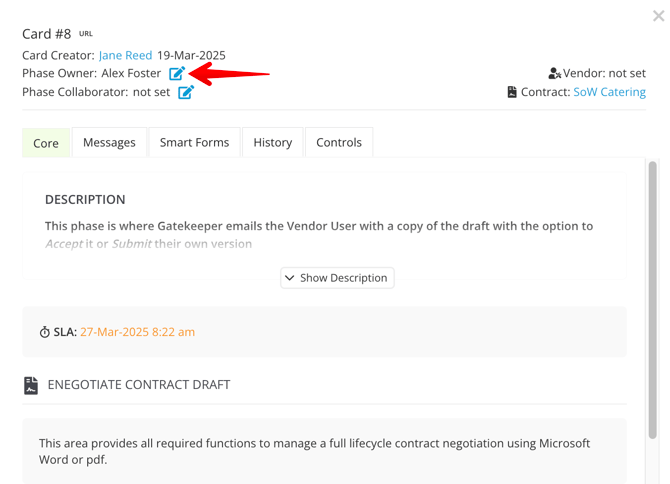
- Select from the Users, Workflow Groups, and/or Teams dropdown lists. You can assign multiple items, including a mix of types (e.g. one user and one team).
- Click Update to save your changes.