
 Estimated Read Time: 6 Minutes
Sections in this article:
What is Cloning a Contract?
Cloning creates a new contract record using data from an existing one, and automatically sets up a relationship between the two. This is useful when generating a renewal or amendment from an existing contract. Contracts can be cloned directly in the Vault, or as part of a workflow.
What's Copied When You Clone a Contract
| In the Vault | Via a Manual Workflow Action | Via a Workflow AutoAction | |
| Relationship to the original | Set to Linked | Can be configured to Linked, Parent, or Child | Can be configured to Linked, Parent, or Child |
| Archive the original contract | Not available, must be archived separately | Can be configured to archive the original instantly, upon the end date, or not at all | Can be configured to archive the original instantly, upon the end date, or not at all |
| Core and custom data fields | All fields are copied, except sensitive custom data, which is only copied if the user cloning the contract has permission to view them. | All fields are copied | Only fields that exist on the workflow form are cloned. For each one, you can choose to copy the value from the original contract, or use a default value instead |
| Contract dates (e.g. start/end date) | All dates are copied | All dates are copied | All dates are copied |
| Attached files | Attached files are not copied | Attached files are copied | Attached files are not copied |
| Owners | All owner types are copied | All owner types are copied | You can configure which owner types are copied, and which use a default value |
Clone a Contract in the Vault
To clone a contract in the Vault:
- From the navigation menu, expand the Vault, then click Contracts.
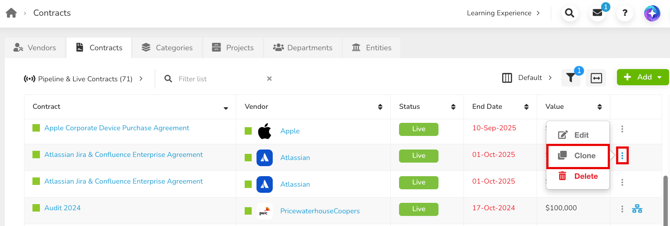
- Expand the 3 dots for the relevant contract, then select Clone.
- Click OK to confirm.
- Update the prepopulated fields as required. Click Save & Next to move between sections, and click Save & Exit once you're done.
Clone a Contract via a Workflow
Gatekeeper can clone a contract as part of a workflow using the manual Clone Contract action, or an AutoAction. Cloning events are recorded on the workflow card's History tab.
Note: A contract cannot be cloned if:
- it has been archived
- it was created earlier within the same workflow
Manual Clone Contract
To configure the manual Clone Contract action on a workflow:
- Navigate to the workflow and click the relevant phase to edit it.
- Click Actions, then select the Clone Contract checkbox to enable the action.
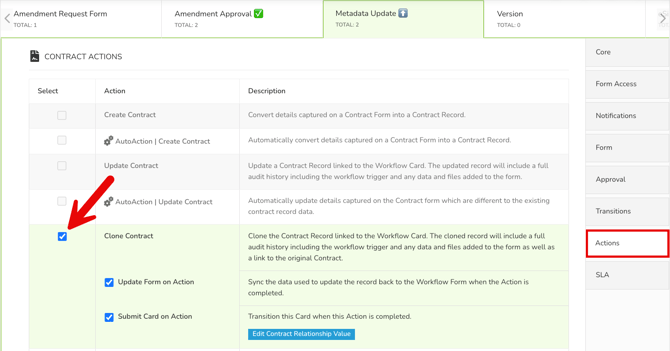
- Select the Update Form on Action and Submit Card on Action checkboxes if required.
- Click Edit Contract Relationships.
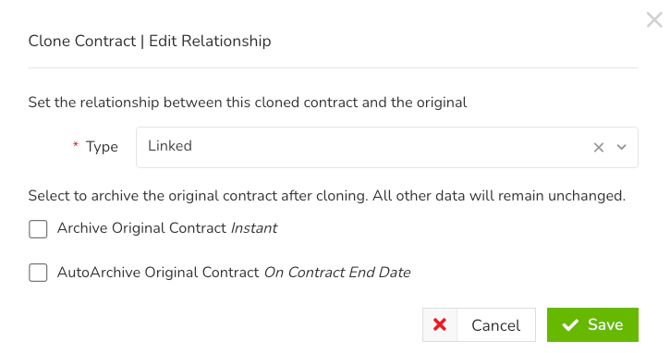
- Select the relationship type for the new contract. For example, if you select Child, the newly created contract will be the child of the original contract.
- Select one of the AutoArchive Original Contract checkboxes, if required:
- Instant archives the original as soon as the new contract is created.
- On Contract End Date archives the original automatically once it reaches its end date.
- Click Save.
Once enabled, users can clone a contract when cards land on this phase. To do this:
- Open the workflow card and click Clone Contract.
- Review the table showing the original contract's data, the data submitted on the workflow form, and the new contract being created. The new contract fields are prepopulated from the original contract, but any field can be edited manually.

- Click Create.
Clone Contract AutoAction
To configure the Clone Contract AutoAction on a workflow:
- Navigate to the workflow and click the relevant phase to edit it.
- Click Actions, then select the AutoAction | Clone Contract checkbox to enable it.
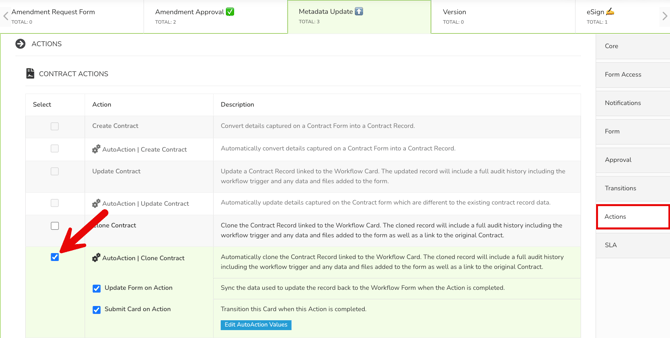
- Select the Update Form on Action and Submit Card on Action checkboxes if required.
- Click Edit AutoAction Values.
- For each field, decide how it should be cloned:
- Leave the checkbox selected to copy the value from the original contract. If you also enter a value, this is used as a fallback whenever the original contract's field is blank.
- Deselect the checkbox to stop the value being copied from the original contract. Enter a value here to always use that on the clone instead, or leave it blank to leave the field empty.
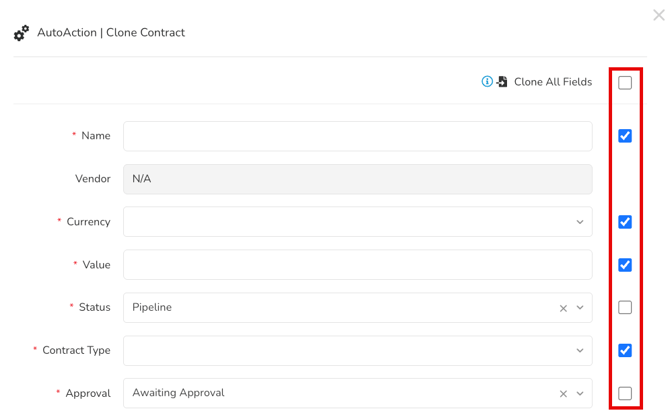
- Scroll to the bottom to select the relationship type for the new contract.
- Select one of the AutoArchive Original Contract checkboxes, if required:
- Instant archives the original as soon as the new contract is created.
- On Contract End Date archives the original automatically once it reaches its end date.
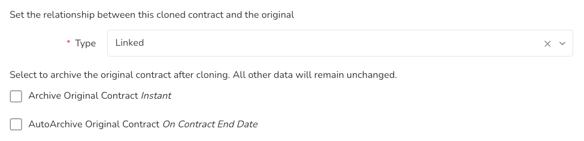
- Click Save.
Once enabled, the AutoAction runs automatically when a card lands on this phase and clones the contract.
FAQs