
 Estimated Read Time: 4 Minutes
Sections in this article:
- What Is the Gatekeeper MCP?
- Your Gatekeeper MCP URL
- Connect Gatekeeper to Claude
- Connect Gatekeeper to ChatGPT
- FAQs
What Is the Gatekeeper MCP?
The Gatekeeper MCP (Model Context Protocol) allows you to access and manage your Gatekeeper data directly through AI tools and other applications that support MCP. Once connected, you can work with your contracts, vendors, and more without leaving the tool you're working in. The Gatekeeper MCP is compatible with any application that supports MCP server connections, for example, Claude and ChatGPT.
Access is based on your Gatekeeper role and permissions. This means users can only see and do what they'd normally have access to in Gatekeeper.
Note:
-
The Gatekeeper MCP is only available on selected plans. Contact your Account Director for more information.
- The Gatekeeper MCP is compatible with any application that supports MCP server connections. For specific instructions, refer to that application's own documentation.
What Can You Do with the Gatekeeper MCP?
With the Gatekeeper MCP you can:
- Find, update, or create contract and vendor records
- List the details of files associated with contracts and vendors
- View workflows, and create or find individual workflow cards
- Create saved views
- Browse categories, entities and teams
For example, you could use Claude to:
- Pull renewal dates and vendor details from Gatekeeper while building a deck ahead of a vendor review meeting.
- Build a contract report for your CFO using live Gatekeeper data.
- Identify all contracts with missing end dates and create a saved view to return to later.
Expand the following section for a full list of available tools:
Your Gatekeeper MCP URL
Your MCP URL is based on the region your Gatekeeper tenant is hosted in. It follows the same pattern as your login URL, with /mcp added to the end:
- If EU: https://eu.gatekeeperhq.com/mcp
- If US: https://us.gatekeeperhq.com/mcp
- If APAC: https://apac.gatekeeperhq.com/mcp
- If Canada: https://ca.gatekeeperhq.com/mcp
Connect Gatekeeper to Claude
Follow the steps below to connect Gatekeeper to Claude using the MCP. The setup process differs slightly depending on your Claude plan:
Team and Enterprise
On Team and Enterprise plans, an owner must add the connector at organisation level before individual users can connect:
- In Claude, navigate to Settings, then click Organisation settings.
- Click Connectors, then click Add.
- Hover over Custom, then select Web.
- Paste your region-specific Gatekeeper MCP URL, then click Add.
After these steps are complete, each user can connect to the Gatekeeper MCP:
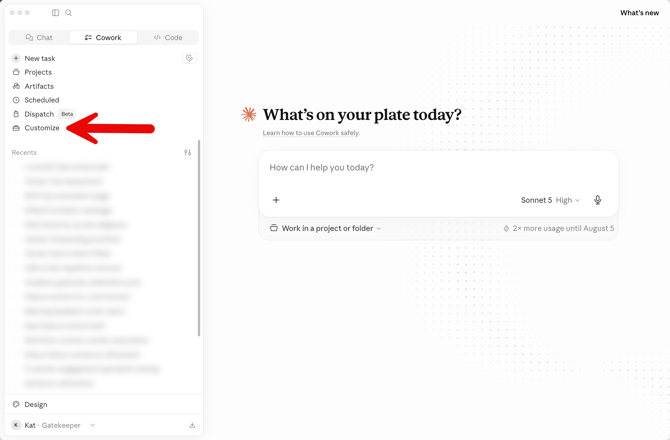
- In Claude, click Customize from the navigation panel.
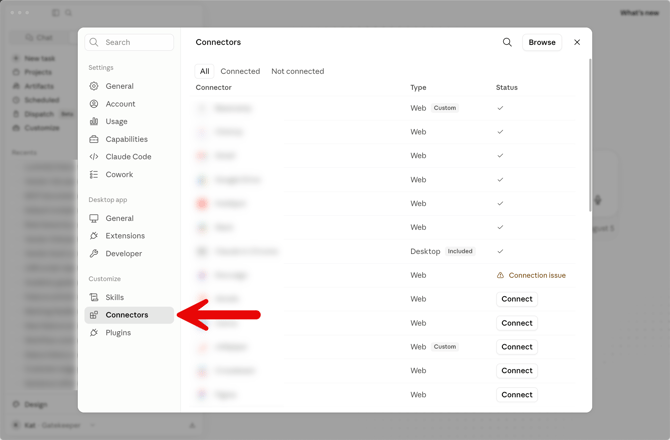
- Click Connectors, then find the Gatekeeper connector in the list and click Connect.
- If prompted, sign in with your Gatekeeper credentials, then select your tenant from the list if you have access to more than one.
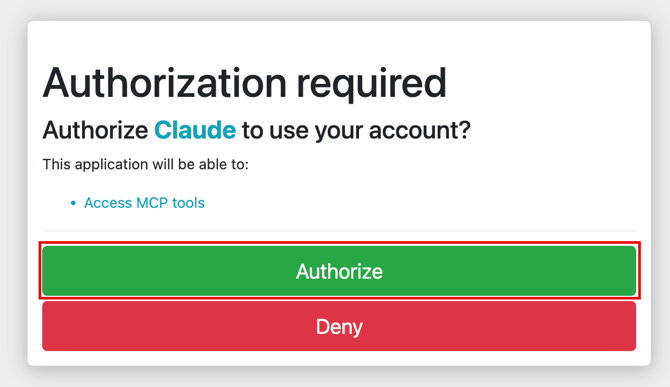
- Click Authorize.
Pro and Max
On Pro and Max plans, each user adds and connects the connector themselves:
- In Claude, navigate to Customize, then click Connectors.
- Click the plus + icon, then click Add custom connector.
- Paste your region-specific Gatekeeper MCP URL, then click Add.
- Click Connect and sign in with your Gatekeeper credentials when prompted.
- If you have access to more than one tenant, select the relevant one from the list, then click Authorize.
Once Gatekeeper has connected to Claude successfully, users can manage the tool permissions.
Connect Gatekeeper to ChatGPT
Follow the steps below to connect Gatekeeper to ChatGPT using the MCP:
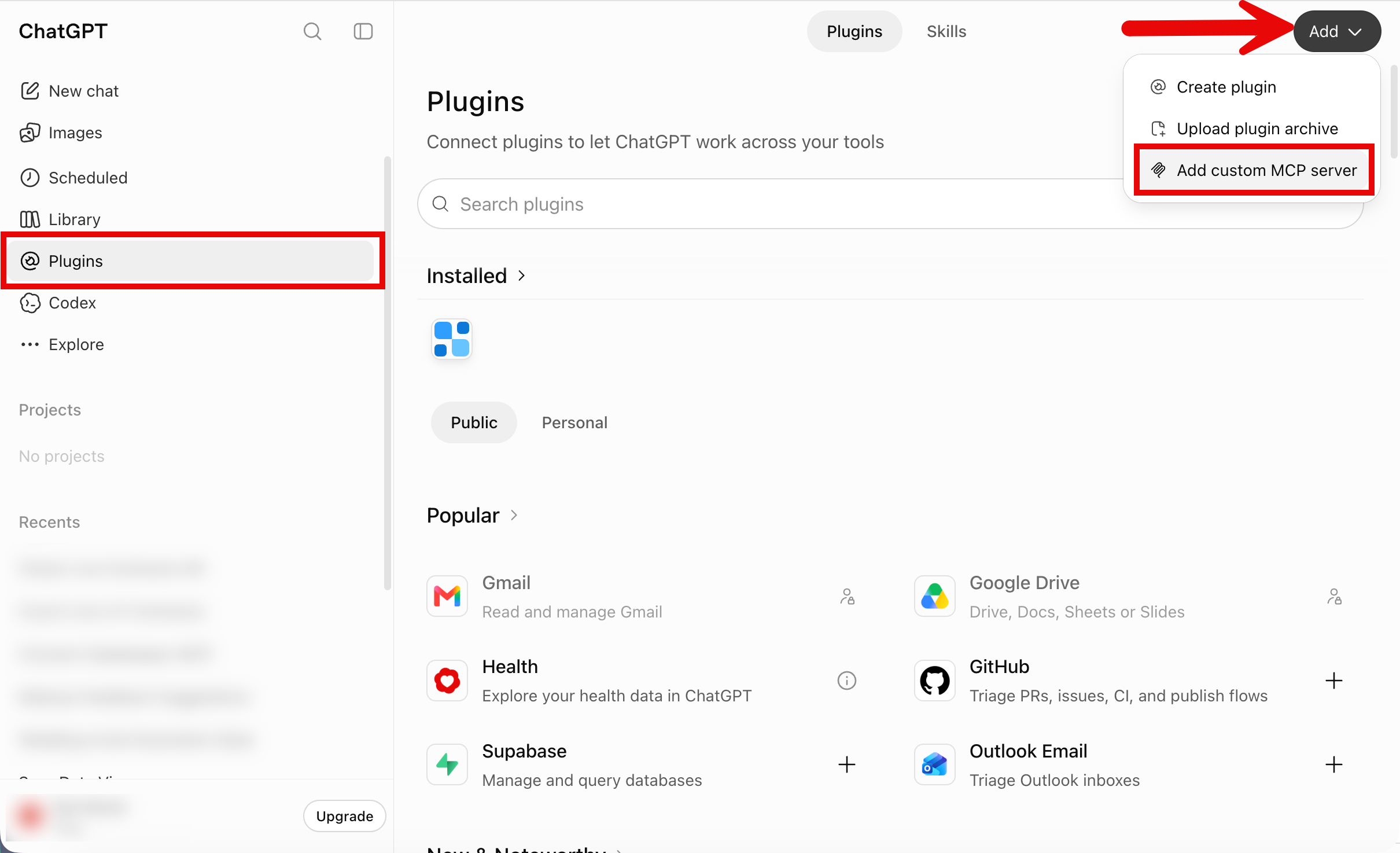
- In ChatGPT, go to Plugins.
- Click Add, then select Add custom MCP server.
- Enter a name and, if needed, a description.
- Under Connection, enter your region-specific Gatekeeper MCP URL.
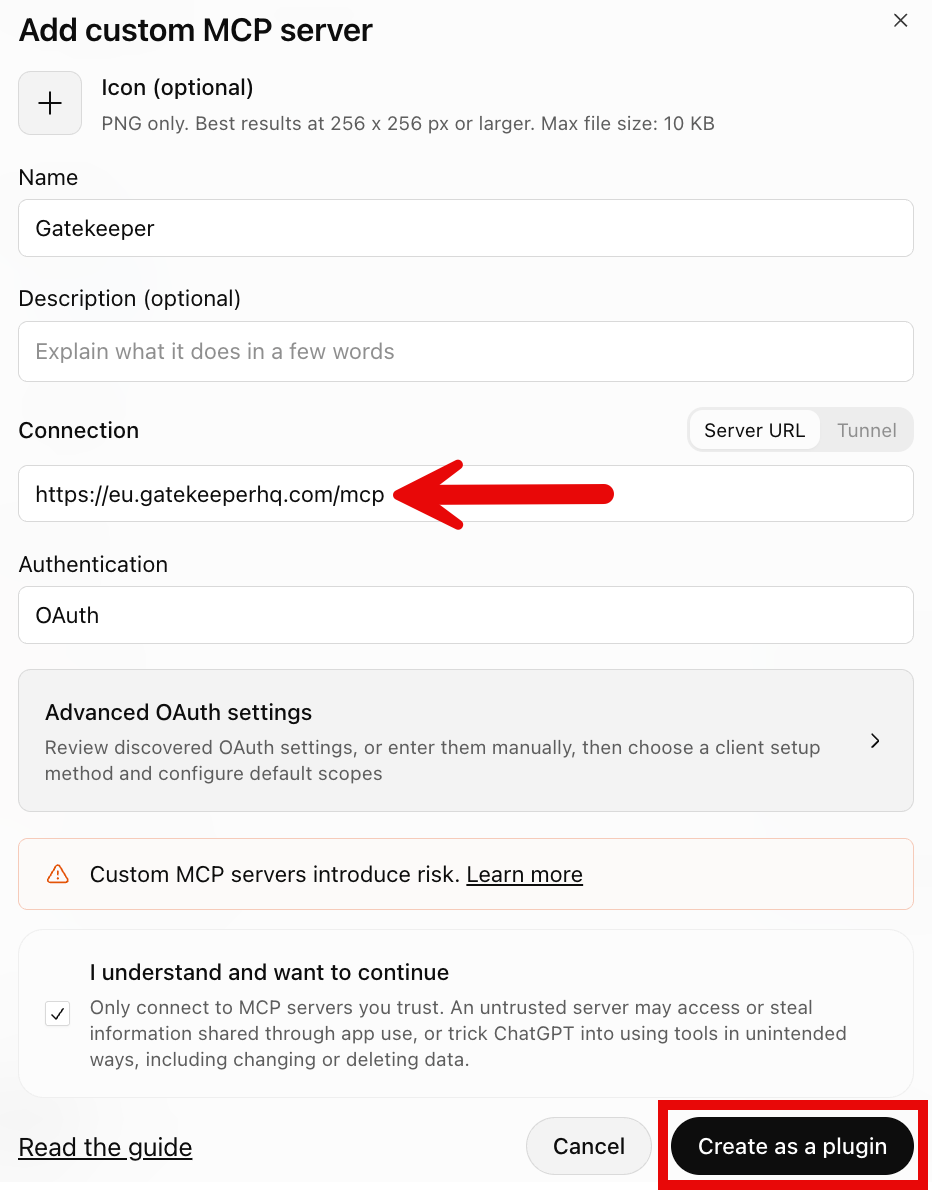
- Select the I understand and want to continue checkbox, then click Create as a plugin.
- If prompted, sign in with your Gatekeeper credentials, then select your tenant from the list if you have access to more than one.
- Click Authorize.
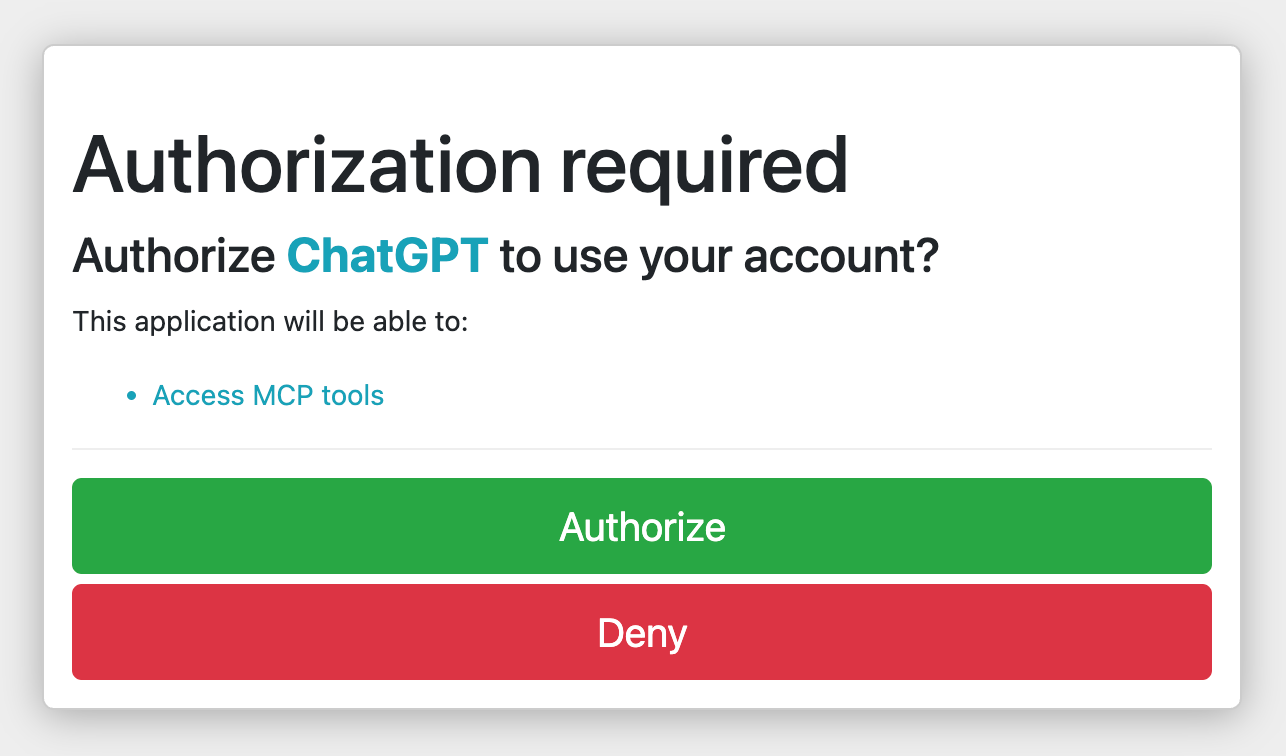
Once Gatekeeper has connected to ChatGPT successfully, users can manage the tool permissions.
FAQs