
 Estimated Read Time: 3 minutes
Sections in this article:
Introduction
You can create workflow groups and assign users to them; this is typically used when a certain group of users are involved in the workflow.
Workflow groups can then be used for:
- Workflow Notifications: users within the group can be automatically notified that the card has entered the phase, or receive reminders at set intervals if it remains there.
- Workflow Phase Ownership: only users within the group can access cards on the phase they are assigned ownership of. For example, they might be responsible for approving contracts in a request workflow.
Create a Workflow Group
To create a workflow group:
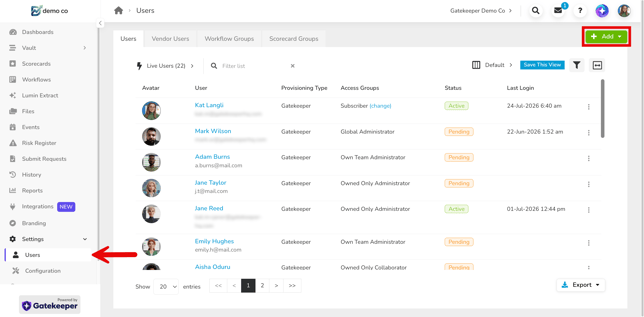
- From the navigation menu, expand Settings, then click Users.
- Click Add, then select Workflow Group.
- Enter a title and, if useful, an optional description, then click Save.
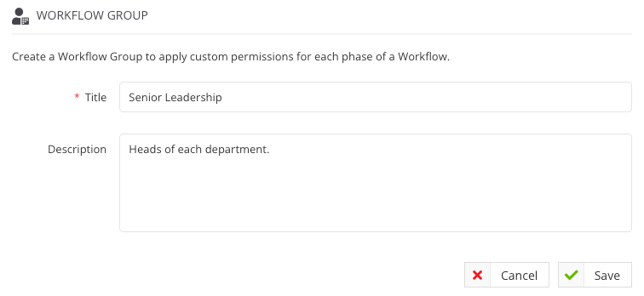
Note: The workflow group title will be used when selecting the group within the workflow configuration, so it is recommended to use a title that's short but meaningful.
Add Users to a Workflow Group
If the required users are not already added in Gatekeeper, create them manually or via Bulk Import first.
To add existing users to a workflow group:
- From the navigation menu, expand Settings, click Users.
- Click the Workflow Groups tab, then click the name of the relevant workflow group.
- Click Add Member, then select the relevant user and click Save.
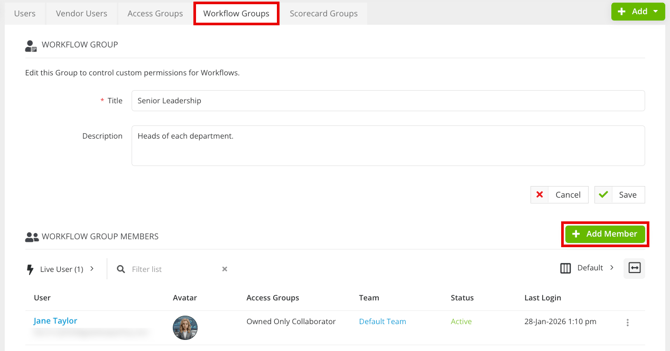
- Repeat step 3 for all users required.
From this page, you can also rename the workflow group, or remove users by clicking the 3 dots and selecting Remove user.
You can also assign a user to a workflow group from their individual user profile, or while creating their account. See Add a User or Edit Existing Users for details.
Delete a Workflow Group
If a workflow group was created for testing purposes or is no longer needed, you can remove it from Gatekeeper:
- From the navigation menu, expand Settings, then click Users.
- Click the Workflow Groups tab.
- Expand the 3 dots on the relevant workflow group, then select Delete.

- Click OK to confirm the deletion.
Note: This process cannot be reversed.
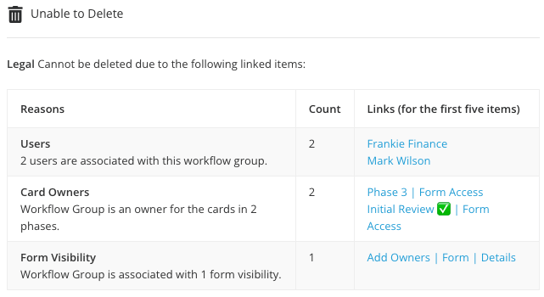
If a workflow group is associated with other items in Gatekeeper, for example users or workflow form settings, you won’t be able to delete it. A table will list the associated items, and you can click their names to navigate directly to the relevant area.
FAQs