
Sections in this article:
What is the Gatekeeper Add-in?
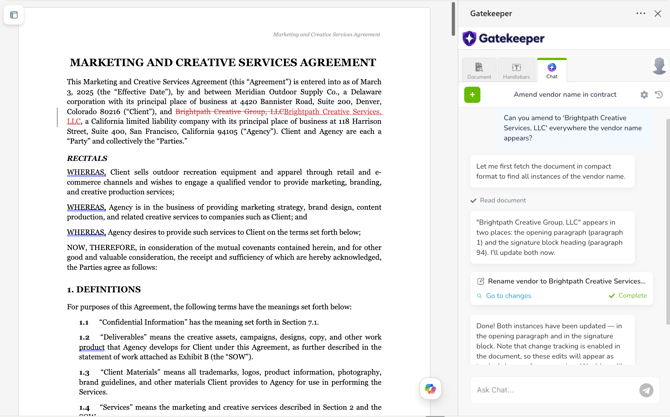
The Gatekeeper Add-in is a panel available on the right-hand side of the Word window when editing documents via OneDrive or Office for the Web. It provides access to Gatekeeper contract information, document tools, and AI-powered assistance without leaving Word.
To install the add-in, follow Microsoft's instructions for Office Add-ins and search for Gatekeeper.
The add-in opens automatically when you open a file directly from Gatekeeper. It contains three tabs: Document, Handlebars, and Chat.
The Document Tab
The Document tab displays the Gatekeeper record linked to the open file, including the contract/vendor name and owner.
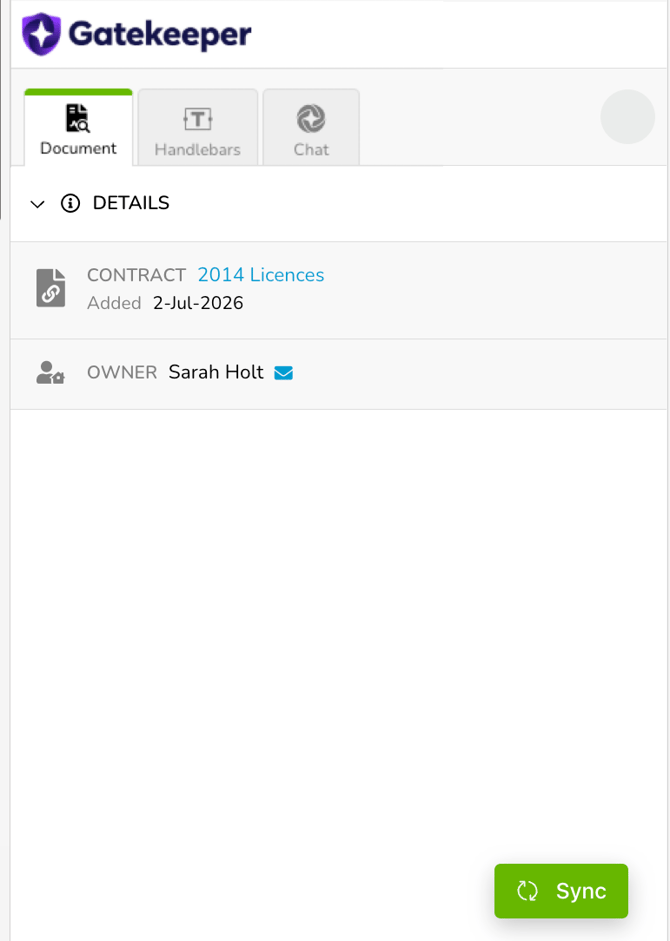
From here, you can save your changes back to Gatekeeper to create a new version in the file's version history. To learn more about how changes are synced back to Gatekeeper, see the OneDrive and OFTW articles.
The Handlebars Tab
The Handlebars tab provides a library of eNegotiate handlebars that can be inserted into the document.
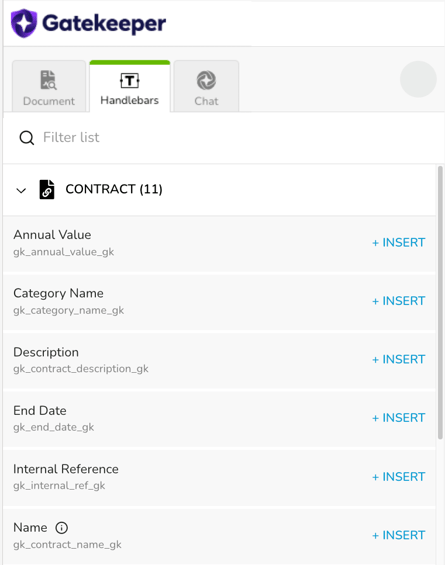
These allow you to pull data from Gatekeeper to automatically populate eNegotiate templates. When a contract draft is generated, Gatekeeper replaces the handlebars with relevant data and clauses.
To insert a handlebar:
- Click the Handlebars tab.
- Use the Filter list field to search for a specific field, or expand a category to browse.
- Click + Insert next to a field to add it at your cursor position.
To learn more about eNegotiate handlebars, see Configure Contract Templates.
The Chat Tab
Note: The Chat tab is only available when editing documents via OneDrive.
The Chat tab is an AI chat built into your document, allowing you to ask questions about the open contract, and make edits to the document. Additionally, when connected to the Gatekeeper MCP, it can read your wider contract and vendor data and write changes back to records, all without leaving the page.
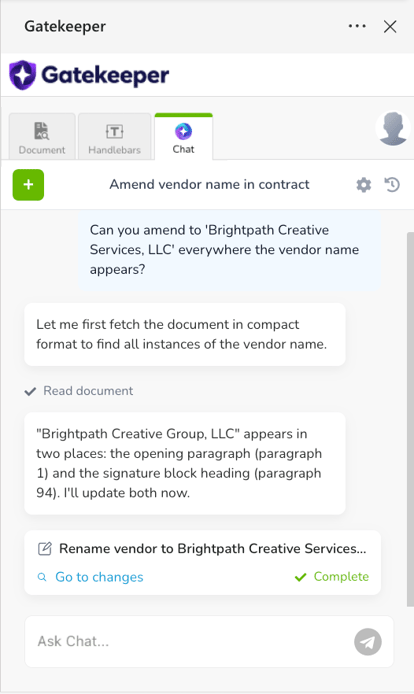
For example, you could ask:
- "Summarise the key commercial terms of this contract."
- "When does this contract expire and what is the notice period for termination?"
- "Does this agreement include a liability cap, and if so, what is it?"
- "Replace every instance of [Party Name] with [New Name]."
- "Update the contract value in Gatekeeper to £75,000."
To ask a question, type into the Ask Chat... box, then press enter or click the Send  icon. To start a new conversation, click the plus + icon. The current conversation then moves to your chat history. Your conversations and chat history are private and only visible to you.
Note: By default, Gatekeeper Chat can read the open document and the details of its linked Gatekeeper contract record. Connect to the Gatekeeper MCP to give Gatekeeper Chat access all records you have permissions to view across the tenant, and to write changes back without leaving the document.
Edit Your Document with Gatekeeper Chat
Gatekeeper Chat can make edits to the document on your behalf, for example, swapping out a party name everywhere it appears, updating a notice period, or amending specific clauses.
To change how edits are applied, click the settings cog  icon.
icon.
There are three options:
- Changes Disabled: Gatekeeper Chat can read and summarise the document but will not apply any edits. This is the default setting in a browser.
- Add-in managed: Gatekeeper Chat proposes edits in the panel for you to accept or reject, and enforces Word's built-in tracked changes to be on. This is the default setting in the Word desktop app.
- User managed: Gatekeeper Chat applies edits directly to the document. You can utilise Word's built-in tracked changes functionality alongside this if required.
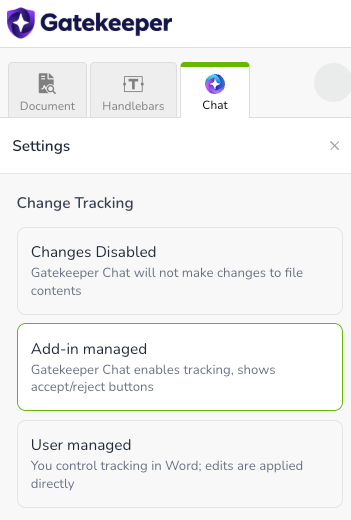
Note: Your Change Tracking settings are saved to your account and apply across all documents. They are personal to you, and do not affect how the add-in behaves for other users.
Connect to Gatekeeper
When connected to your Gatekeeper account, Gatekeeper Chat can read data from across your tenant and write changes back to contract and vendor records without you leaving the document. For example, you could ask Gatekeeper Chat to pull up the payment terms from a related agreement, or to update the vendor name to reflect a correction.
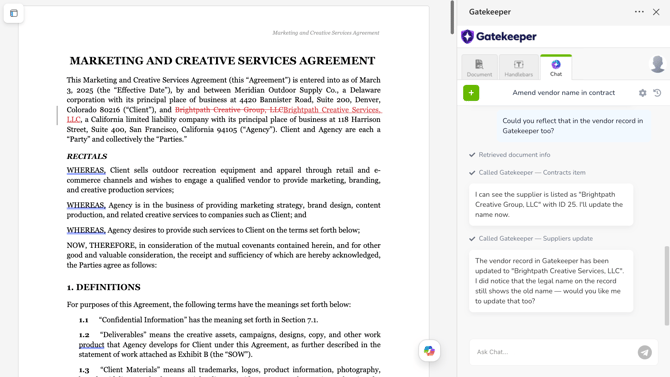
Note: Gatekeeper Chat respects your existing permissions, and can only view and/or amend records you have access to.
To connect to your Gatekeeper tenant:
-
Click the settings cog
icon. -
Scroll to Integrations, then click Connect.
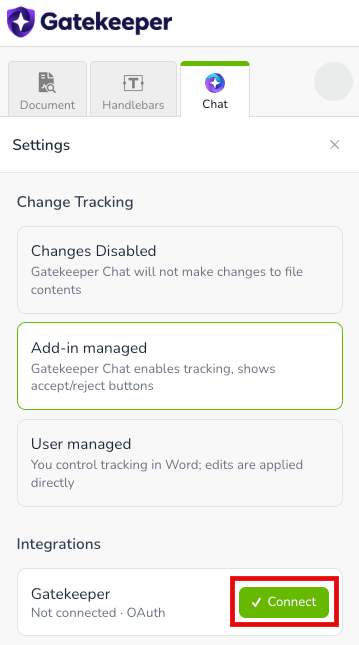
- If you have access to more than one tenant, select the relevant one from the list, then click Authorize.
Note: The connection uses the Gatekeeper MCP, which is only available on selected plans. When you connect, all available tools are enabled. For further details, see the Gatekeeper MCP article.