
 Estimated Read Time: 8 Minutes
Sections in this article:
- What is a Gatekeeper Agent?
- How Do Gatekeeper Agents Work?
- Browse the Agent Library
- Deploy an Agent to a Workflow
- Review Agent Activity
- Delete an Agent
- FAQs
What is a Gatekeeper Agent?
Gatekeeper Agents automate the work across vendor and contract relationships, from due diligence and contract review to evidence collection, compliance monitoring and supplier performance, helping organisations strengthen compliance, accelerate contracting and drive savings while staying audit-ready.
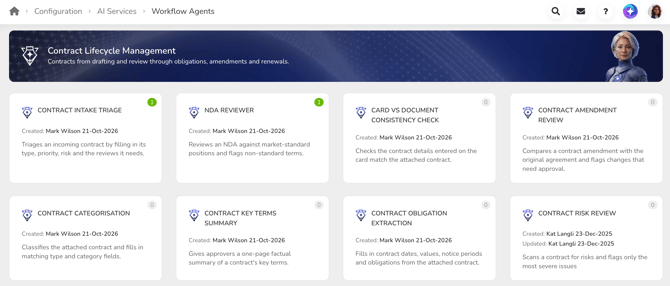
Each Gatekeeper Agent performs a different role within a workflow, for example:
- A SOC 2 Report Reviewer that checks a vendor's SOC 2 report is current and flags any exceptions or qualifications, then produces a summary and recommendation.
- A Vendor Risk Tiering agent that assesses information like the data access level and business criticality captured on the form, and fills in the risk tier field without any manual classification.
-
An Invoice Validator that checks submitted invoices against contract payment terms and makes an autonomous approve or reject decision.
When a workflow card enters a phase owned by a Gatekeeper Agent, it gets to work automatically and acts according to its instructions.
Your tenant includes a library of ready-made agents for common tasks like these, so there's nothing to build before you start. If you need something the library doesn't cover, custom agents can be built around your organisation's unique process and requirements.
Note: For more details about custom agents, get in touch with your Account Director.
To learn how to deploy a Gatekeeper Agent, watch the video below:
How Do Gatekeeper Agents Work?
Gatekeeper Agents automate tasks within a workflow by reading and analysing the data available at a defined phase, then acting on it according to their configured capability and instructions.
What Can Agents Assess?
Agents can review data on a workflow form, including associated files, when carrying out their task. They can read and take into account:
- Conflicts and contradictions. For example, identify that a contract is marked as Standard but contains custom clauses in an attached document, flagging the discrepancy or correcting the classification field.
- Complex numerical thresholds. For example, reject contract requests where the total value exceeds £100,000, unless flagged as executive-sponsored.
- Responses validated in context. For example, approve only if the contract type matches the entity's policy preferences, such as enforcing MSAs for enterprise deals.
- Date information. For example, flag requests with a start date in the past, or populate an end date field based on a contract's stated start date and term length.
- Form completion and file uploads. For example, identify missing mandatory fields or absent document uploads.
What Can Agents Do?
Each agent has one of the following capabilities, which determines what it does when a card enters its phase:
- Approval: The agent reviews the submitted data and decides whether to approve or reject the workflow card, without requiring human involvement. This helps automate decision-making and reduce manual effort.

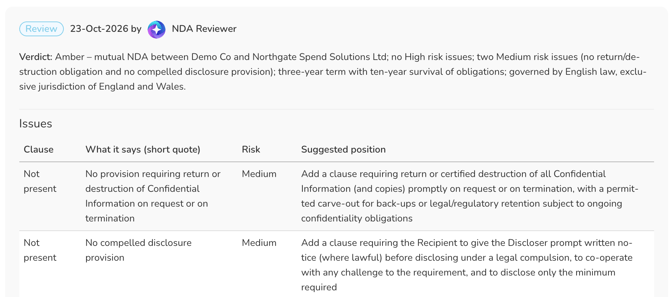
- Review: The agent assesses a workflow card and produces a summary or recommendation, but does not make a final decision. A human reviewer retains authority to approve or reject based on the agent's output.
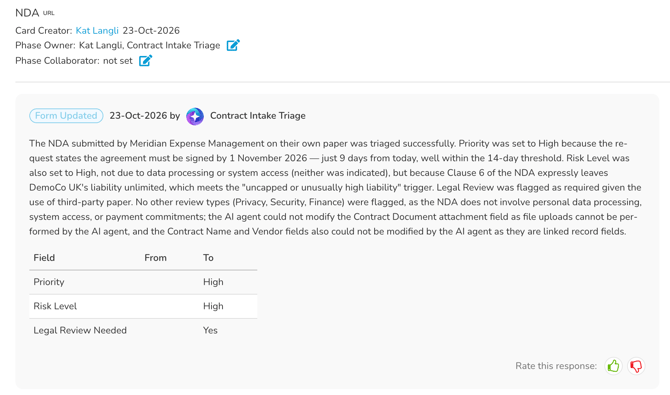
- Form Update: The agent automatically populates workflow form fields when a card enters its phase. The agent reads available context (including any uploaded documents and existing field data) and updates fields according to its instructions.
Where Do Agents Fit into a Workflow?
Agents can be added to workflows in different ways, depending on whether they’re guiding the process or making decisions:
- Human-in-the-loop:
- An Approval agent can work alongside users in the same phase as a parallel approver, or independently before or after a user in a separate phase.
- A Review agent can evaluate the data and provide guidance, but leave the approve/reject decision to a user.
- A Form Update agent can automatically populate form fields, but does not submit the card. A user must review the output and manually submit the card to progress it.
- Fully autonomous: An Approval agent can make an approve/reject decision entirely on its own, without human input.
Browse the Agent Library
Note: Users must be a Global Administrator with the Configuration additonal permission to view the agent library.
To browse the agents available in your tenant:
- From the navigation menu, expand Settings, then click Configuration.
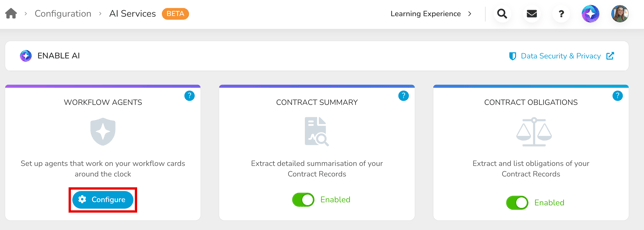
- Click AI Services, then click Configure on the Workflow Agents tile.
This lists every agent in your tenant, including the ready-made Gatekeeper Agents and any custom agents already built for you. Agents deployed to a workflow phase appear first.
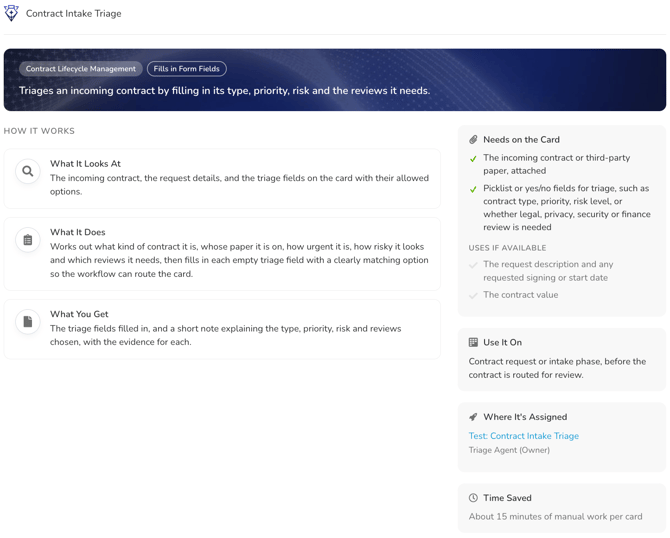
Click on a tile to display what the agent does, what it needs to work, which phase suits it best, what it checks, and what you get back.
Deploy an Agent to a Workflow
Note: Users must be a Workflow Administrator or Local Workflow Administrator to deploy an agent on a workflow.
An agent only starts working once it’s assigned to a workflow phase. It then acts on every card that enters that phase.
Before you assign an agent, check what it needs and make sure the workflow form includes it. For example:
- if the agent reviews contract data fields like the annual value, ensure the predefined contract section is already added to the workflow form.
- if the agent checks for a document such as a SOC 2 report, make sure there is a file upload field for users to upload this.
-
if the agent updates specific fields, make sure those fields aren’t read only or hidden on the phase.
To assign an agent to a workflow phase:
- Navigate to the relevant workflow and click to edit the phase the agent should work on.
- From Form Access, select the relevant agent from the AI Agents field.
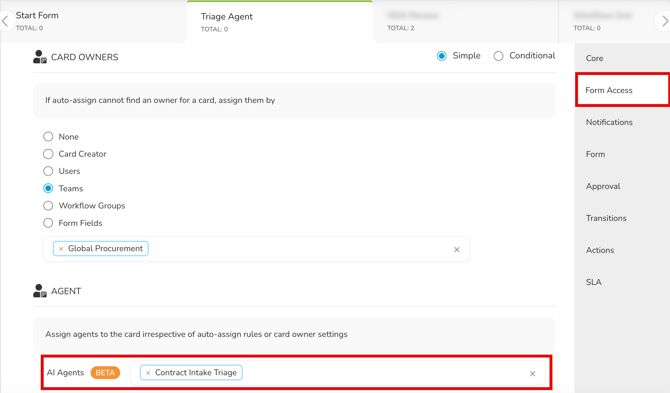
Agents are assigned regardless of the auto-assign rules and card owner settings, so you can also set a card owner to act as the human in the loop. For further details on assigning card owners, see Configure Workflow Phase Access and Ownership.
Note: The number of agents you can deploy varies by plan, and each phase an agent is assigned to counts as one. Once you reach your limit, an error appears and you'll need to speak to your Account Director to deploy more.
Review Agent Activity
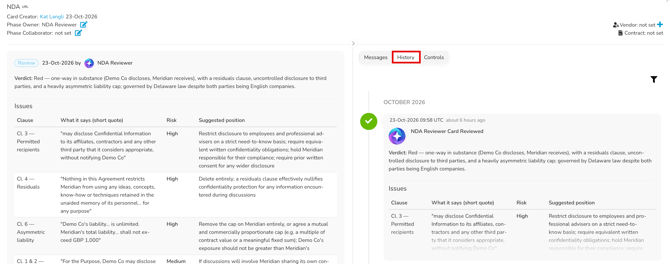
After an agent has completed a task, open the relevant workflow card to view a detailed account of the output. You'll see an entry with the Gatekeeper AI icon  , and an explanation of how it arrived at its output, whether that is an approve or reject decision, a recommendation or summary, or a record of the fields it updated and why.
This is also recorded in the History tab of the workflow card, so the output is always available for reference, even after the card has moved to another phase.
Delete an Agent
You can delete an agent from your library if you no longer need it. Deleting an agent is permanent, so check you won't need it again before you start.
- From the navigation menu, expand Settings, then click Configuration.
- Click AI Services, then click Configure on the Workflow Agents tile.
- Click on the agent you want to delete.
- Click Delete, then click OK to confirm.
Note: You cannot delete an agent that's assigned to a workflow phase.
FAQs