
 Estimated Read Time: 8 Minutes
Sections in this article:
Note: Users require the Global Administrator role with the Users additional permission to create and edit other users. See User Role and Permission Definitions for further information.
Rather than adding or updating user accounts one by one, bulk import allows you to manage this data at scale using a spreadsheet. Once your file has been uploaded, you can review and edit the data directly within the import screen, correcting errors, updating values, and removing rows without having to amend your file and restart the process. Watch the video below for a demonstration:
When updating existing users, it's recommended to export your data first. This ensures each row includes the user's Gatekeeper ID, which is required to match records correctly rather than create duplicates.
Note: Although it's recommended to bulk import using the provided template or a Gatekeeper export, this is not mandatory. Gatekeeper will automatically suggest matches for your column headers on import, so any file with mappable headers can be used.
Create New Users in Bulk
To add users via bulk import:
- From the navigation menu, expand Settings, then click Users.
- Click Add, then select Bulk Import Users.
- Click Excel template or CSV template to download a blank version of the import template.
.png?width=670&height=191&name=bulk%20import%20risk%20(download%20template).png)
- Populate the file with the relevant data, ensuring all mandatory fields are completed. Refer to the Field Mapping Guide tab for detailed instructions and guidance specific to your tenant configuration.
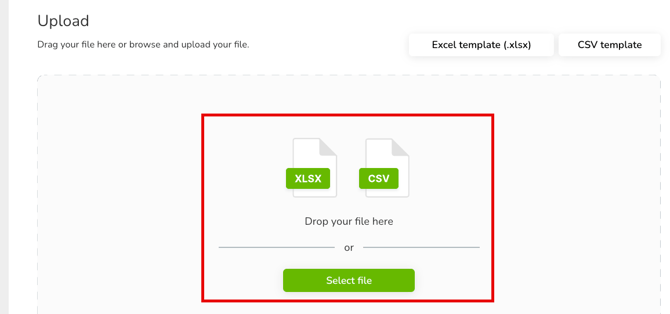
- Return to Gatekeeper and drag and drop the file into the upload area, or click Select file to locate it on your device.
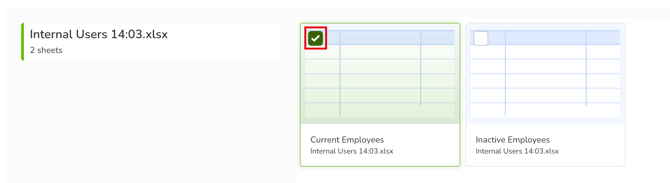
- If you have uploaded a file with multiple sheets, select the checkbox for the relevant sheet, then click Continue. Files with only one sheet will skip this step automatically.
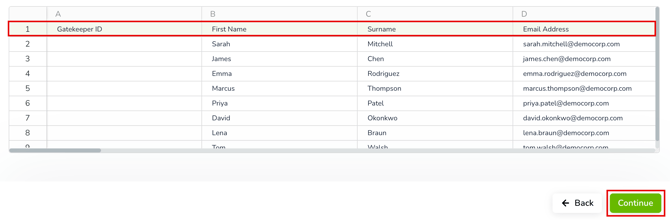
- Confirm the row in your spreadsheet that contains the column headers by selecting it, then click Continue.
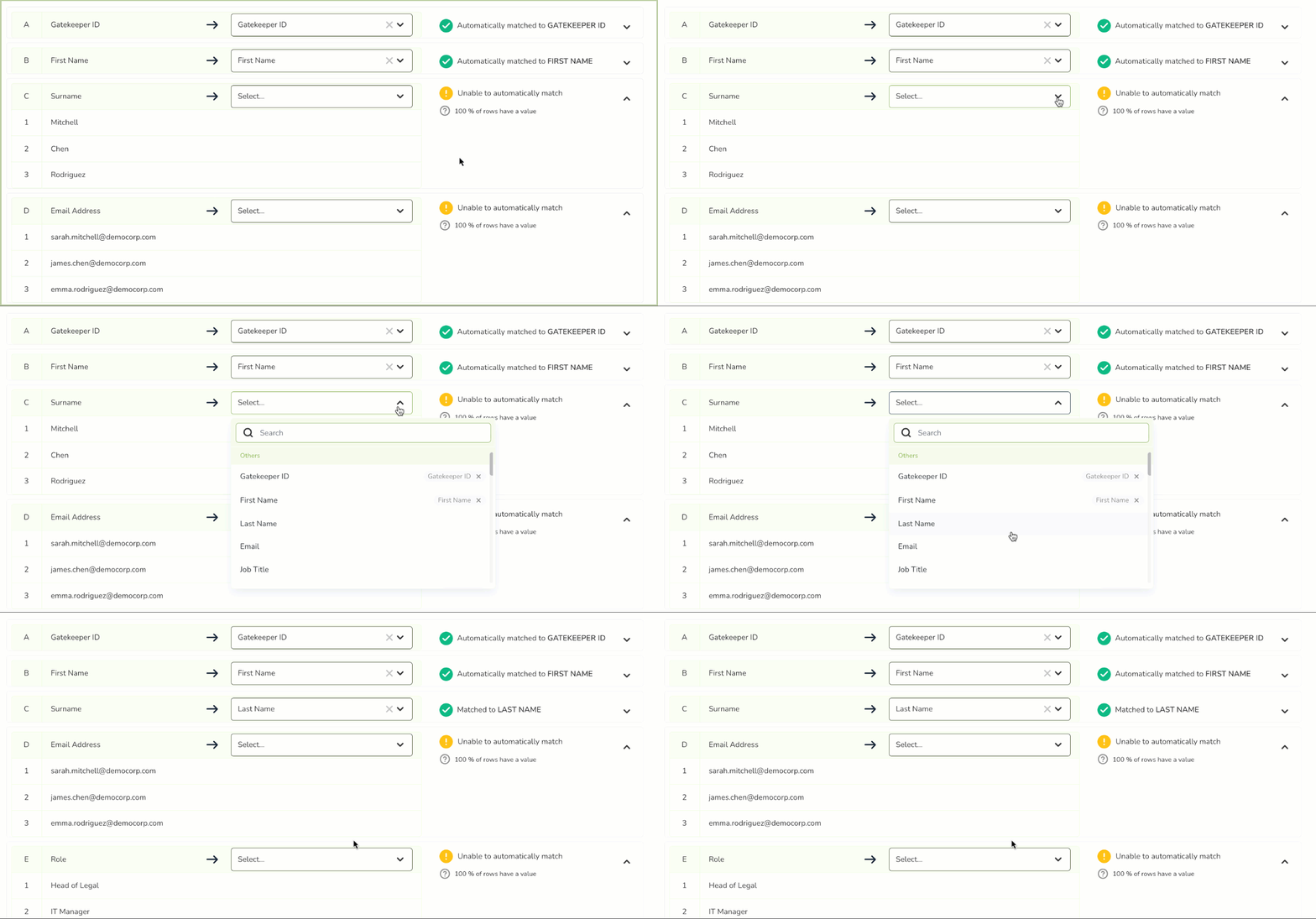
- Gatekeeper will automatically suggest matches for your spreadsheet columns and values to the corresponding fields and values in your tenant. Review the suggested matches and update any using the dropdown lists as required.
- Click the cross icon for any data you do not wish to import, then once finished, click Confirm.

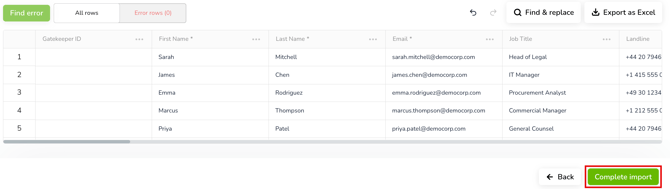
- Review the data before importing. Any errors will be highlighted. To amend the data:
- Click Find Error to navigate to the affected cell, or use the toggle to view only rows with errors.
- Hover over a highlighted cell to view an error message.
- Correct errors in-line, or use Find and Replace to correct multiple errors at once.
- To remove a row from the import, select the row and click Delete.
- Once all errors have been resolved and the data is ready, click Complete import.
- Click Import rows to finalise the import.
Note: To import successfully, either the Predefined Access Group or Custom Access Groups field must be populated.
Bulk Update Existing Users
To edit existing users via bulk import, it's recommended to first export the current data from Gatekeeper. This ensures each row includes the Gatekeeper ID, which is required to update existing records rather than create new ones. To do this:
- From the navigation menu, expand Settings, then click Users.
- Click Export, then select the relevant export option.
- CSV | All Pages: The entire user list, regardless of the page you are viewing.
- CSV | Current Page: Only users within the current page that you are viewing.
- CSV | This View | All Data: The entire user list, with any filters and additional columns applied.
- CSV | This View | Current Page: Only users within the current page, with any filters and additional columns applied.
- Amend the relevant rows in the exported file. Do not edit the Gatekeeper ID column, as this is used to match each row to its existing record.
- Return to the Users list in Gatekeeper.
- Click Add, then select Bulk Import - Users.
- Drag and drop the file into the upload area, or click Select file to locate it on your device.
- If you have uploaded a file with multiple sheets, select the checkbox for the relevant sheet, then click Continue. Files with only one sheet will skip this step automatically.
- Confirm the row in your spreadsheet that contains the column headers by selecting it, then click Continue.
- Gatekeeper will automatically suggest matches for your spreadsheet columns and values to the corresponding fields and values in your tenant. Review the suggested matches and update any using the dropdown lists as required.
- Click the cross icon for any data you do not wish to import, then once finished, click Confirm.
- Review the data before importing. Any errors will be highlighted. To amend the data:
- Click Find Error to navigate to the affected cell, or use the toggle to view only rows with errors.
- Hover over a highlighted cell to view an error message.
- Correct errors in-line, or use Find and Replace to correct multiple errors at once.
- To remove a row from the import, select the row and click Delete.
- Once all errors have been resolved and the data is ready, click Complete import.
- Click Import rows to finalise the import.
Note:
-
It is not possible to revoke user access in bulk. This needs to be performed on a user-by-user basis. See Dealing with Leavers and Movers for further information.
- To import successfully, either the Predefined Access Group or Custom Access Groups field must be populated.
- When populating the Invite into Gatekeeper? column, be aware of the status of your users, as a user with a status of Revoked will be re-invited to Gatekeeper.
- A blank cell clears that field and will overwrite the existing data.