
 Estimated Read Time: 4 Minutes
Sections in this article:
- Manual Invitations
- Vendor Self Registration
- Add Colleagues as a Vendor User
- Workflows
- Vendor User Invitation and Activation
The Vendor Portal is a vendor management solution that allows you to collaborate with your vendors in a secure online environment. This article describes how Gatekeeper users can invite a vendor user to the Vendor Portal.
Note: If multiple vendor users are added to a record, and all of them require access to workflow forms, ensure that All Vendor Users is selected from the Form Access section of the relevant workflow phase configuration.
Manual Invitations
If you already have a vendor record and want to add a new user for them, you can do this manually:
- From the navigation menu, expand the Vault and click Vendors.
- Locate the vendor record and click to open it.
- Click Add, then select Vendor User.
- Enter the mandatory fields:
- First Name
- Last Name
- Email (Administrators cannot edit email addresses after a user is created, so ensure this is correct before saving.)
- Role
- Administrator: This role allows vendor users to manage access to the Vendor Portal for colleagues in their organisation. They can add new users and revoke access for existing users.
- Collaborator: This role allows vendor users to collaborate on workflow forms and events when they are assigned directly, or when the item is assigned to All Vendor Users.
- Populate the optional fields as required:
- Job Title - this is useful to populate if you wish to send documents for eSign
- Landline
- Mobile
- Profile Picture
- To allow the user to log in to the Vendor Portal, select the Invite into Gatekeeper checkbox.
- If you are not ready to invite the user to the Vendor Portal yet, leave this checkbox unselected and click Save. You can then edit this user at a later date and invite them.
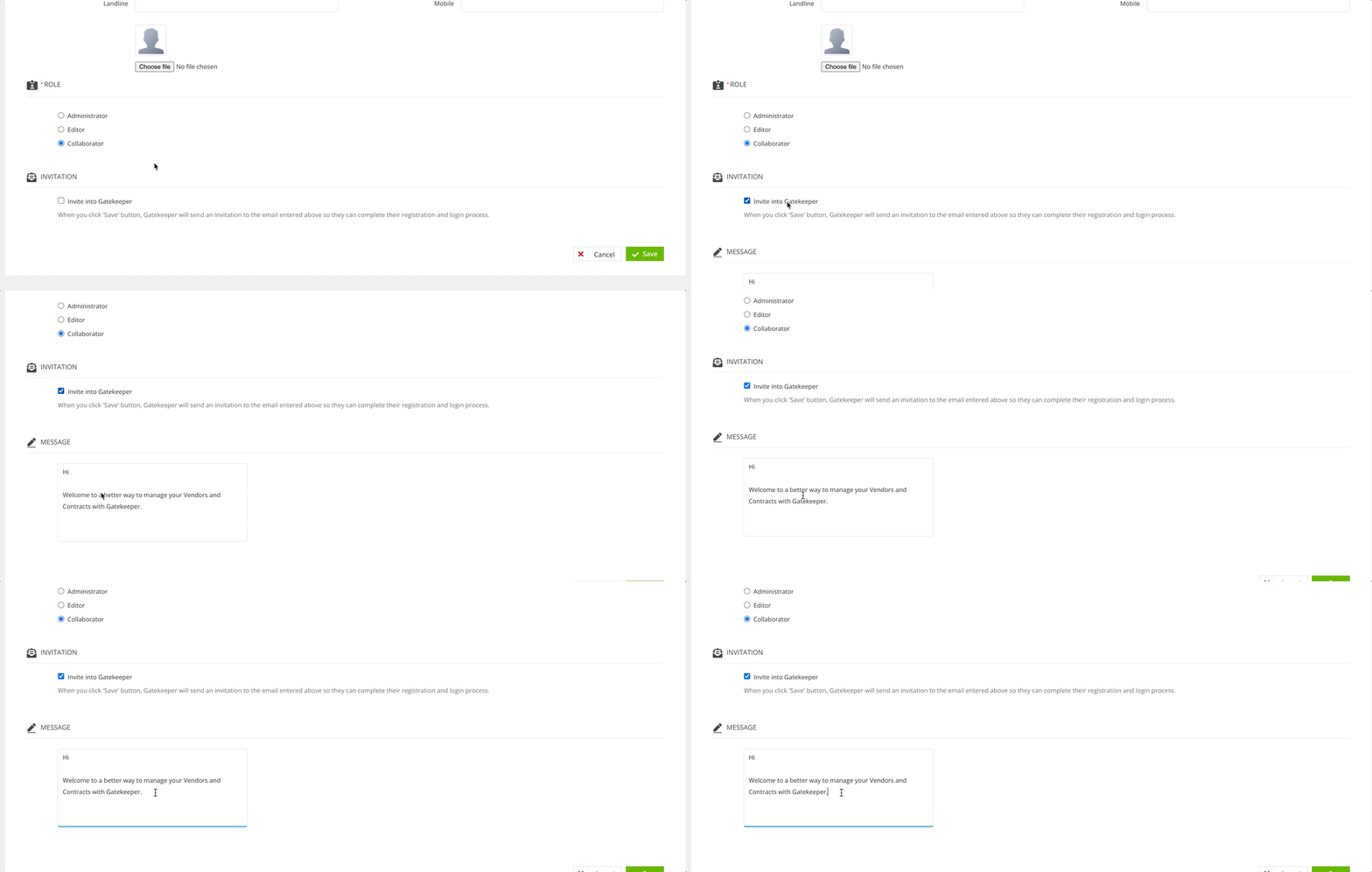
- If you are not ready to invite the user to the Vendor Portal yet, leave this checkbox unselected and click Save. You can then edit this user at a later date and invite them.
- Edit the message that will be sent to the user within their invitation email. Note: The default message text can be customised, see Configuring the Vendor Portal for further details.
- Click Save to send this invitation to the user.
This will change their status to Pending until they have accepted the invitation. Once they accept and log in, their status will be updated to Active.
💡 Tip: You can use this invitation action to trigger a workflow process. Once the vendor user accepts their invitation, the trigger will fire, creating a workflow card for them to complete. For further details, see Configuring Workflow Triggers.
Vendor Self Registration
You can enable self-registration to allow vendor users to create their own accounts if they are not yet set up as a vendor in your Gatekeeper tenant. See Configuring the Vendor Portal for further details on enabling this option.
You can then share the Vendor Portal link with users, where they can click Register, in turn creating a user profile and new vendor record.
💡 Tip: You can use this Self Registration action to trigger a workflow process. Once the vendor user completes the registration form, the trigger will fire, creating a workflow card for them to continue the rest of your onboarding process. For further details, see Configuring Workflow Triggers.
Touchless Contracts
Touchless Contract Workflows Forms are not designed for inviting vendor users to the vendor portal, however they allow vendors to self-register their own company record and user profile.
This functionality is primarily designed for generating and eSigning contracts, rather than vendor-oriented processes.
By default, vendors will not be automatically invited to the Vendor Portal upon registration—unless a workflow is configured to send an automatic invitation.
Add Colleagues as a Vendor User
If a vendor user has been granted the Administrator role, they can add other users to the portal themselves by clicking Add Contacts within their Vendor Portal. See Using the Vendor Portal for further details.
Workflows
For adding users within a workflow form, see Adding Vendor Users on a Workflow.
Vendor User Invitation and Activation
Once invited, the vendor user receives an email containing your configured message. They must click Activate Account to open a Gatekeeper page where they can set their password.
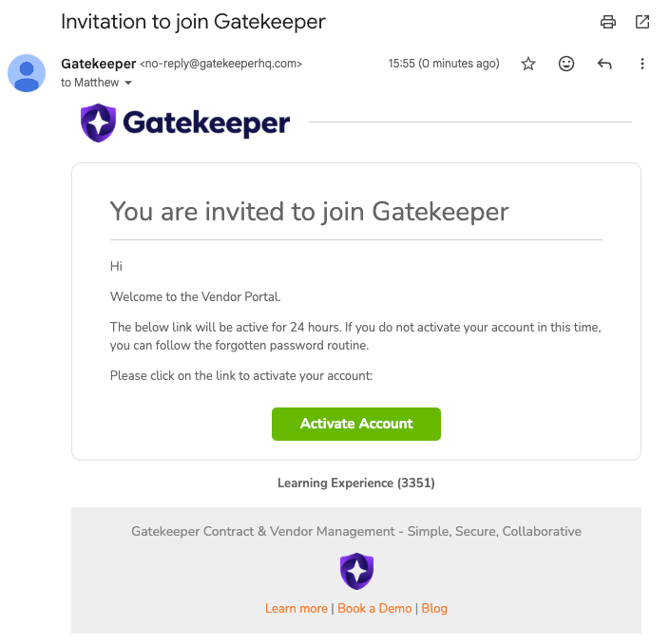
Once the account is activated, the internal Gatekeeper user who created the account will receive a notification email advising that the vendor user has accepted the invitation.
The vendor user can now log in to the Vendor Portal.
Additional Reading
The following articles contain details of other vendor interactions outside the Vendor Portal.
- See Configure eNegotiate to see how you can involve vendor users in your contract drafting processes.
- See eSigning a Document and Delegating eSign for information on how vendors can interact via Gatekeeper's eSign solution.
- See Bulk Import Vendor Users for details on adding multiple vendor users in bulk.