
 Estimated Read Time: 3 Minutes
Sections in this article:
Note: Gatekeeper Chat must be enabled in your tenant before it is available to users. See Configure AI Services for step-by-step instructions.
What is Gatekeeper Chat?
Gatekeeper Chat is an AI-powered tool that lets you query and analyse your contract and vendor data using plain language questions. Rather than building filters or saved views manually, you can ask questions directly and receive answers drawn from the Vault in real time.
Use Gatekeeper Chat
To get started, click the Gatekeeper Chat  icon, next to your profile in the top right-hand corner of Gatekeeper. The chat opens within the same browser tab. Type your question into the message field, then press Enter or click the Send
  icon.
icon.

For example, you could ask things like:
- "How many vendors are currently awaiting approval?"
- "Which contract records don't have a master record assigned?"
- "Which team has the most overdue contracts?"
Where a response references specific records, these will appear as clickable links. Click a contract/vendor name to open that record's detail page in a new tab.
Note: Gatekeeper Chat respects your existing permissions, and will only return records you have access to.
Gatekeeper Chat can also create saved views for contracts based on your query, that you can then easily access in your Vault list view.
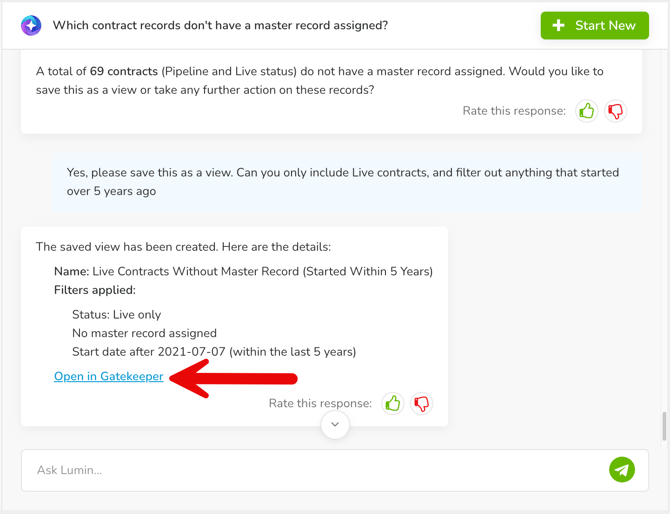
Expand the following section for full details on what you can use Gatekeeper Chat for:
View Your Chat History
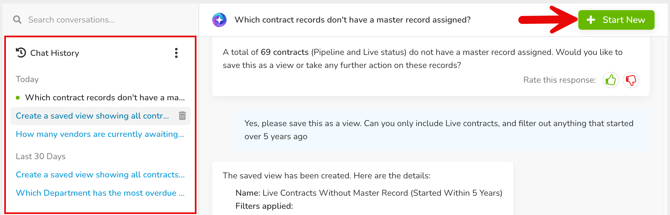
Access your previous conversations from the Chat History panel on the left. Click any conversation to reopen and continue it. To delete a conversation, hover over it and click the Delete  icon.
icon.
To start a fresh conversation, click Start New. Your current conversation moves to the Chat History panel, where you can reopen it at any time.
Note: Your conversations and chat history are private and only visible to you.