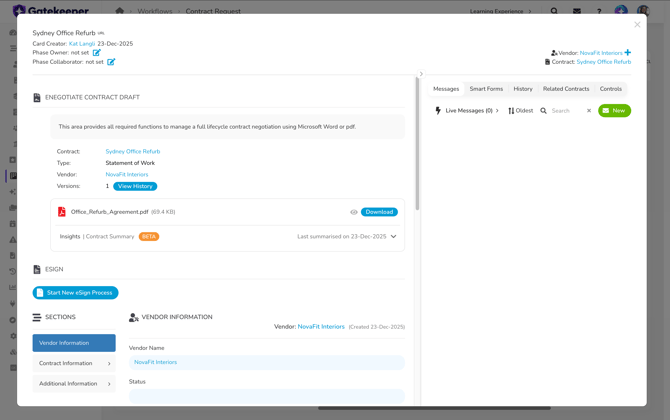
Available from 7th November, this release introduces the Agent Library. For the first time, you can browse Gatekeeper's ready-made agents in your tenant, see what each one does and needs, and put the right ones to work in your workflows yourself. Alongside it, Gatekeeper Agents can now fill in Custom Tables, administrators can choose which internal owners vendors see, and Custom Tables come to your list views.
Key Highlights
- The Agent Library is here. Browse Gatekeeper's ready-made agents across vendor risk and compliance, contract lifecycle management, and vendor performance and savings, then assign the right ones to your workflow phases yourself.
- Add Custom Tables as columns in your list views, so you can see at a glance how many rows each record holds and open the table without leaving the list.
- Gatekeeper Agents can now fill in Custom Tables, adding and updating on a workflow card from card data, attachments, and websites.
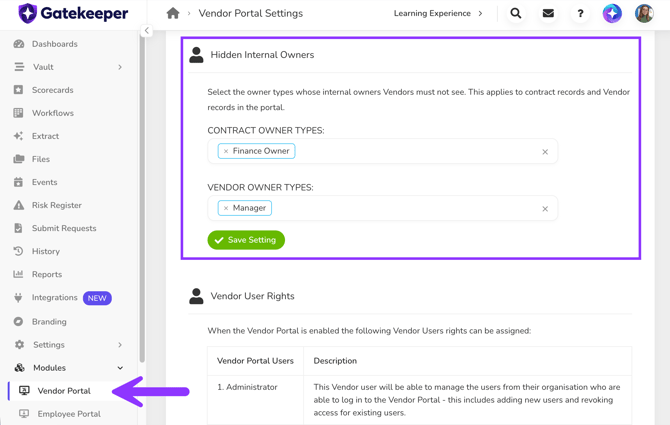
- Choose which internal owners vendors can see on contract and vendor records in the Vendor Portal.
- The Clone Contract AutoAction now uses what's entered on the workflow card, so automatic and manual clones produce the same contract.
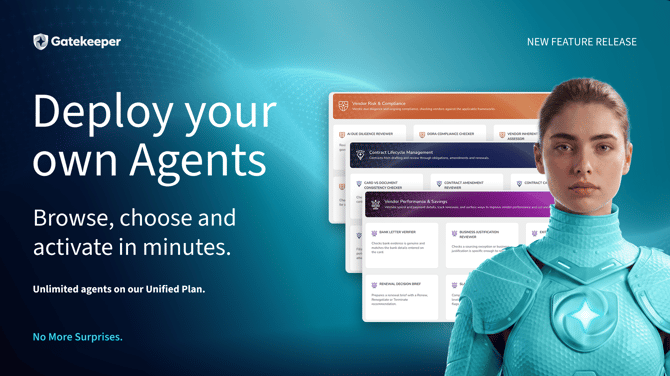
Gatekeeper Agents
Introducing the Agent Library
The Agent Library is now in your Gatekeeper tenant. You can browse every agent available to you, see what each one checks, what it needs, and which phase suits it best, then assign it to a workflow phase without waiting for anyone to set it up. Agents take on the routine checks, such as reviewing vendor documents or filling in risk tiers and key dates, so your team can spend its time on the exceptions that need judgement. Every agent action is recorded with the evidence behind it, and your team still decides what happens next.
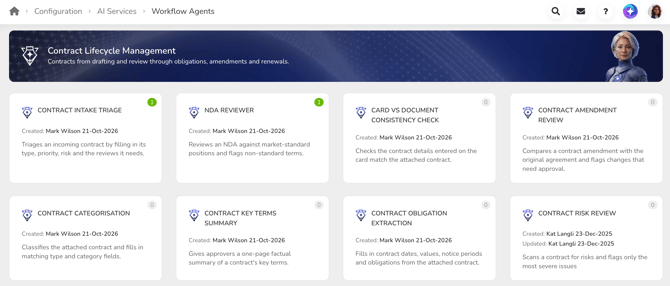
Read the full Agent Library release notes.
Custom Tables
Add Custom Tables as columns in your list views
Checking Custom Tables used to mean opening each contract or vendor record one at a time. You can now add Custom Tables as columns in your Contract and Vendor list views through Configure Columns, with each cell showing how many rows that record's table holds. Select the count to open the table in a pop-up without leaving the list, so you can spot missing or incomplete data at a glance. Vendor tables can also be added to the Contract list view.
See it in action:
Gatekeeper Agents can now fill in Custom Tables
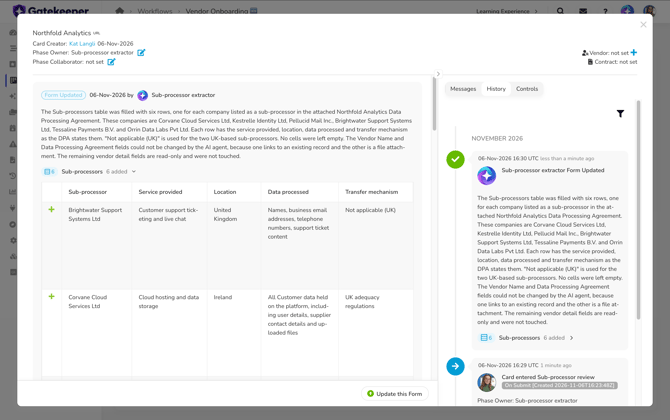
Custom Tables hold the detail that doesn't fit in a single field, such as line items, locations or certifications, and now Gatekeeper Agents can fill them in for you. Form-filling agents can add rows in Custom Tables on a workflow card, using information from the card, including the contract and vendor records, attachments, and websites. They only fill what a source clearly states, leaving a field empty rather than guessing, and they respect field types and permissions. Every change is recorded in the agent's reasoning and on the card's History tab.
Contact your Account Director to configure this as part of your agents today.
Vendor Portal
Choose which internal owners vendors can see
Owners on contract and vendor records carry more than a name, including email, job title and phone numbers, and not every owner should be visible to your vendors. Administrators can now choose, for each internal owner type, whether vendor users see it on contract and vendor records in the Vendor Portal. Hiding an owner type hides that owner's name and contact details from vendors, while your internal users see everything as before. Every owner type stays visible until you change it, so nothing changes for your vendors by default.
Workflows
The Clone Contract AutoAction now uses workflow form data
Renewals and amendments usually come with changes, such as new dates, a new value or a new owner. The Clone Contract AutoAction now takes field values from the workflow card's form, using the original contract only for fields that aren't on the form, so those changes land on the clone without manual fixes. Automatic and manual clones from the same card now produce the same contract. If a form field is often left blank, it will now arrive blank on the clone, so remove it from the form or set a fallback in the AutoAction settings to keep the original value.
Forms visible straight away on eNegotiate and eSign phases
The Show Form button on eNegotiate and eSign phases has been removed, so form fields now appear as soon as you open a card on these phases. That's one less click between you and the information you need. Editing, validation and conditional logic all work as before.