Available from 19th September 2026, this release introduces new workflow permissions and contract context, easier dashboard reporting and Saved View sharing, alongside usability improvements and updated naming for Gatekeeper's AI features.
Key Highlights
- LuminIQ features are being renamed under the Gatekeeper brand, reflecting how our AI has always worked: built into the platform, not separate from it. Functionality and access remain unchanged.
- A more consistent look and feel across Gatekeeper, with refined corners and shadows, consistent button styles, and clearer, more accessible form inputs.
- Contract relationships, right on the workflow card: see a contract's parents, children, and linked agreements directly on the card, without detouring to the repository.
- A new local access tier for workflows: the Local Workflow Cards Manager can manage a board's cards day-to-day without being able to change the board's configuration.
- Share Saved Views with individual users or teams, so everyone can work from the same standardised filters and columns.
- Preview custom dashboard widgets before you save them, so you can see exactly how a widget will look as you build it.
- Export individual custom dashboard widgets straight to PDF, ready to use in presentations and reports.
Gatekeeper’s AI has a new name
Gatekeeper’s AI has always been built into the platform, working from the unified vendor, contract and risk data already held within it. It is not a separate product, so we’re updating its name to reflect that.
From this release, our AI capabilities will sit under the Gatekeeper brand. You’ll see LuminIQ and Lumin replaced by Gatekeeper or by clear descriptions of what each feature does.
This is a naming and visual change only. The features work in the same way, and you don’t need to take any action or relearn how to use them. The icons, avatars and page links you already use will remain in the same places.
The following names are changing:
|
Feature |
Updated naming |
|---|---|
|
LuminIQ settings |
AI Services |
|
LuminIQ Agents |
|
|
Lumin Chat |
|
|
Lumin Enrich |
|
|
Lumin Extract |
|
|
Lumin Insights |
Insights. Within this, the Contract Summary and Contract Obligations remain the same, with no change to naming. |
|
Buttons and labels |
Gatekeeper Agents may simply appear as Agents. |
|
LuminIQ Savings Report |
AI Savings Report. Within this, LuminIQ Time is now Agent Time. |
These updated names reflect what has always been true: AI is built into Gatekeeper, not separate from it. The capabilities and experience you rely on remain unchanged.
Read the story behind Gatekeeper’s new brand here: Our Brand Story.
Visual Updates
A more consistent look and feel across Gatekeeper
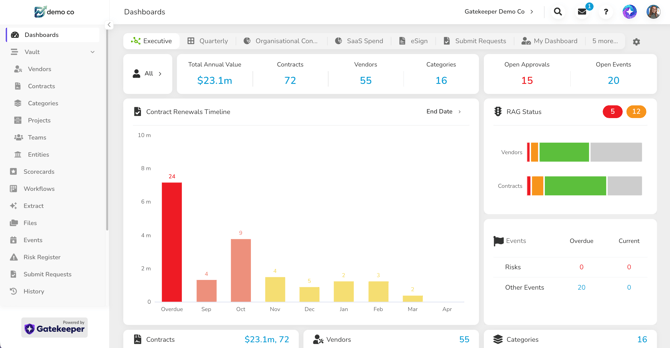
We've made a number of visual improvements across Gatekeeper, bringing greater consistency to buttons, forms, menus and other areas of the platform.
There’s nothing new to learn or configure. You’ll simply notice a cleaner, more consistent experience as you use Gatekeeper.
Workflows
Contract relationships, right on the workflow card
Why it matters: Contract relationships provide important context when reviewing amendments, renewals, and other contract activity. By bringing this information directly into the workflow card, teams can see how contracts are connected while they work, helping them make informed decisions with the right context at hand.
What's new? Workflow cards now include a Related Contracts tab, showing a visual diagram of every parent, child, and linked contract, alongside a list view of the same information. Reviewers can now explore the wider contract relationship directly from the card.
How it works:
- The diagram colours each contract by its lifecycle status: Live, Pipeline or Archived, while the list shows each contract's RAG health status.
- Contracts approaching or past their end date are flagged in orange or red, while evergreen contracts are clearly labelled.
- The size of the node is linked to the value of the contract.
- Selecting a contract in the diagram highlights the matching row in the list, and vice versa.
- To open another contract, select its name or link icon, so navigating the relationship diagram won't take you away from the card accidentally.
See it in action:
A new local access tier: Local Workflow Cards Manager
Why it matters: Different teams need different levels of control when working with workflows. The new Local Workflow Cards Manager tier gives organisations greater flexibility to delegate day-to-day card management while keeping workflow configuration permissions with the appropriate administrators.
What's new? Local Workflow Cards Manager is a new access tier for anyone who needs to run the day-to-day work on a board without touching its setup — think a team lead or ops coordinator managing card flow, rather than a Workflow Admin configuring the board itself. Users with this access can raise, edit, progress, own and delegate cards at every phase, with no access to change the workflow's configuration.
How it works: Assign the new tier to individuals, teams or workflow groups, just like the existing local roles. Local Workflow Cards Managers can manage cards across every phase of the board, but cannot change phases, triggers, transitions or the board itself.
Where someone holds more than one local access tier on the same board, the most permissive tier applies. Workflow Admins continue to have full configuration access regardless of their local tier.
See it in action:
List Views
Share Saved Views with others
Why it matters: Saved Views make it easy to focus on the information that matters most, using tailored filters and columns. Now, those views can be shared with other users.
What's new? Saved View owners can now share their views with individual users or teams, making it easier to standardise the information different teams see and work from.
How it works:
- Recipients see the shared view in their own Saved Views dropdown, marked with a shared icon, and receive a notification with a direct link to open it.
- Recipients can use the shared view as it is, or click Save This View and select Save New View to create their own editable copy.
- Recipients cannot overwrite the original shared view or remove themselves from it; only the creator can manage the original.
- If the creator updates the shared view later, recipients automatically see the latest version the next time they open it.
See it in action:
Dashboards
Preview widgets before you save them
When building or editing a widget on a Custom Dashboard, you can now preview exactly how it will look before saving it. Use Refresh as you adjust the widget's properties to update the preview, removing the need to repeatedly save a widget just to check the result.
Export individual widgets to PDF
Individual widgets on Custom Dashboards can now be exported directly to PDF from their existing menu. This makes it easier to take a specific chart and use it in a presentation or report.
See both features in action:
Files
Smarter filtering on the Files overview
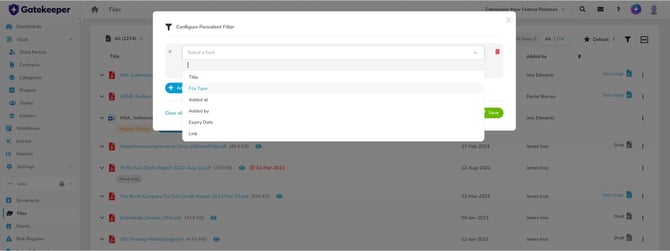
Finding the right file is now easier. We have improved filtering on the Files List View so you can see what matters most to you
You're no longer limited to filtering by “File Type” and “Added by”. Title, Expiry Date, and eSign filters are now supported too, giving you more ways to narrow down your files and find what you need.
Contracts & Third Parties
Child objects now ordered by name
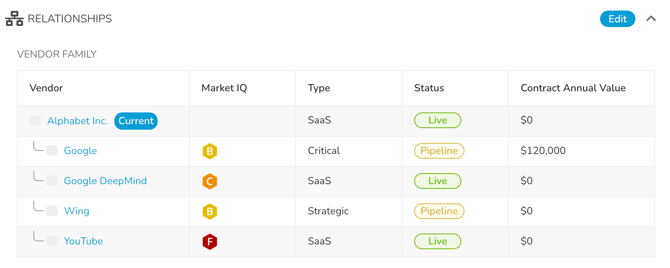
Linked child contracts and third parties are now listed alphanumerically — 0–9, then A–Z
You'll see the new ordering in the Relationships hierarchy and on the Data tab of Contracts and Third Parties, making larger relationship structures quicker and easier to navigate at a glance.
History
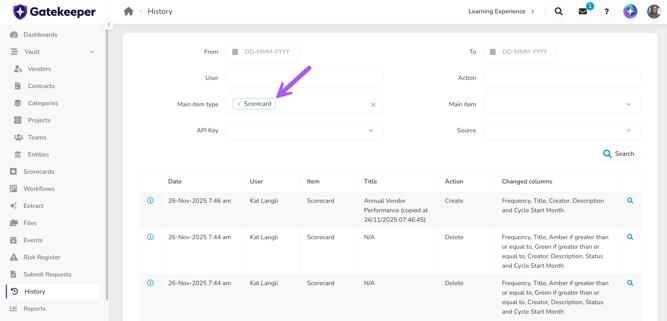
Scorecards now appear as their own item type in Global History
Scorecard activity now appears under its own item type in Global History, alongside its primary dimensions, sub-dimensions, and vendor entries.
This means you can filter specifically for scorecard activity and review relevant changes directly, rather than finding them among unlabelled history entries.