
 Estimated Read Time: 8 Minutes
Sections in this article:
- Overview
- Configure a New Scheduled Delivery
- Manage Scheduled Deliveries
- Transfer Ownership of a Scheduled Delivery
- FAQs
Overview
Scheduled reports allow you to send data from Gatekeeper automatically by email on a recurring basis. Recipients receive up-to-date information without needing to log in or export it manually.
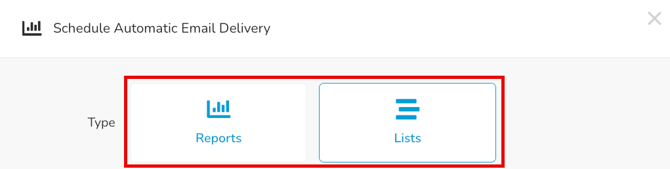
There are two types of data you can schedule for delivery:
- Reports: These are Gatekeeper's built-in reports, found by clicking Reports in the navigation menu. This includes things like Contracts by End Date, New Contracts Added, and Vendors by Value.
- Lists: These are the customised list views you've configured and saved within the Vault. For example, a filtered view of contracts or vendors.
Configure a New Scheduled Delivery
Any user can create a scheduled delivery in Gatekeeper. To do this:
- From the navigation menu, click Reports.
- Click the Scheduled Delivery tab.
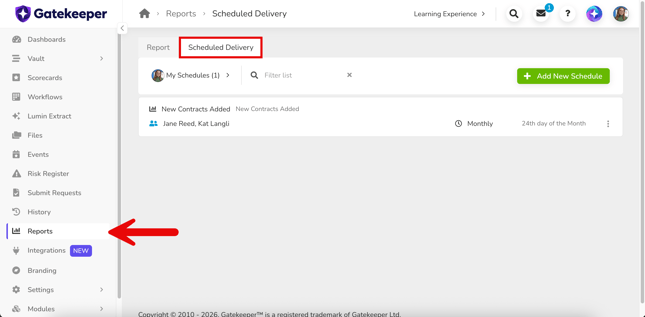
- Click Add New Schedule.
- Select Reports or Lists as required.
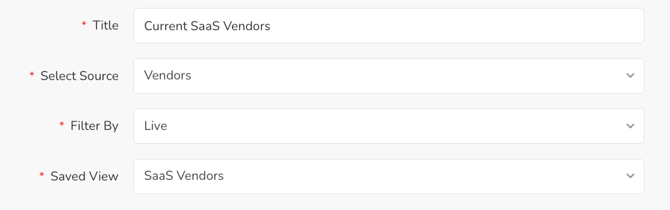
- Enter a title. This will appear in the subject of the delivery email.
- From the Source dropdown list, select the specific report or list view you want to schedule.
- Depending on your selection, you may also need to configure:
- Filter By: select a filter to apply to the data, for example a date range or status.
- Saved View: select the specific saved view you want to schedule.
- Select the Week or Month radio button to set the delivery frequency.
- Select the day of the week, or the date in the month, on which the report should be sent.

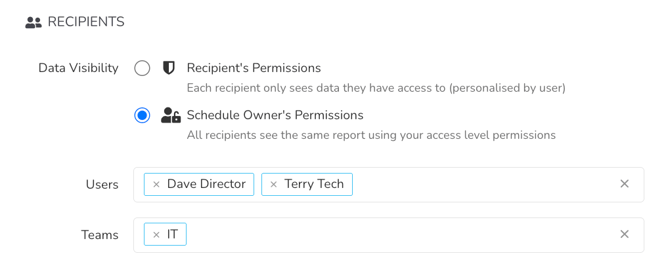
- Select the radio button for the relevant data visibility option:
- Recipient's Permissions: Each recipient receives a version of the report filtered to the data they have access to. For example, if a recipient can only see contracts belonging to their team, the report will reflect that.
- Schedule Owner's Permissions: All recipients receive the same report based on your access level. For example, if you have access to all contracts, everyone on the list will see all contracts regardless of their own permissions.
- To send the report to other users, select from the Users or Teams dropdowns. Leave both blank to send it only to yourself.
- Click Save.
What Recipients Receive
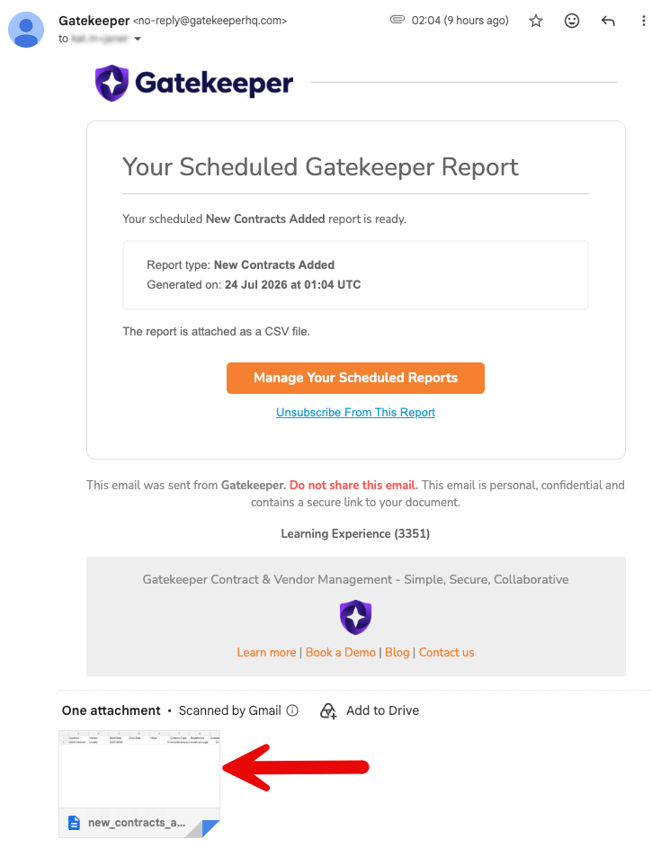
Recipients receive an email with the report attached as a CSV file, named with the report title and the date it was generated. They can click Manage Your Scheduled Reports to navigate directly to the Scheduled Delivery tab in Gatekeeper, or click Unsubscribe From This Report to stop receiving these emails.
Note: If Schedule Owner's Permissions was selected during configuration, recipients may have visibility of data beyond their usual access level in Gatekeeper, including any sensitive data.
Manage Scheduled Deliveries
The Scheduled Delivery tab displays scheduled deliveries in a list. Use the dropdown at the top of the list to switch between views.
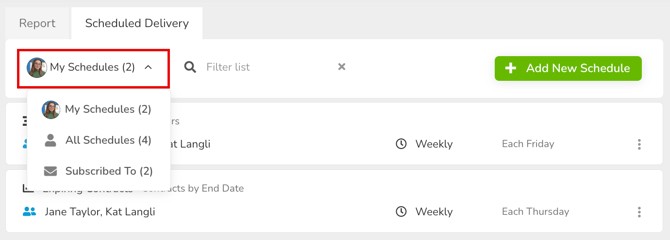
- My Schedules: schedules you own.
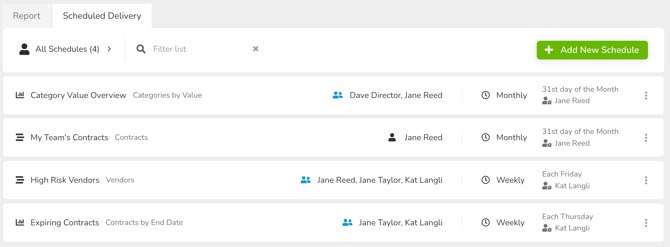
- All Schedules: all schedules across the organisation. This view is only available to Global Administrators.
- Subscribed To: schedules owned by others that you are a recipient of.
The list shows the schedule name, report or list view name, recipients, frequency, and owner. If there are too many recipients to display, click the  recipients icon to view the full list.
Edit a Scheduled Delivery
Schedule owners and Global Administrators can amend a schedule after it has been created. To do this:
- Expand the 3 dots on the relevant schedule, then select Edit.

- Update the relevant fields, then click Save.
Note: The source and delivery frequency (weekly or monthly) cannot be changed once a schedule has been created. To change either of these, delete the schedule and create a new one.
Delete a Scheduled Delivery
To delete a schedule:
- Expand the 3 dots on the relevant schedule, then select Delete.

- Click OK to confirm.
Note: Deleting a schedule is permanent and cannot be undone.
Unsubscribe From a Scheduled Delivery
Recipients can unsubscribe from a scheduled delivery by clicking Unsubscribe From This Report within an email.
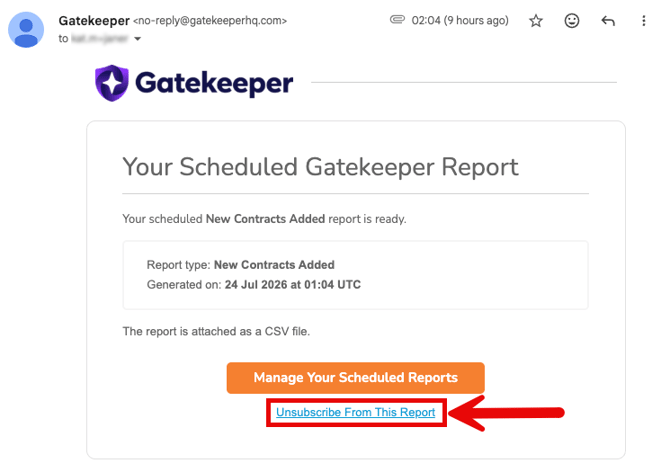
Alternatively, to do this within Gatekeeper:
- Navigate to Reports and click the Scheduled Delivery tab.
- Select the Subscribed To view.
- Expand the 3 dots on the relevant schedule and select Unsubscribe.

- Click OK to confirm.
A list of recipients who have unsubscribed will appear in the Edit view. The schedule owner or a Global Administrator can resubscribe them by clicking the icon next to their name:
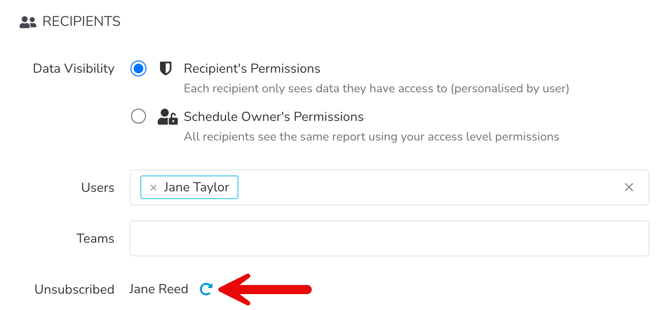
Note: If a team is added as a recipient and one of its members has previously unsubscribed, they will not be resubscribed.
Transfer Ownership of a Scheduled Delivery
Global Administrators with the Users additional permission can transfer ownership of a scheduled delivery. This is useful when responsibility for a schedule needs to move to another user, for example if they are changing roles or leaving the organisation. To transfer ownership:
- From the navigation menu, expand Settings, then click Users.
- Click the name of the relevant user account.
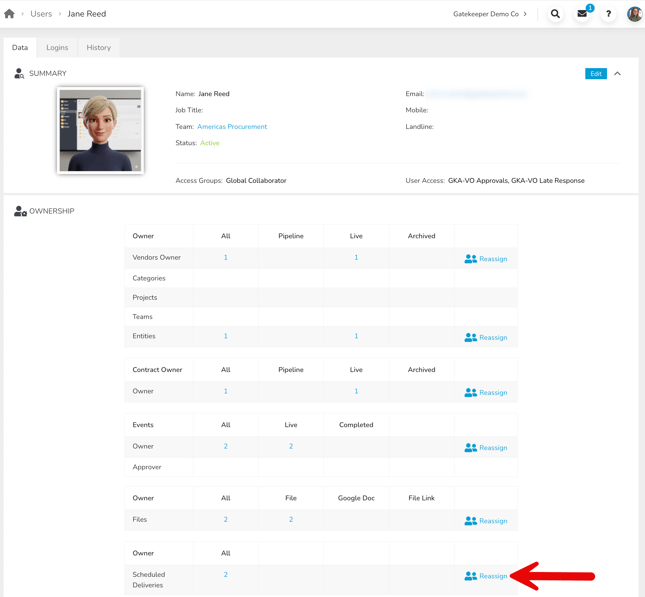
- On the User Details page, scroll to Scheduled Deliveries and click Reassign.
- Select the user you want to transfer ownership to from the dropdown list.
- Select the checkbox next to each schedule you want to transfer. To transfer all schedules shown, select the All checkbox.
- Click Bulk Transfer.
Note: If the schedule is based on a saved view, this will be recreated in the new owner's account.
FAQs