
 Estimated Read Time: 5 Minutes
Sections in this article:
- Requirements for Using DocuSign in Gatekeeper
- Send and Manage DocuSign Envelopes
- Complete a Signature Request in DocuSign
- FAQs
- DocuSign Resources
To learn about using DocuSign within Gatekeeper, see the video demonstration below:
Requirements for Using DocuSign in Gatekeeper
Before you can send a file for DocuSign through Gatekeeper:
- The DocuSign integration must be enabled and connected. See Configure the DocuSign eSignature Integration for further details.
- You must be assigned as an eSign Sender.
- A PDF file must be attached to the relevant vendor or contract record. See Add and Manage Files for further details.
Send and Manage DocuSign Envelopes
Users who are assigned as an eSign Sender can initiate and manage the DocuSign process.
Initiate an eSignature Request
- Navigate to the Files tab of the vendor or contract record.
- Click Start eSign on the relevant file.

- If you have both Gatekeeper eSign and DocuSign enabled, select DocuSign as the signature method.
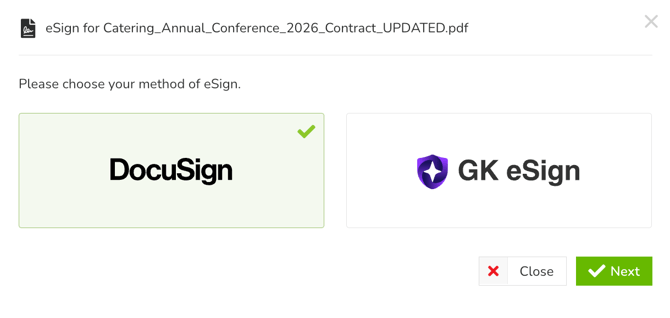
- If you have both Gatekeeper eSign and DocuSign enabled, select DocuSign as the signature method.
- Click Next.
- You will now be directed to the DocuSign envelope setup page. Prepare the envelope by assigning all signatories, and placing the signature details in the document.
- Click Send.
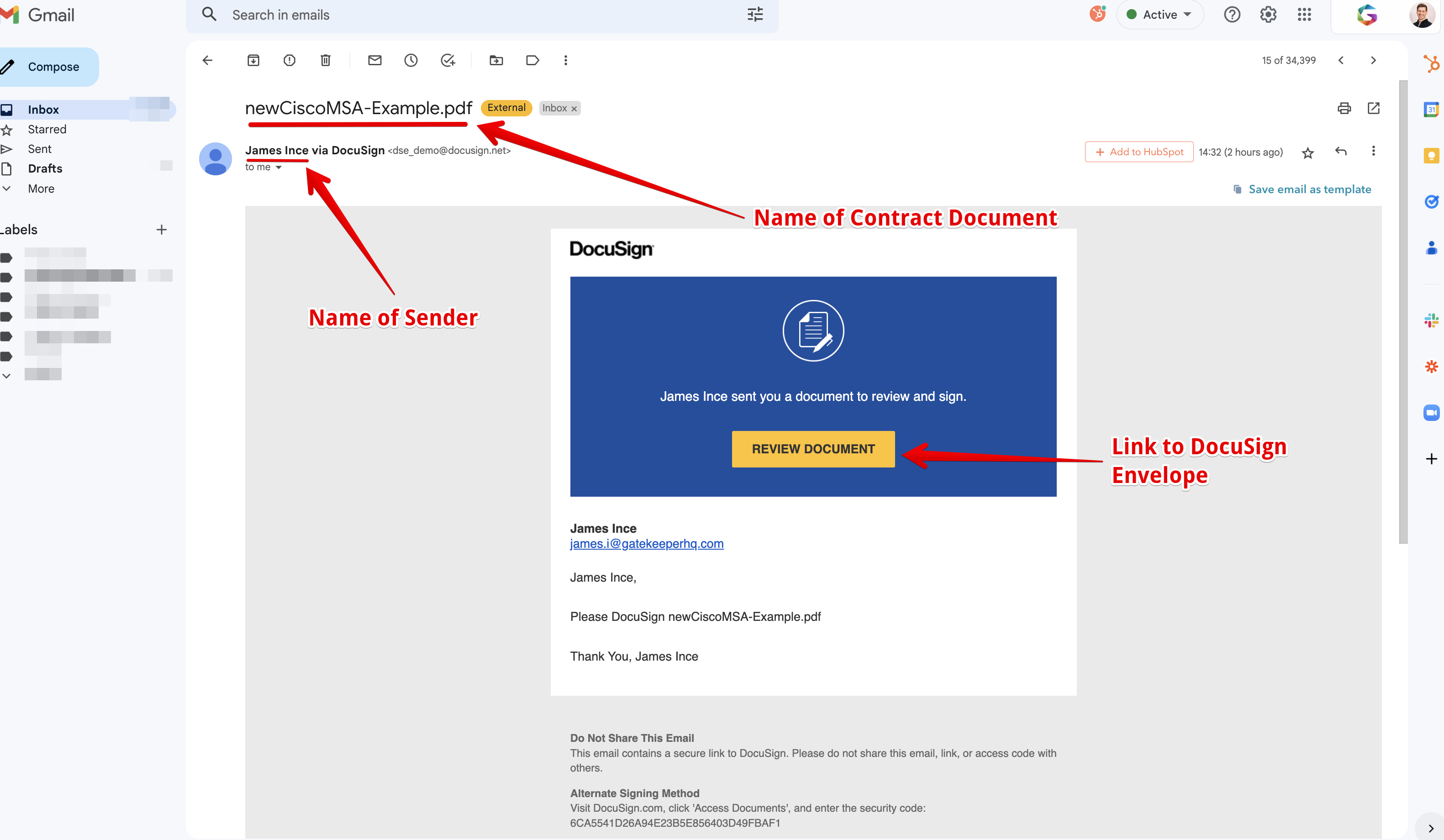
DocuSign will then send out the eSignature requests via email, as below:
Track DocuSign Requests
Once a document has been sent for signature, its progress can be tracked and managed within Gatekeeper in several ways.
From the Contract or Vendor Record
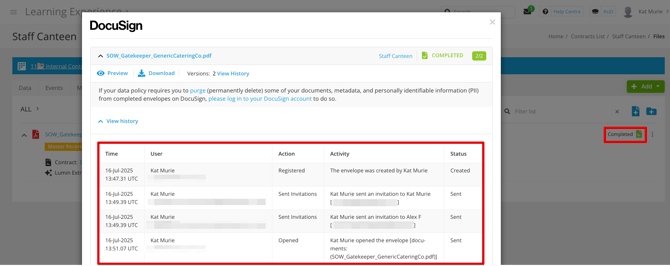
Navigate to the Files tab of the relevant vendor or contract record, then click the DocuSign Status to view the audit history of all signer interactions.
From the Files Repository
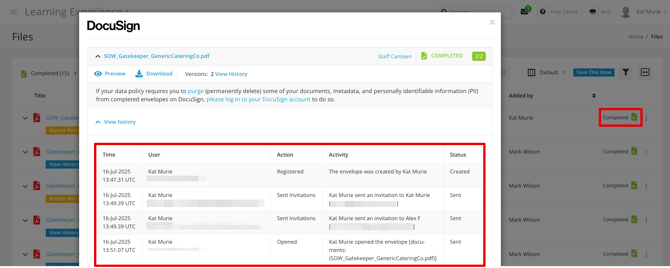
From the navigation menu, click Files and use the eSign Status filter to refine the list. To locate your DocuSign files, you can filter by either of the following statuses:
- Completed: shows all fully signed documents (sent via Gatekeeper eSign or DocuSign)
- Other: shows files that are not completed
Note: Because users are not synchronised between Gatekeeper and DocuSign, the statuses Awaiting Internal and Awaiting External don't apply to documents sent via DocuSign.
Manage DocuSign Envelopes
The following actions are available after an envelope has been sent:
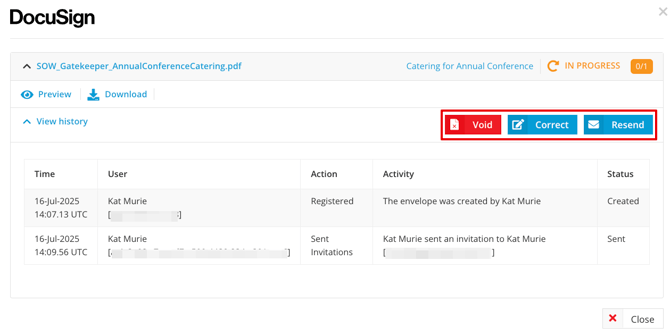
- Resend: Sends a reminder to any outstanding signatories.
- Correct: Allows you to amend signer details or signature fields.
- Void: Cancels the signature process. All signatories and recipients will be notified by email, including any reason provided at the time of voiding.
Complete a Signature Request in DocuSign
Note: Signing a document via the DocuSign integration follows the same process as signing directly in DocuSign. For more in-depth information, we've included links to DocuSign Resources below.
Respond to a DocuSign Email
When a document is sent to you for signature, you’ll receive an email notification that looks like this:
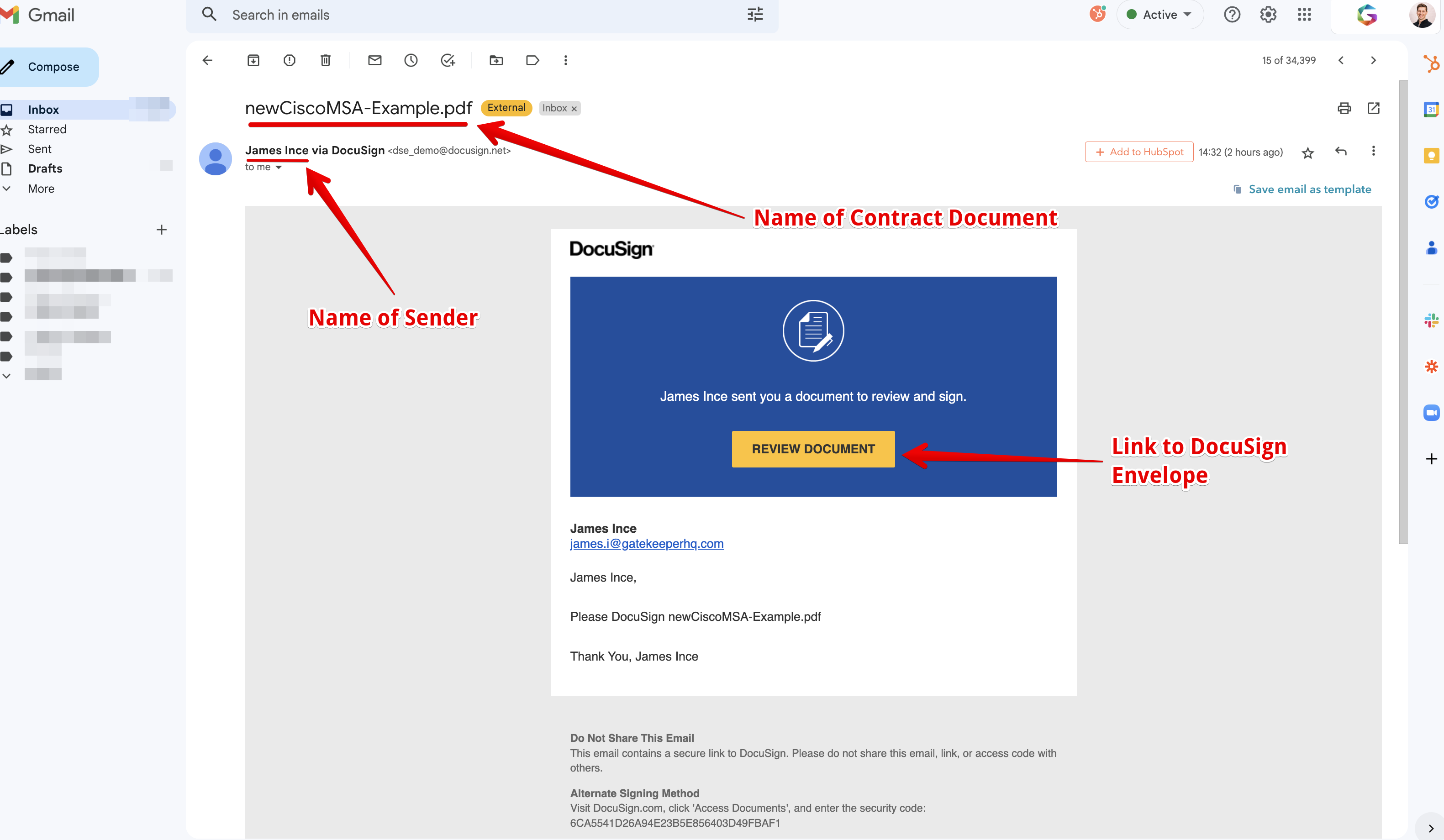
Click Review Document to access the DocuSign envelope:
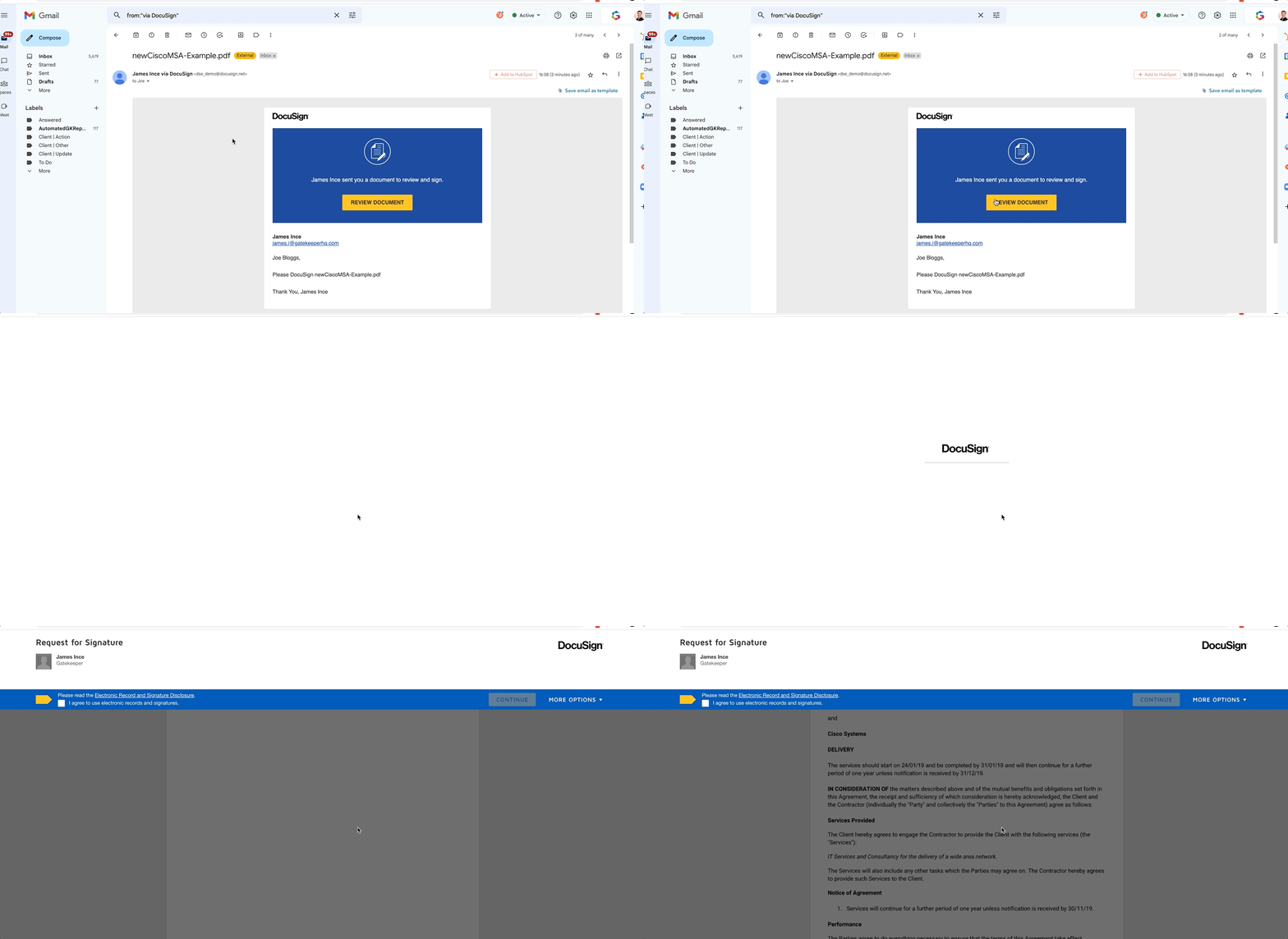
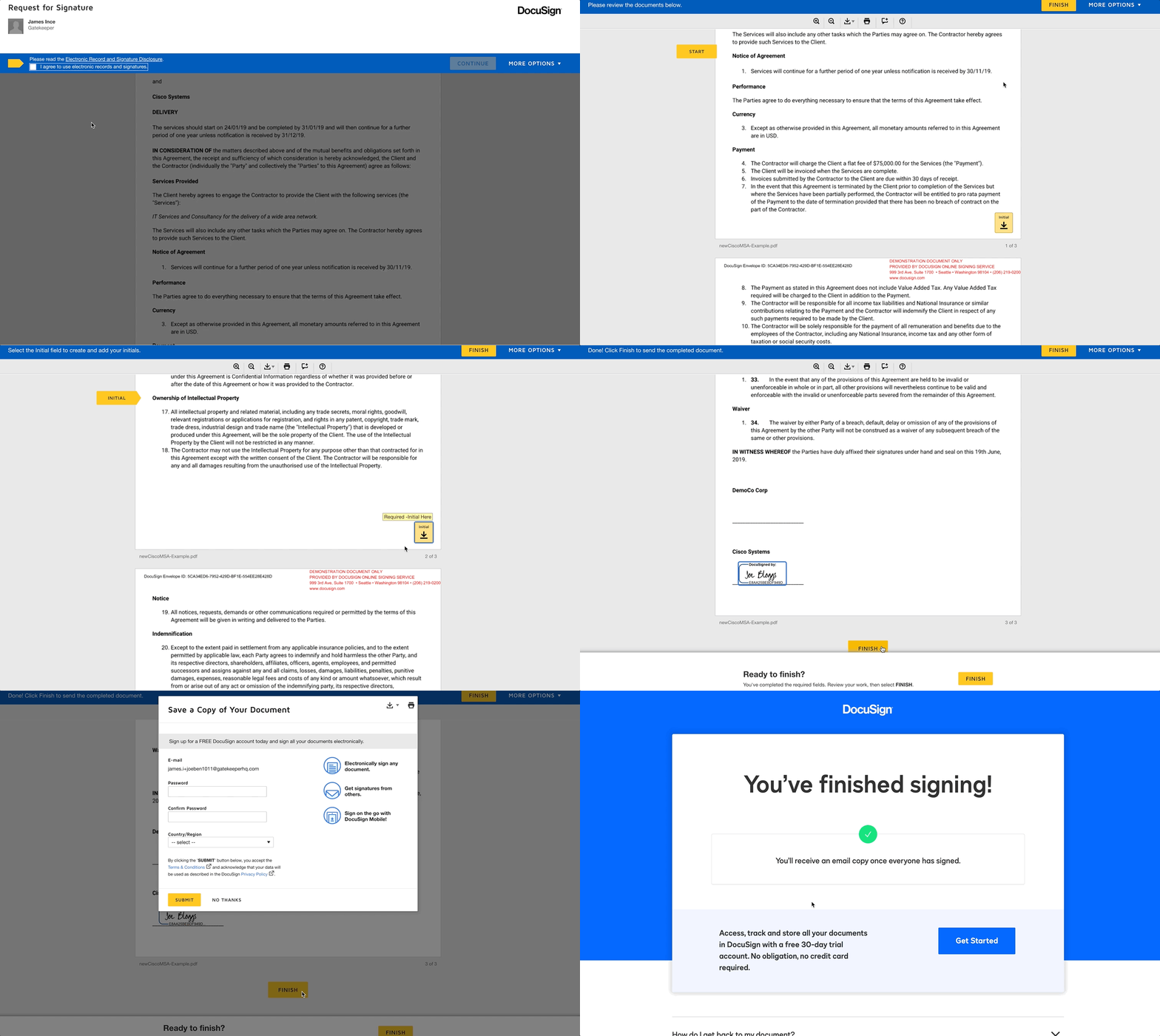
Now you can follow the below steps to sign a document:
- If this is your first time signing with DocuSign, review and accept the disclosure notice to allow data sharing between Gatekeeper and DocuSign.
- Click each signature field to apply your signature.
- The first time you sign, you’ll be prompted to confirm the appearance of your signature and initials. DocuSign will pre-fill these using your name.
- Once all required fields are completed, click Finish to submit the document.
Monitor For Updates
When you’re involved in a document signing process, you’ll receive automatic status updates throughout. For example:
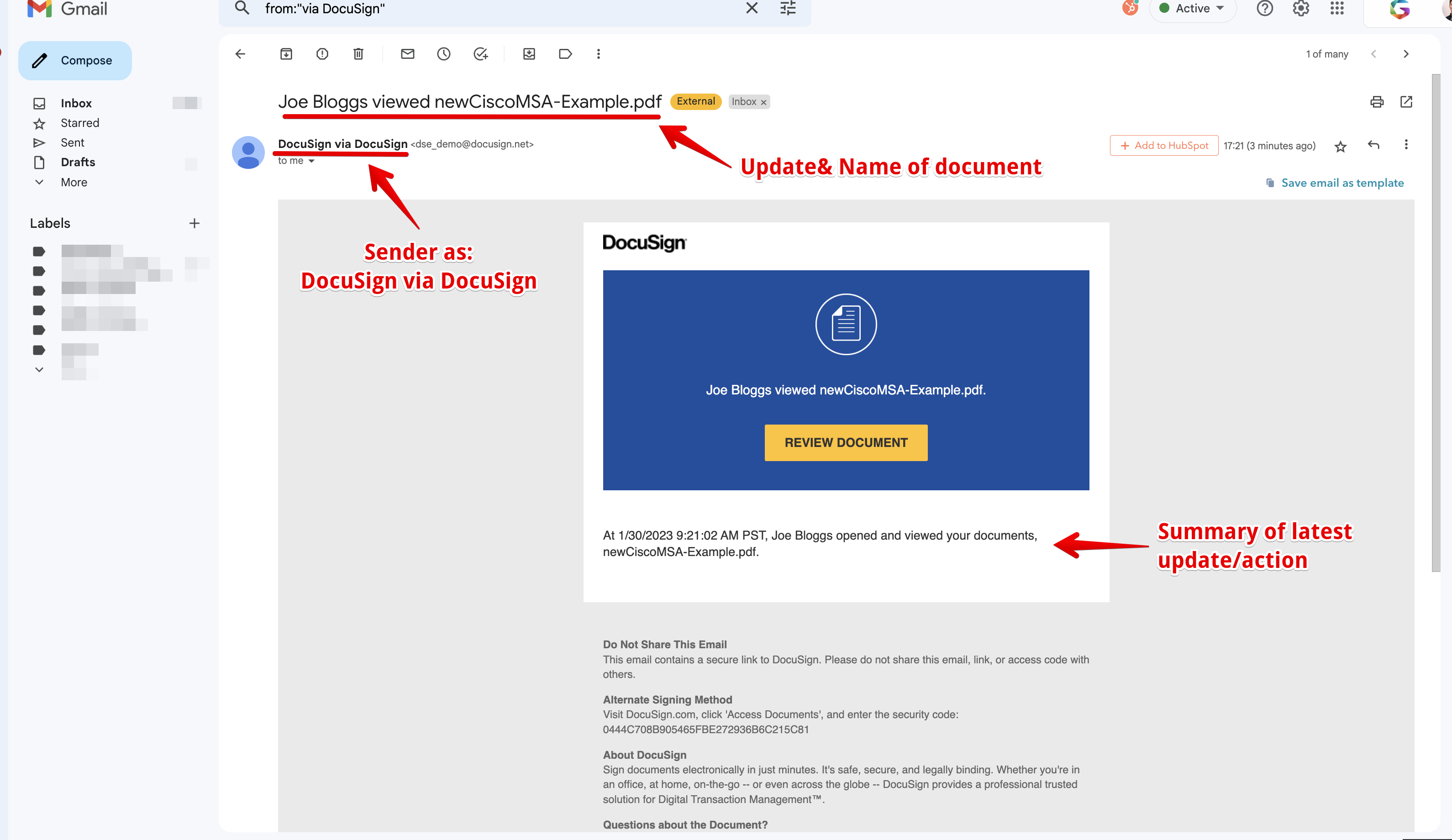
As a signer, you will receive updates in the following scenarios:
- When another Signer has viewed or signed the document.
- When the Sender has corrected the document and you no longer need to sign.
- When the Sender has voided the document.
- When all signatures have been completed. This email will include a link to view the envelope in DocuSign and a copy of the signed document as an attachment.
FAQs
DocuSign Resources
When you initiate a DocuSign request from Gatekeeper, the process will open in a new browser tab and be fully managed within DocuSign. If you encounter any issues or need further support, refer to the following DocuSign resources: