
 Estimated Read Time: 4 Minutes
Sections in this article:
- What is a File Expiry Date?
- View File Expiry Dates
- Filter by Expiry Dates
- Add or Update Expiry Dates
- File Expiry Workflows
File expiration dates help keep your tenant organised, secure, and up-to-date. They can also be used to trigger a file expiration workflow that prompts the vendor to upload the updated file themselves.
Note: See Add and Manage Files for details on adding files to Gatekeeper, including file versions and expiration dates.
What is a File Expiry Date?
A file expiry date is the date after which the file is no longer considered valid or relevant. This is useful for certificates and qualifications, for example if Motor Vehicle Insurance expires in 12 months, you would require an updated version of the latest policy after the 12 months had passed.
Note: Not all files require an expiry date.
View File Expiry Dates
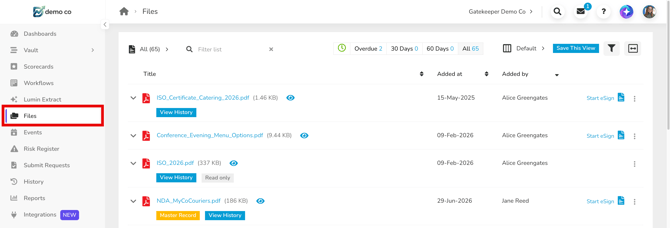
All files can be accessed by clicking Files from the navigation menu.
Alternatively, you can view files from the Files tab of the associated record.
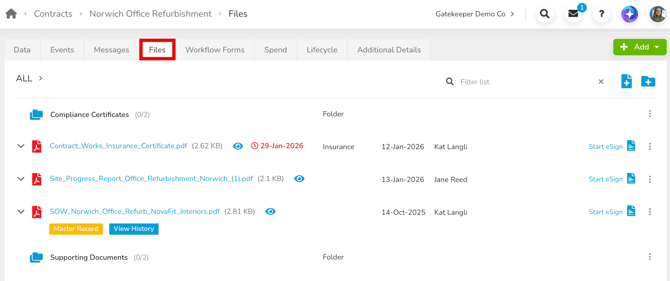
If a file has an expiry date associated with it, the date will appear next to the document name.

Expiry Date Colour Coding
The colour of the date text will directly correspond to how soon the document expires:
- Red: the expiry date has already passed.
- Orange: the expiry date is within the next 30 days.
- Grey: the expiry date is more than 30 days from now.
Filter by Expiry Dates
In the Files repository, you can refine the files list using the following time filters:
- Overdue: items that have already expired
- 30 Days: items that will expire within the next 30 days
- 60 Days: items that will expire within the next 60 days
- All: the default of no time filter

Add or Update Expiry Dates
Expiry dates can be added during the original file upload process, or at a later time. To add or edit an expiry date:
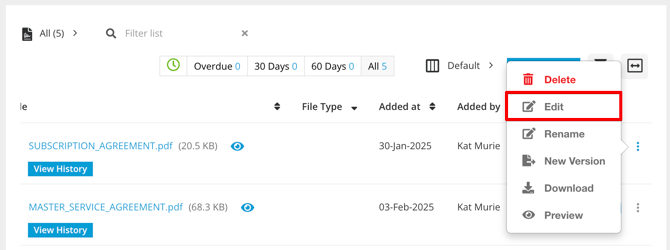
- Expand the 3 dots and select Edit.
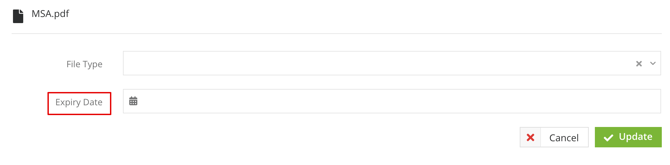
- Enter the expiry date.
- Click Update to save your changes.
Note: Collaborators can only edit information for files they’ve uploaded themselves, while administrators can edit information for any file.
File Expiry Workflows
Our file expiry workflow is designed to simplify your file management process by automatically identifying files approaching their expiration date and initiating a review process.
The Gatekeeper workflow engine is designed to be customisable and can be tailored to meet your specific business needs. You can set the review process criteria and customise the system to fit your organisation's workflow.
Note:
- File expiry workflows can be used with the Vendor Portal to facilitate document updates prior to the file expiration date (e.g. insurance certificates). To learn more, see the Vendor Portal Overview.
- File expiry workflows will need a manual Update Vendor action to replace the file approaching its expiry date, as AutoActions do not support the Attached file with Expiry date field.