
 Estimated Read Time: 2 minutes
Sections in this article:
Overview
If a vendor was not selected on the first phase of a workflow, or if the wrong vendor was associated, you can add or swap the vendor directly from the card in later phases without restarting the workflow.
Note: This article covers adding or changing a vendor on a workflow card manually after the first phase. For information on automatically associating an existing vendor when initiating the workflow, see Associate Existing Contracts and Vendors in a Workflow Automatically.
Add or Change a Vendor on a Workflow Card
The option displayed next to the Vendor field on the card will depend on whether a vendor is already associated:
- If no vendor is associated, a plus icon is displayed.

- If a vendor is already associated, an edit icon is displayed.

Note: Users require the Workflow Administrator or Local Workflow Administrator/Cards Manager permission to add or change a vendor on a workflow card.
To add or change the vendor:
- Click the relevant workflow card to open it.
- Next to the Vendor field, click the plus icon or edit icon.
- Select the replacement vendor from the dropdown list, then click Update. Only vendors with a status of Live or Pipeline are available.
- A mapping table will display showing all predefined and custom vendor data sections configured on the workflow form, regardless of their visibility settings on the current phase. Contract sections are not included. The table has the following columns:
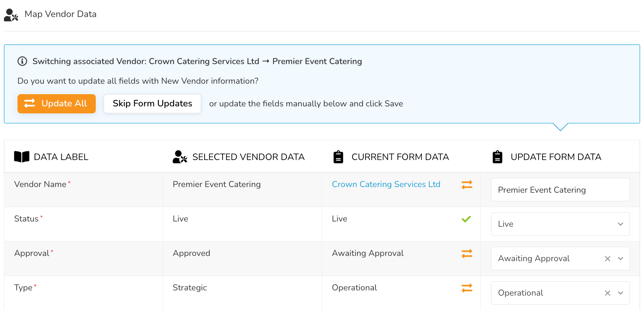
- Selected Vendor Data: data stored on the replacement vendor.
- Current Form Data: data currently on the form.
- Update Form Data: how the form will appear once saved.
- Click Update All to replace all form fields with data from the selected vendor's repository record.
- Click Skip Form Updates to associate the vendor with the card without changing any existing form data.
- Edit each field individually in the Update Form Data column, then click Save.
Note:
- If the phase is vendor-owned (where Form Access is set to Vendor Portal or Vendor eNegotiate), the option to add or change the vendor will not be available on the card.
-
Adding or changing the vendor on a workflow card does not update the data on the vendor's record in the Vault. The repository record is only updated if an Update Vendor action is configured on a later phase. At that point, form data will be applied to the newly associated vendor. The previous vendor record will not be affected.