
 Estimated Read Time: 4 Minutes
☑️ Requires: Employee Portal
Sections in this article:
- Introduction
- Submit a Request via the Employee Portal/Submit Requests Dashboard
- Configure Submit Requests via the Employee Portal
- FAQs
Introduction
The Employee Portal provides a central hub where employees can initiate a workflow process by submitting a request form. For example, employees may do this to start the process of onboarding a new vendor. There are different methods for submitting a request, depending on the user's permissions:
- Regular Gatekeeper users can submit workflow requests through the Submit Requests dashboard, a centralised hub of forms.
- Employee Portal Only users can submit workflow requests through a separate portal with a simplified interface.
For more details on the Employee Portal features, see the Employee Portal Overview.
Note: These methods require the Employee Portal to be enabled on your Gatekeeper tenant.
Submit a Request via the Employee Portal/Submit Requests Dashboard
The process for submitting a workflow request is similar for both regular Gatekeeper users and Employee Portal Only users. To submit a request:
- Navigate to Company Forms:
- Employee Portal Only users: Log in to the Employee Portal.
- Regular Gatekeeper users: Click Submit Requests from the navigation menu.
- Click Submit Form on the relevant workflow.
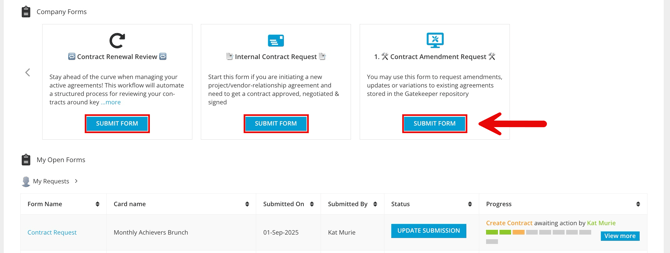
- Complete the required fields, then:
- Click Save to close the form and save it as a draft.
- Click Submit to move the request to the next phase.
This will automatically create a card on the relevant workflow, which will progress according to the configured transitions. Users can track the progress of this from My Open Forms.
Note: When completing the form, selecting an existing vendor or contract automatically populates any relevant fields.
Configure Submit Requests via the Employee Portal
Each workflow must be configured individually to appear in the Employee Portal and Submit Requests dashboard, giving you control over which request types are available to users.
Note: Users must be a Workflow Administrator or Local Workflow Administrator to perform these steps.
To configure this:
- Navigate to the relevant workflow and click the start phase to edit it.
- From Form Access, select the Employee Portal radio button.
- Select the Authenticated Access - Visible on Employee Portal and Submit Request checkbox. Your changes are saved automatically.
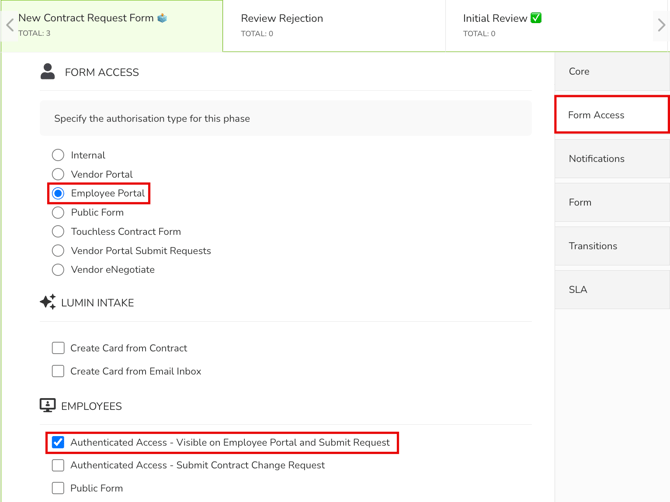
The request form for this workflow will now appear on the Employee Portal and Submit Requests dashboard.
Note:
-
Before enabling this, ensure the workflow is fully configured, including its phases, form, transitions, owners, notifications, actions, and any required approvals.
- You can select the Public Form checkbox as well as Authenticated Access - Visible on Employee Portal and Submit Request. This allows continued access for users who may still use old Public Form links.
Enable AI Intake
Within the Submit Requests dashboard, users can use AI Intake to upload contract documents, and Gatekeeper will review and extract data to populate the core details of the form automatically.
To configure this:
- Navigate to the relevant workflow and click the start phase to edit it.
-
From Form Access, select the Create Card from Contract checkbox within Intake. Your changes are saved automatically.
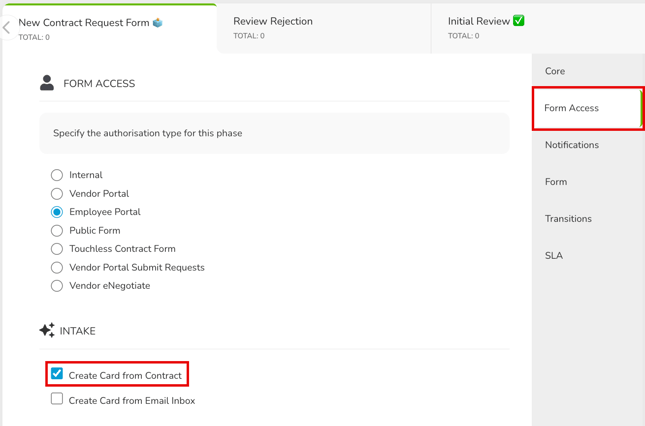
The upload file option will now be available for this form.
Note: Intake is not available for Employee Portal Only users.