
 Estimated Read Time: 3 Minutes
☑️ Requires: Employee Portal
Sections in this article:
- Introduction
- Submit a Request from a Contract Record
- Configure Submit Requests via a Contract Record
Introduction
You can allow internal users to submit change requests directly from a contract record, saving time and ensuring requests are captured efficiently. This is useful for amendments, renewals, or other requests that are tied to a specific contract. When a request is submitted from a contract:
- Contract-related form fields pre-populate automatically
- A workflow card is automatically created and associated with the contract record
Note: This method requires the Employee Portal to be enabled on your Gatekeeper tenant.
Submit a Request from a Contract Record
Note: Users with the Administrator or Collaborator role can submit requests from any records they have access to.
To submit a request from a contract record:
- From the navigation menu, expand the Vault, then click Contracts.
- Click the name of the relevant contract to open the record.
- Click Add, then select Send to Workflow.
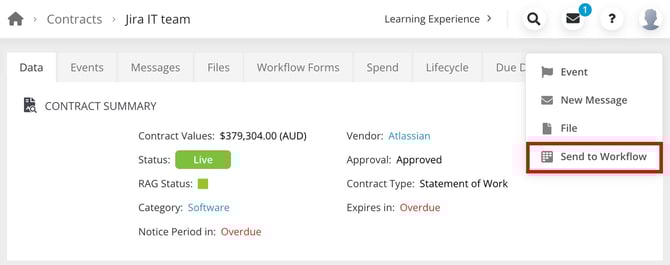
- Click Submit Form on the relevant workflow.
- Complete the required fields, then click Submit to move the request to the next phase.
This will automatically create a card on the relevant workflow, which will progress according to the transitions you have configured. Users can track the progress of this from the Submit Requests dashboard.
Configure Submit Requests via a Contract Record
Users can only submit requests via a contract record for workflows that you enable. This gives you control over which request types are available. Before configuring this, ensure that the Contract Predefined section is added to the workflow form (for more details, see Add Sections to a Form).
Note: Users must be a Workflow Administrator or Local Workflow Administrator to perform these steps.
To enable workflow requests via a contract record:
- Navigate to the relevant workflow and click the start phase to edit it.
- From Form Access, select the Employee Portal radio button.
- Select the Authenticated Access - Submit Contract Change Request checkbox. Your changes are saved automatically.
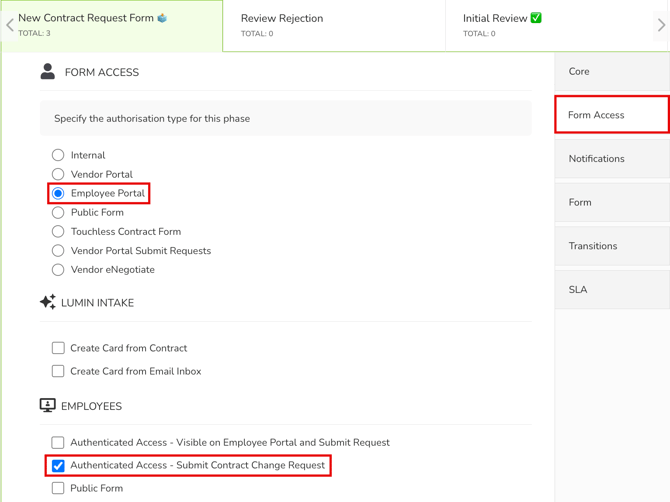
Users can now submit requests for this workflow via the contract records in the Vault.
-
Before enabling this, ensure the workflow is fully configured, including its phases, form, transitions, owners, notifications, actions, and any required approvals.
- AI Intake and Create Card via Email are not supported for workflows using Authenticated Access - Submit Contract Change Request.