
Gatekeeper Chat
Your repository, now in conversation. The questions that used to mean exports, filters, and waiting for the platform expert? Now you just ask, and get a structured answer back in seconds.
Before: A board member asks for the total vendor exposure. The data's all there in Gatekeeper, but turning it into the exact answer means building the right view, then exporting and tidying it up. Doable, but it takes time, and usually one particular person.
After: You type "Which suppliers have contracts expiring in 60 days with no renewal workflow started?" and the answer comes straight back as a table, with caveats flagged, follow-ups offered. The whole business can finally help itself.
What it is: Gatekeepers AI Chat is a conversational AI assistant built into Gatekeeper. Type a question the way you'd ask a colleague, and AI Chat interprets it, finds the right records, applies your existing permissions, and returns a structured answer, drawn from your live data, not last week's spreadsheet.
Set up: Gatekeeper Chat is included in all Gatekeeper plans, and switches on automatically wherever another LuminIQ feature is already active — a live agent, Summary, Obligations, or Extract. If none of those are on yet, an administrator will need to enable it to make it available for all users. See Configure LuminIQ for step-by-step instructions.
For further details, see Lumin Chat Overview.
Gatekeeper Chat - In Microsoft Word
Your contracts, now in conversation. The questions that used to mean scrolling, searching or switching back to Gatekeeper? Now you just ask, and get the answer in the document panel.
Before: A colleague drops a 40-page MSA in your inbox. Knowing what's changed and where the risk sits means reading it cover to cover, then cross-checking against the record in Gatekeeper.
After: You open the MSA in Word, the Gatekeeper Chat tab opens alongside it, and you ask "Is this what we originally agreed?" The answer comes straight back — Gatekeeper Chat reads the document on screen and checks it against the contract record metadata and/or workflow card in your tenant, showing you where this version differs from what was agreed.
What it is: Gatekeeper Chat is the same conversational AI from inside Gatekeeper, now delivered through the Gatekeeper Word add-in. Open a contract in Word — browser or desktop — and ask Gatekeeper Chat anything. On its own, it reads and answers from the document you have open. Connected to your Gatekeeper tenant, it also reaches your live records — the contract and its workflow card — and grounds every answer in your real data, always within your existing Gatekeeper permissions. When configured, it can also draft tracked-change edits for you to accept or reject.
Getting started: Once the Gatekeeper Word add-in is installed at your Microsoft 365 tenant, sign in with your Gatekeeper account, and the chat panel opens with every Gatekeeper-synced contract. Enable the tenant connection and Gatekeeper Chat goes beyond the document on screen to answer from your live tenant records too.
To learn more, see An Introduction to the Gatekeeper Word Add-in.
Claude Connector - MCP
The data your AI has been missing. If your teams use Claude and other AI tools, they can now answer questions about your suppliers and contracts, using the live data already in Gatekeeper, with your permissions applied.
Before: Your CPO asks Claude about vendor exposure. Claude is brilliant, but it can't see your Gatekeeper data, so the answer is generic or based on whatever someone pasted into the chat. The real picture is in Gatekeeper; Claude just hasn't been connected to it yet.
After: "Show me all contracts over £100k expiring this quarter with an overdue risk assessment" gets a complete answer in seconds, drawn from your live data, no exports, no pasting, every action logged.
What it is: Gatekeeper for Claude is a secure connection between your Gatekeeper account and Claude. Ask Claude about your third parties, and it looks the answer up live in Gatekeeper; reads contract metadata, and, where you allow it, creates workflow cards. No new tool, no retraining; it works behind the Claude conversations your team is already having.
Nothing to rebuild. Built on an open standard, it switches on with one connection, your existing Gatekeeper permissions, no migration. Our MCP is available on all plans except Starter and ContractNow — get in touch with your Account Director for further details.
Want more detail? Head to Connect to the Gatekeeper MCP.
Custom Tables
The attached spreadsheet, retired. The line-item detail that never fit into a single field — purchase orders, pricing tiers, licence allocations — now lives as a proper table on the contract or supplier record itself.
Before: A supplier's pricing sits in a spreadsheet attached to the record. To check the current rate, someone opens the file. To update it, someone re-uploads it. Over time it drifts out of sync, and the detail that matters most is buried in an attachment few people ever open.
After: That same pricing lives in a table on the record — typed columns, edited in place. You add a row, and export it whenever you need it. One source of truth, sitting right where the decisions get made.
What it is: A new "Custom DataTable" field type you can add to any contract or supplier record. Define your own columns, give each one a type — text, number, date, dropdown, and more — then add as many rows as you need. The result is structured, exportable data on the record, instead of detail locked inside a static file.
You asked, we built it. Custom Tables was shaped by direct customer requests. It's self-serve to set up in Custom Data — no spreadsheet, no workaround, no waiting.
For step-by-step instructions, see Configure Custom Tables.
Expanded eNegotiate Handlebars
You can now insert the day, month, and year of any date field separately in your contract templates, across both core date fields such as Start Date and End Date and your own custom date fields. The day appears as a number (28), the month as its full name (February), and the year in full (2026), so you can build contract headers and clauses in exactly the date format your region or template requires without having to reformat anything by hand.
Address fields can now be pulled into your templates line by line — Line 1, Line 2, City, Region, Postal Code, Country, and Country Code — across core supplier and entity registered-address fields as well as custom address fields. This gives you precise control over how addresses are laid out in your contract templates, rather than relying on a single combined address block.
For more information on handlebars, see Configure Contract Templates.
LuminIQ Agents
LuminIQ agents now interpret Smart Form scores and Market IQ ratings, referring to each assessment by its proper name, understanding that scores run from 0 to 100 with higher being better, reading Market IQ grades in the right direction (A best to F worst), and treating a missing score as "not yet scored" rather than zero
LuminIQ — Web Lookup
LuminIQ agents can now read and reason over web content from URL fields on your workflow card forms, using what they find as extra context in the same way they already draw on attached files. When a link is provided on a card, the agent fetches the page, extracts its content, and factors it into its task — whether that's filling in form fields, reviewing submitted data, or making an approve/reject decision — which is particularly useful for contract intake and vendor due diligence where you want the agent to read the terms and conditions within a supplier's own website. The agent's reasoning transparently references what it found at each URL, and if a link can't be reached (for example, a dead link, a timeout, a login wall, or a non-readable page).
User Permissions
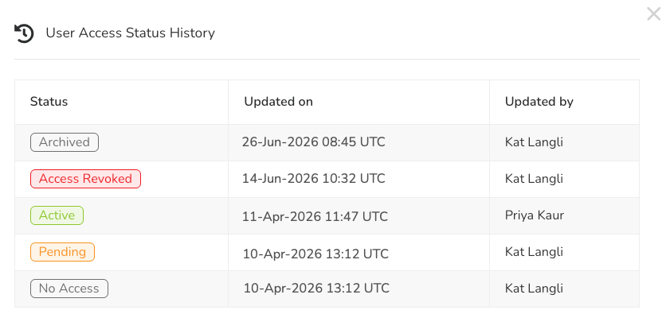
User profiles now include a status history log that records whenever a user or supplier user is invited, revoked, archived, or restored, capturing the action, who performed it, and when it happened. You can open it directly from the status field on the profile, making it easy to investigate unexpected changes — such as a user being archived — with a clear, time-stamped record of exactly who did what.
Users can now only change their own email address and no longer edit anyone else's, with the rule applying to both internal and supplier users. SSO/SCIM provisioning is unaffected, and any large-scale or company domain changes continue to be handled separately by your team. The result is stronger account integrity and better protection of user identities, preventing one user from altering another's login email.
Risk Module - Risk Matrix
Administrators can now rename the Impact and Probability fields and their values — along with the Residual Risk fields where enabled — from within Risk module settings. Your custom labels then appear everywhere risk is used, including when creating and editing risk items, in list views, and across the risk dashboard and heatmap, so Gatekeeper's terminology aligns with your organisation's own risk methodology and reads the way your team expects.
Workflows
You can now link or change the supplier on a workflow card at any phase, rather than only at the start, and when you do, a mapping table lets you pull all the supplier's data across, skip form updates, or review changes field by field. Available to Global and Local Workflow Administrators, this means you can correct a wrongly linked supplier later in the process, or begin a workflow before the supplier has even been decided, without needing to restart the card.
Bulk Importing
When a large background import (files over 100 rows or columns) fails, the results page now groups errors by column and validation type, showing the specific error message, how many rows are affected, and the exact row numbers involved — and the same breakdown is included in the failure notification email. Applying across all import types, including contracts, vendors, users, spend, and risk, this lets you see precisely what went wrong and where, so you can fix each type of error in one pass instead of hunting through your file row by row.