
 Estimated Read Time: 6 Minutes
Sections in this article:
- Send Envelopes via DocuSign
- Manage DocuSign Envelopes
- Multiple DocuSign Processes
- Track DocuSign Processes
- Configuration
- FAQs
Send Envelopes via DocuSign
When a card has transitioned to a workflow phase configured for DocuSign, an email will be sent to the phase owner to initiate the process. To send a file for eSignature from the workflow:
- Click a card to open it, then click Start New eSign Process.
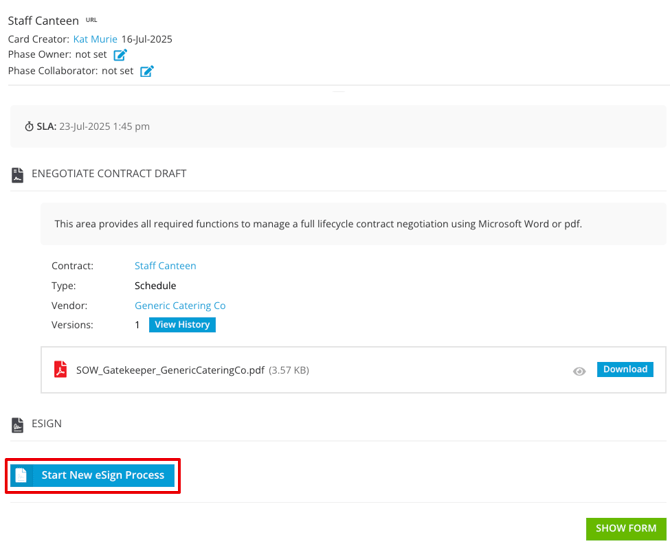
- If Gatekeeper eSign and DocuSign are enabled on the same phase, you can select which method you wish to use before preparing the document/envelope.
- Select the file and host (i.e. the contract or the vendor it will be associated with). Files already uploaded in the workflow form, and the master record associated with the contract will appear in this list.
- Click Save & Next.
- You will now be directed to the DocuSign envelope setup page. Prepare the envelope by assigning all signatories, and placing the signature details in the document.
- Click Send.
Note:
- The workflow card must be associated with a contract/vendor record to start a DocuSign process. See Associate Existing Contracts and Vendors in a Workflow Form for further details.
- Workflow cards must have a linked PDF document when creating a DocuSign envelope. The maximum file size for this is 25MB.
Manage DocuSign Envelopes
The following actions are available after an envelope has been sent:
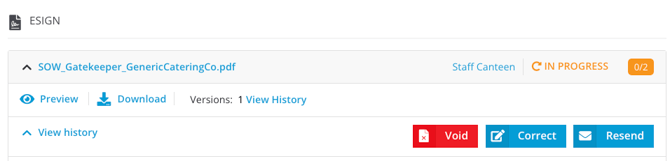
- Resend: Sends a reminder to any outstanding signatories.
- Correct: Allows you to amend signer details or signature fields.
- Void: Cancels the signature process.
- After voiding, you can click Restart to begin again with a different document or updated signatories.
- Alternatively, an admin may choose to move the card to a Done phase to close out the contract setup entirely.
- After voiding, you can click Restart to begin again with a different document or updated signatories.
Note: Voiding a DocuSign will transition the workflow card based on the If Declined transition rule, if all other processes are no longer active. If the voided process is the only one, or if any other process remains active, the card will not transition.
Multiple DocuSign Processes
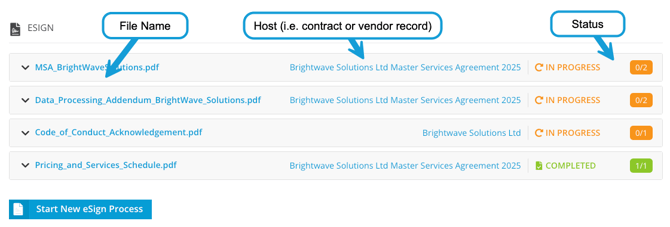
If multiple files are associated with a workflow card, you can start a separate DocuSign process for each one. This allows you to manage all eSignatures for a contract in one place and streamline the execution process. To begin another process, click Start New eSign Process for each file and configure them separately.
Each DocuSign envelope displays separately, with a summary showing the file name, host, and status. Expand a section to view further details and manage the process.
Track DocuSign Processes
There are several ways to track the status of a DocuSign envelope:
From a Workflow
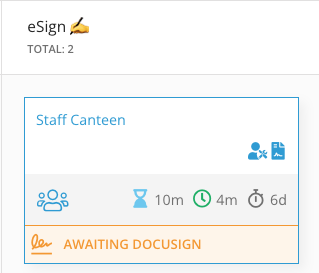
Workflow cards display an additional footer on the Kanban board. This provides a quick view of the DocuSign status without needing to open the card:
After opening a workflow card, the View history section displays a detailed audit log of the DocuSign activity associated with that card.
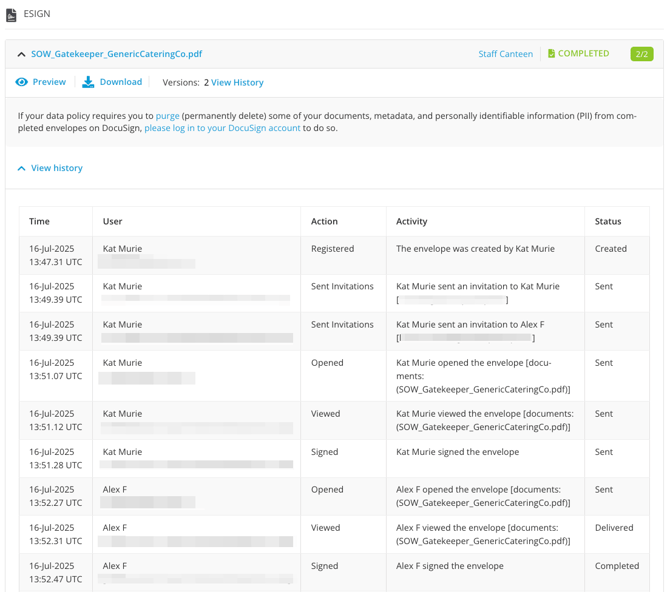
From the Contract/Vendor Record
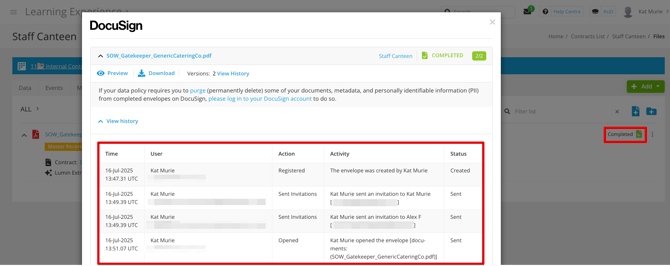
The Files tab within the vendor/contract record displays any associated files that are part of a DocuSign process. Click on the status to view the detailed audit log.
From the Files Repository
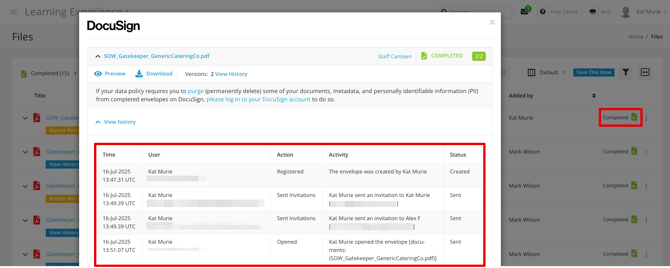
Clicking Files from the navigation menu displays all files you have access to in Gatekeeper. If a file is linked to a DocuSign envelope, its current status is displayed. Click the status to view the detailed audit log.
Configuration
To configure a workflow phase for DocuSign:
- Click the relevant phase to edit it.
- From Actions, select the Enable DocuSign checkbox.
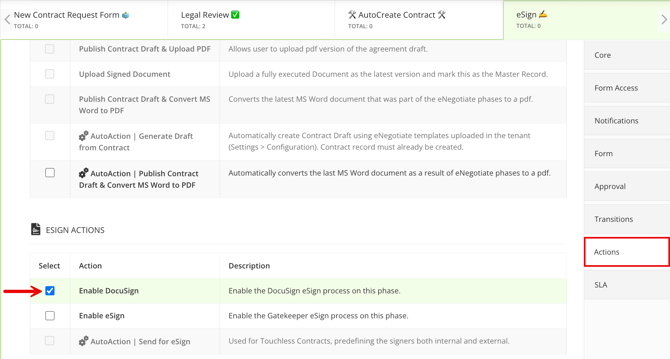
- From Form Access, select the relevant owner that should be responsible for initiating the DocuSign process.
- From Notifications, enable the toggle for the card owner, and click the pencil icon to amend the template. This will send an email to let the owner know there is a document that is ready to be configured and sent for eSignature.
- From Transitions, select where the card should move when the DocuSign process completes successfully, or is declined. See the FAQs for more information on transition logic in DocuSign phases.
Note: Configuring a transition for the If Declined outcome is optional. Leaving this unset allows for the document to be updated and the signature process to be restarted if necessary. This is only possible if the workflow card remains active and has not been archived.
FAQs
Additional Reading 📚
- Configure the DocuSign Integration: Follow these steps to enable the connection between DocuSign and your Gatekeeper environment.
- Using DocuSign eSignature within the Vault: Learn how to send a file for DocuSign in an ad-hoc context, i.e. outside of a workflow.