
 Estimated Read Time: 6 minutes
Sections in this article:
- Before You Begin
- Create a Workflow
- Build the Workflow
- Test the Workflow
- Deploy the Workflow
- Monitor Changes
Note: For an interactive introduction to workflows in Gatekeeper, take our Introduction to Workflows course. You must be logged into Gatekeeper to access this course.
Before You Begin
Workflows are best suited to processes that involve multiple people or teams, several steps with different stakeholders. They involve users submitting forms to capture data, and creating or updating records in the Vault. You can either build workflows from scratch, or leverage our Best Practice templates to simplify and speed up the build process. Common use cases include:
- Contract Requests
- Contract Renewal
- Vendor Onboarding
- File Expiration
Before building, it's recommended to create a process flow diagram. At a minimum, this should cover:
- The required phases and who will be assigned as an owner
- The transitions between phases, including any conditional logic
- Approval checkpoints and who is responsible for them
- Any actions required to create or update records
For an in-depth guide to creating a Process Flow Diagram, refer to Create a Workflow Diagram 📐.
Create a Workflow
Note: Users require the Workflow Administrator additional permission to create workflows. See Workflow Authorisation Overview to learn more.
When creating a new workflow, you can either set one up from scratch, or use the best practice templates.
Create a Workflow From Scratch
To create a blank workflow:
- From the navigation menu, click Workflows.
- Click Add, then select Workflow.
- Enter the title, then select the workflow type from the dropdown list.
- If required, add a label, description, and select an icon and colour.
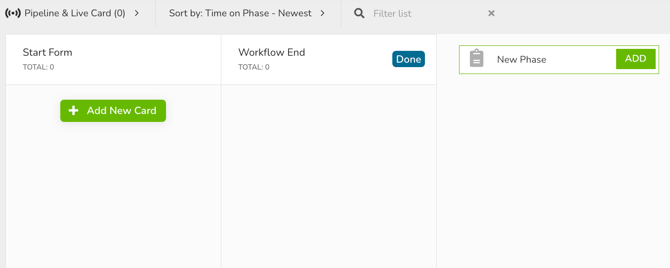
The workflow will then open with two default phases already added:
- Start Form
- Workflow End
Create a Workflow Using a Template
The best practice workflows are designed to help streamline workflow creation by providing you with pre-built templates. To create a workflow from a template:
- From the navigation menu, click Workflows.
- Click Add, then select Workflow Template.
- Click Create on the relevant template.
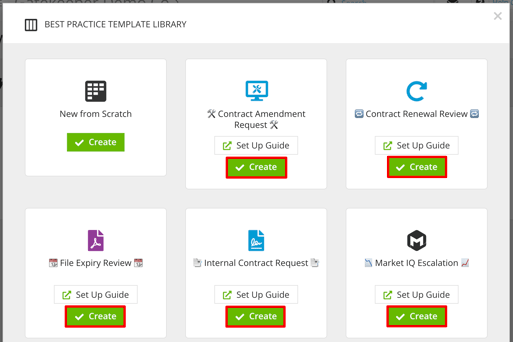
- Update the title as required, then click Create.
Build the Workflow
Once the workflow has been created, complete the following steps in order:
| Step | Details | Further Details |
| Add Phases |
Within your workflow, click Add to create all phases in the process. |
Add Phases to a Workflow |
| Create the Form | Click the first phase of the workflow to edit it, then click Form. Form sections and fields need to be added, then form visibility (for example mandatory, hidden, etc) can be configured separately in each phase. |
Set up a Workflow Form |
| Configure Approvals | Click on the phases that require approval to edit them, then click Approval and select the Enabled radio button. | Workflow Phase Approvals |
| Assign Owners | Assign the users/teams that are responsible for each phase from the Form Access section of each phase configuration. |
|
| Configure Workflow Actions | On the required phases, navigate to Actions and select the appropriate checkboxes to enable the relevant actions. | Configure Workflow Actions |
| Configure Transitions |
Configure the transition rules in each phase from the Transitions section. You can select the Simple or Conditional radio button, then define the logic for the transition. |
Configure Workflow Transitions |
| Configure Notifications | To manage notifications and reminders for each phase, click Notifications and enable the relevant toggles. |
Configure Workflow Notifications |
| Configure SLA Timers | If required, add SLA timers from the SLA section of each phase configuration. | Add Workflow SLA Timers |
| Configure the Initiation Method | When the rest of your workflow is built, configure the relevant initiation method. | Workflow Initiation Overview |
Test the Workflow
Once your workflow build is complete, it's recommended to test it. Verify that:
- Cards progress correctly through all workflow paths.
- Approvers and owners are assigned correctly.
- Each team can see the required information at each phase.
- Email notifications are delivered to the correct recipients.
- Records are created or updated accurately.
It's recommended to involve the stakeholders who will be using the workflow in testing. This allows each team to help surface any gaps before go-live. For more details on testing Gatekeeper, see Test Gatekeeper.
Minor changes (such as adding fields or adjusting ownership) can be made immediately. For major changes to logic or flow, it's recommended to return to the process diagram before reconfiguring.
Deploy the Workflow
Once all testing has passed, the workflow can be signed off in preparation for Go-Live. Gatekeeper recommends choosing one of the following approaches for deployment:
- Soft Rollout: Use the workflow in a live environment with a small group of key users or a limited number of cards. This allows you to monitor performance and make adjustments before wider adoption.
- Full Launch: Deploy the workflow across the full user base and all applicable cards, using it in its complete, intended capacity.
Monitor Changes
Workflow administrators can track edits that have been made to workflows using the History feature. To access this:
- Navigate to the relevant workflow.
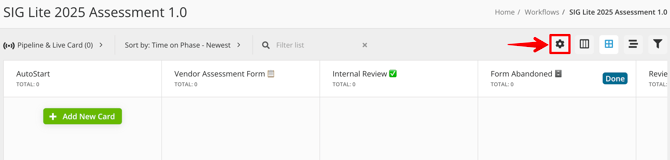
- Click the settings cog.
- Click the History tab.
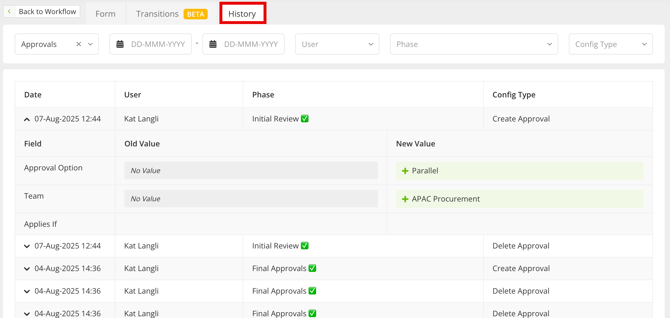
Use the filters to narrow the results, and click the arrow to view further details for each configuration change.