
 Estimated Read Time: 5 minutes
Sections in this article:
Note: An administrator must enable Data Extraction and configure the default values before Enrich is available to users.
What is Enrich?
Enrich uses Gatekeeper AI to retrospectively extract data from a contract's master record and populate empty fields on the records that already exist in your Gatekeeper repository. This is particularly useful for legacy records with incomplete metadata.
- Rather than updating records individually, you can target a filtered set of contracts in bulk. Gatekeeper processes each in turn, and you can view a summary of results once complete.
- Enrich only populates empty fields. Existing values are never overwritten.
- Contract records must have a master record file attached to be eligible for enrichment.
- Only fields already marked for extraction and assigned to the contract's contract type will be sent for enrichment.
Note: Enrich is currently in beta. During this period, enrichment is limited to 100 contracts per batch.
Which Fields Can Be Enriched?
Enrich can populate the following fields from the core data model:
- Vendor
- Currency
- Annual Value
- Contract Type
- Category
- Entity
- Contract Dates
Additionally, custom fields that are configured for extraction are also eligible. See Custom Data Extraction for further details.
Enrich Contracts
Note: Users require the Administrator role to enrich contracts.
To enrich existing contracts:
- From the navigation menu, expand the Vault, then click Contracts.
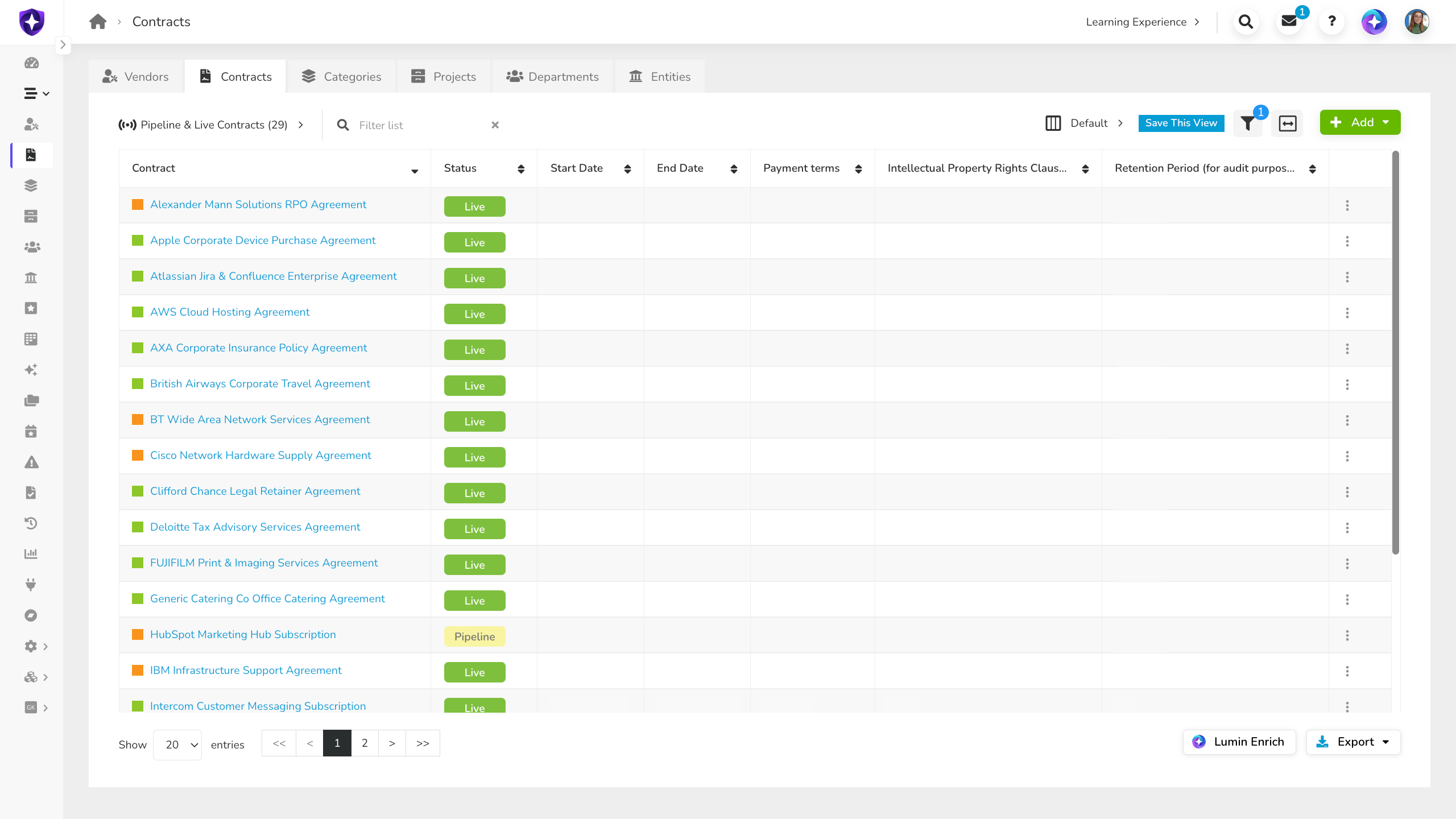
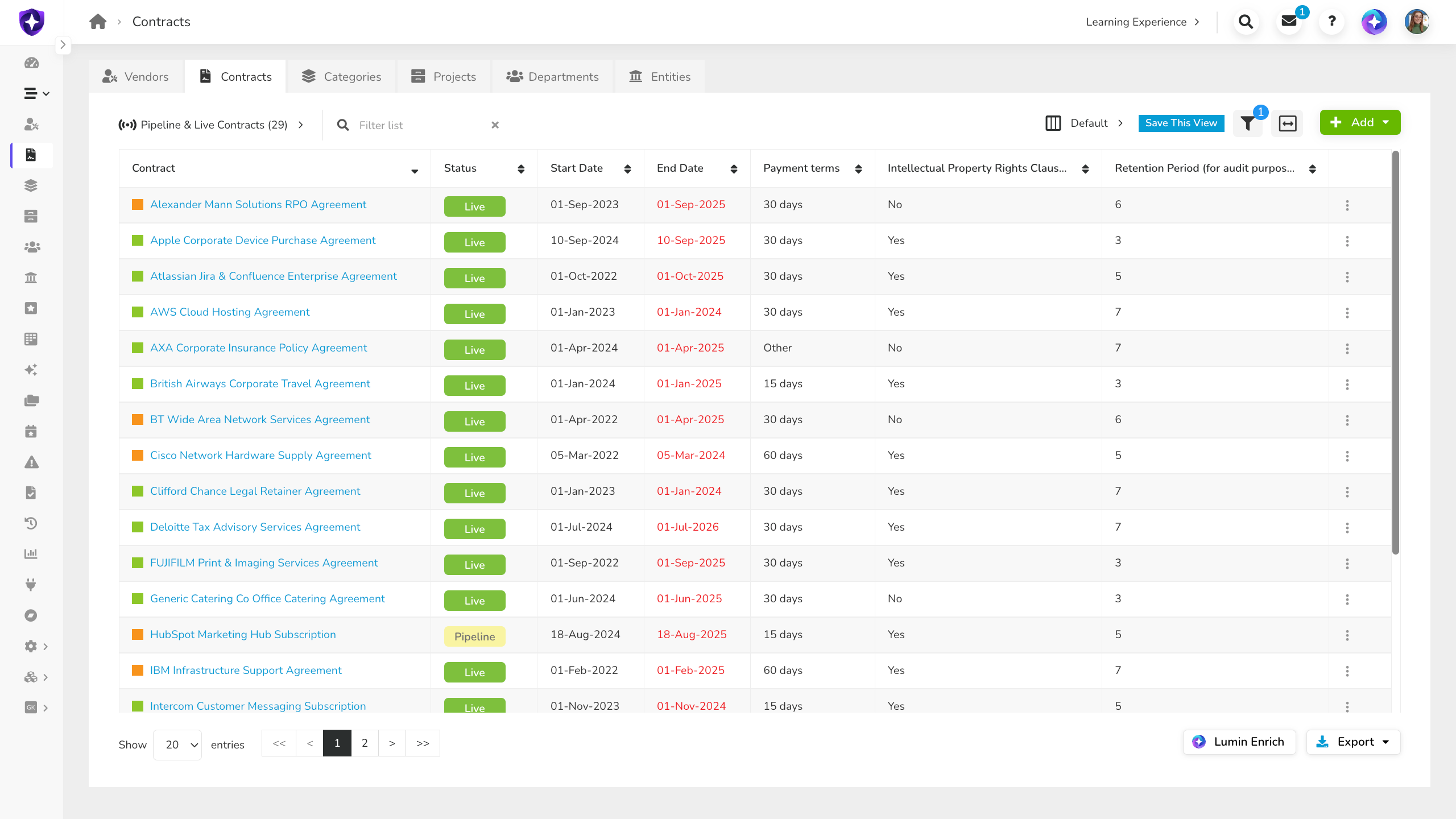
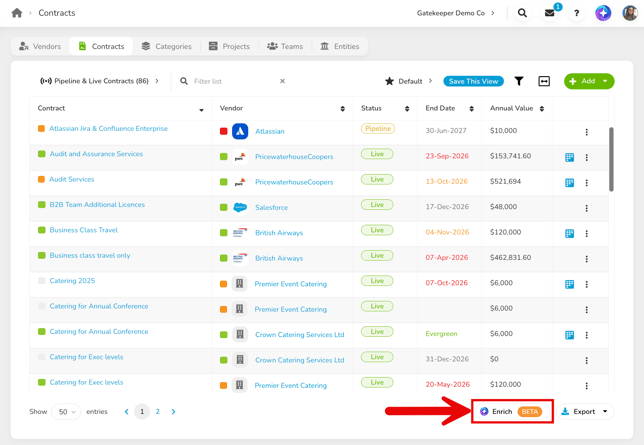
- Apply filters to the contract list to define the batch of contracts you want to enrich.
- Click Enrich.
- Select the fields you want to enrich. Select the checkbox next to a data group to include all fields within it, or expand a group to select individual fields. Click Select All to include all available fields across all groups.
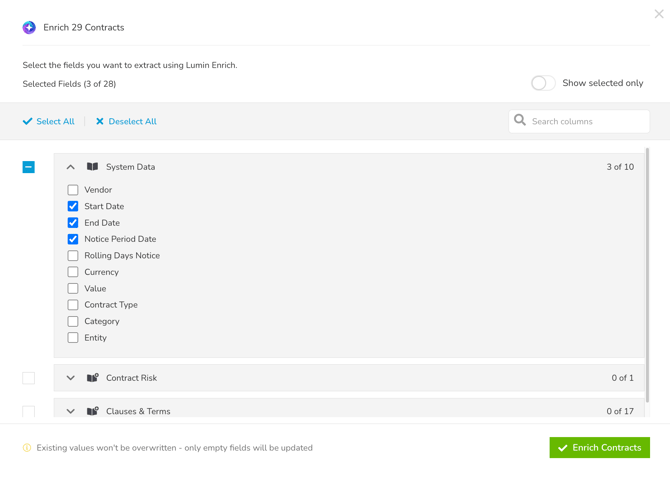
- Click Enrich Contracts to confirm.
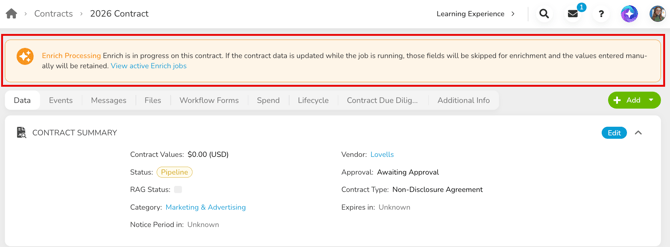
Each contract is processed in turn. While an enrichment is in progress, a banner will appear on any contract records, associated workflow cards, and the contracts bulk import page to indicate that work is in progress.
To learn about extracting metadata from new contract uploads, see Create Contracts Using Extract.
View Enrichment Results
After starting an enrichment job, you can track progress and view results as each contract is processed.
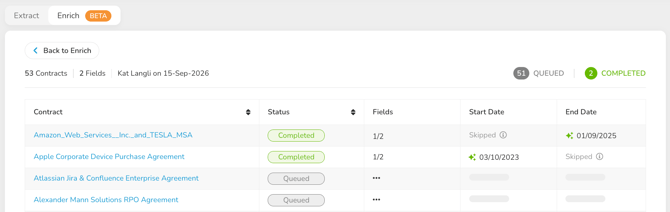
Each contract will show one of the following statuses:
- Queued: the contract is waiting to be processed.
- Processing: enrichment is actively running for this contract.
- Completed: enrichment has finished. This appears whether fields were successfully extracted, skipped because they already had a value, or a combination of both.
- Error: one or more fields encountered an error during extraction. Any fields that did successfully extract or were skipped will still show their individual results.
For each field, you'll see one of the following:
- Extracted value: indicated by a green sparkle
 icon. Enrich successfully found and populated the field.
 - Not Found: Enrich could not find a value for this field in the file.
- Skipped: The field already had a value and was not overwritten.
- Error: indicated by a warning
 icon. Hover over this to view the error details.
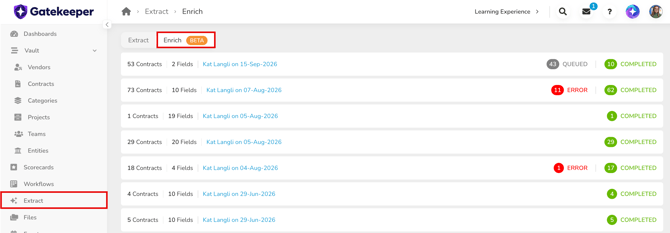
If you navigate away, you can return to this view by clicking Extract from the navigation menu, then the Enrich tab. This displays a list of all ongoing and historic enrichment jobs.
FAQs