Estimated Read Time: 5 Minutes
Sections in this article:
The Users List
To view a list of existing Gatekeeper users, expand the Settings option in the navigation menu, then click Users.
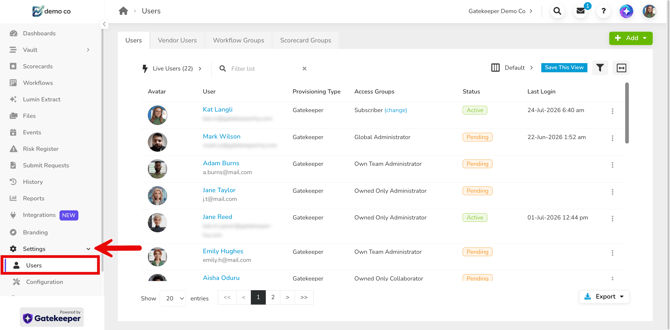
This displays an overview of each user's key details, including their permissions, status, and last login.
Note: Users require the Global Administrator role, with the Users additional permission to access this page.
Filter by Status
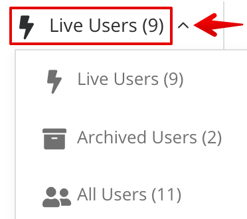
By default, the list displays active users only. To amend this, expand the status filter and select the relevant option, for example Archived Users.
Search Users
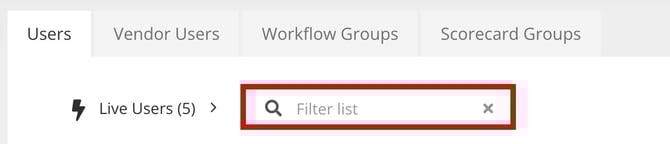
Use the search to locate specific users. Enter a full or partial term for the user's name or email address. Click the x icon next to your search term to clear the filter once finished.
Configure Columns
Configurable columns allow you to organise and present your data in a way that maximises its value and relevance. To configure which columns will display:
- Click the Configure Columns icon.
- Select the relevant checkboxes to display them in the table. If you are struggling to find the required data field, use the search box to search across all available columns.
- From the Selected columns area, click and drag the columns into the desired order.
Hover over a column and click Move to top to reorder it into first position. - Once finished, click Save.
Click Reset to restore the default view.
Expand to view all available columns. Columns marked as required cannot be removed, but can be reordered.
The User Detail Page
The User Detail page allows you to view and manage a user's settings, access an audit trail of their actions, and reassign ownership.
Note: Users require the Global Administrator role, with the Users and History additional permissions to view all areas of the User Detail page.
To access this:
- From the navigation menu, expand Settings, then click Users.
- Search for the relevant user and click on their name.
- Data
- Logins
- History
Data Tab
This tab contains the user's key details, their ownership, and information on the reports and dashboards they can access. The Data tab includes the following sections:
- Summary
- Ownership
- Workflow Groups
- User Access
- Reports
- Dashboards
Summary
Displays the user's basic contact details, role, and permissions. See Edit Existing Users for further information on updating these details.
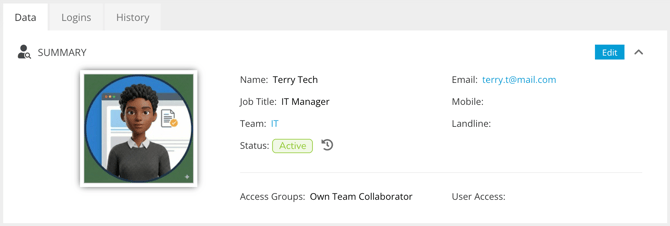
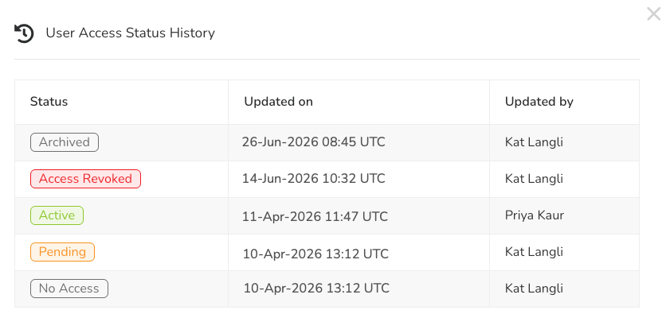
Click the History  icon next to the user's status to view a history of status changes, including who made each change and when.
Ownership
Lists the records the user currently owns. This is useful for transferring ownership when a user leaves the organisation.
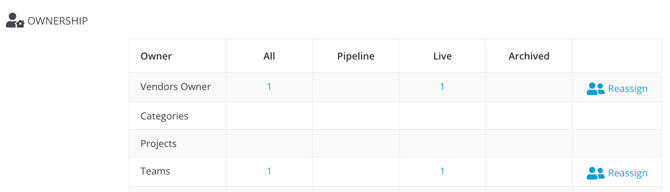
To reassign records from one user to another:
- Click Reassign on the relevant item.
- Select the user you want to transfer the objects to, then select the checkboxes for the objects you want to transfer ownership of. Alternatively, select the All checkbox to transfer all records on the page. To include all records across all pages, click Select all [X] Contracts across all pages.
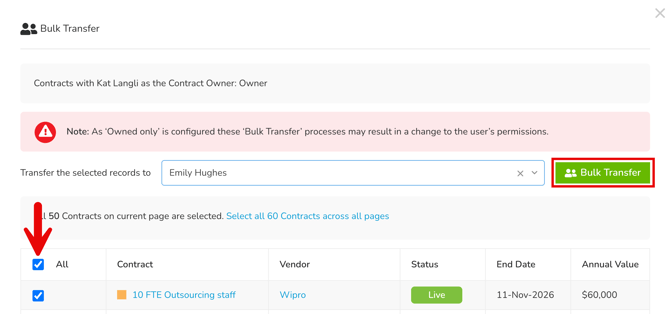
- Click Bulk Transfer.
Note: If you're reassigning a recurring event, this only updates the current occurrence, not the series. To make sure future occurrences also transfer to the new owner, you'll need to edit the recurrence settings on the event itself. See Configure Events for further details.
Workflow Groups
This displays all workflow groups that the user is assigned to.
User Access
This summarises the user's login activity.
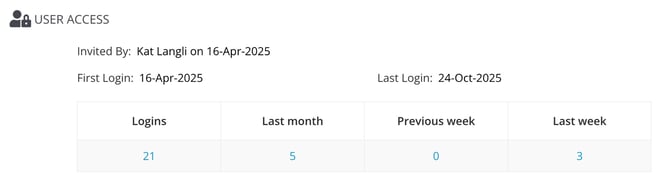
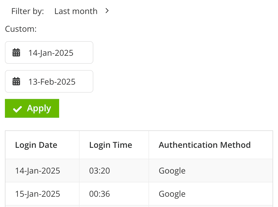
Click on a number to view further details of the date, time, and authentication method used for each login:
Reports
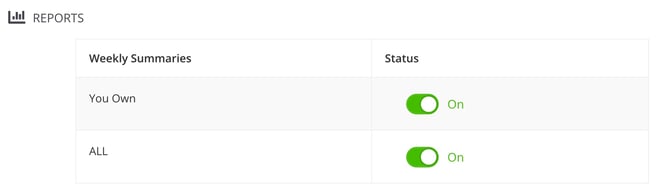
Configure the user's weekly summary email preferences by enabling or disabling each toggle.
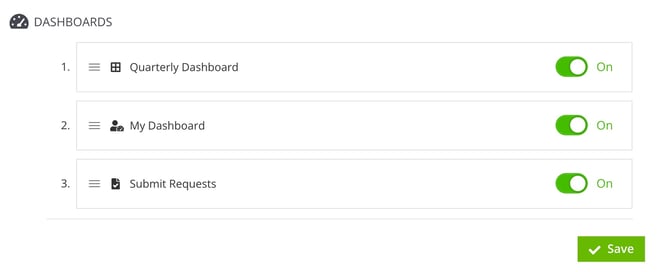
Dashboards
Configure the dashboards the user has access to, and default order. The dashboard at the top of the list becomes the default landing page when the user logs in.
Logins Tab
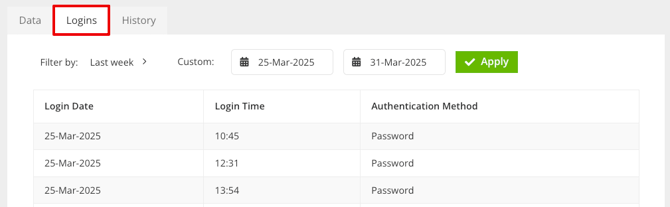
The Logins tab displays the user’s login activity within a specified date range, including dates, times, and authentication methods.
History Tab
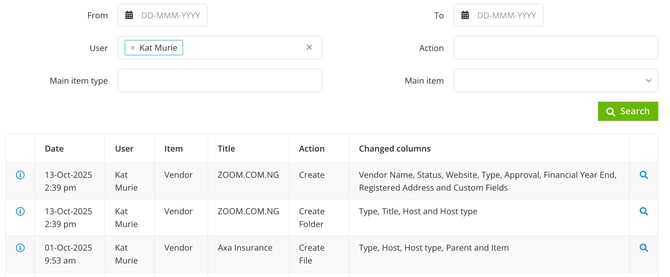
The History tab provides a summary of the user's activity and a full audit trail of their actions in Gatekeeper.
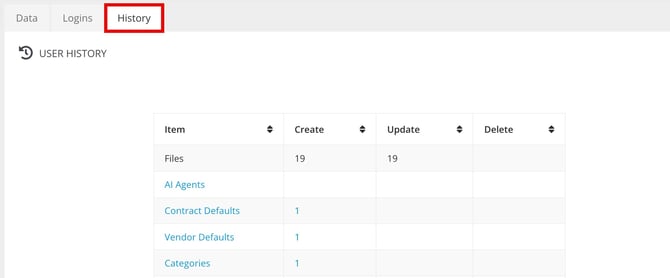
Click on an item to view the user's activity, or click Full User Audit Trail to see actions across all item types.