
 Estimated Read Time: 5 Minutes
Sections in this article:
- What is a 403 Error?
-
Internal User Troubleshooting (i.e. a member of the organisation who uses Gatekeeper)
-
Vendor/Supplier Portal User Troubleshooting (i.e. a prospect/partner of the organisation who uses Gatekeeper)
What is a 403 Error?
A 403 error means the account doesn't have the required permission to access the page or record being requested. This error can appear for both internal users and vendor users; the cause and resolution depend on what was being accessed when the error appeared.
- If you are an internal user of the organisation who uses Gatekeeper experiencing this error, contact your Gatekeeper administrator.
- If you are a vendor user (i.e. a prospect/partner of the organisation who uses Gatekeeper) experiencing this error, contact your main point of contact at the customer organisation.
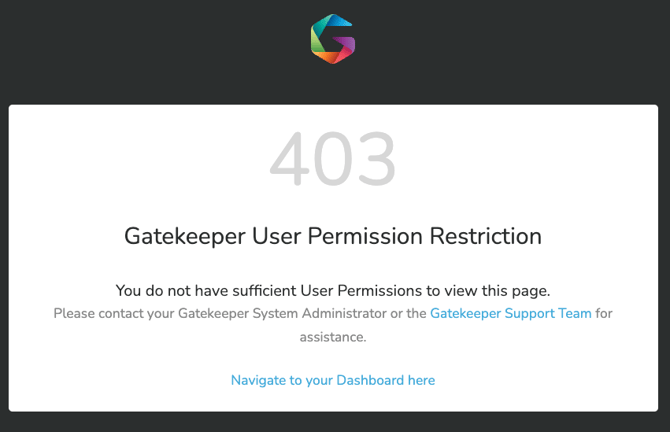
When reporting this issue, it's helpful to include the following details:
- What you were trying to do when the error appeared
- How you accessed the page, for example, via a direct link, a page within Gatekeeper, or a link from an email
-
Whether the issue relates to a specific contract, workflow, or vendor
Internal User Troubleshooting
A 403 error for an internal user typically means they don't have the required permission to access the page or record. The scenarios below cover the most common causes and how to resolve them.
Insufficient User Permissions
Note: You must have the Users additional permission to view and edit user profiles.
-
Confirm that the user's account hasn't been archived and their access has not been revoked. To do this, check the user's status from their detail page.
-
If a 403 error appears when a user tries to open a contract or vendor record in the Vault, their permissions may be restricting access. Check the user's profile for the following:
-
If the user has Owned Only or Own Team permissions, confirm whether they own the record or whether the record is allocated to their team. See User Role and Permission Definitions for further details.
-
If the user has been assigned an RBAC access group, confirm that the group grants access to the relevant area of the system. See Role Based Access Controls for further details.
-
-
If a 403 error appears when a user tries to access the API documentation, their permissions may be restricting access. Check the user's profile to ensure they are a Global Administrator with the Configuration additional permission.
- If a 403 error appears when a user clicks a link in a workflow notification, they may not have a Gatekeeper account. This can occur when a request is submitted via a public form by someone without an internal user account. Notification links will not work for users who are not set up in the system. To resolve this, either add the individual as a user in Gatekeeper, or disable/amend the card creator notification to remove the link button.
Workflow Access Configuration
Note: You must be a Workflow Administrator or Local Workflow Administrator to view and edit workflow phase settings.
If a 403 error appears when a user tries to open a workflow card or submit a questionnaire, check the workflow phase for the following:
- The authentication type is set incorrectly or may have changed, causing the form link to become inactive. Check the Form Access section on the relevant workflow phase.
-
The user is not assigned as an owner in the current workflow phase. Gatekeeper restricts card access to users who have been assigned to the phase as an owner or card collaborator. Check the workflow to confirm which phase the card is currently in, then verify whether the affected user is assigned. Check the Form Access section to review the ownership settings.
Vendor User Troubleshooting
The scenarios below cover the most common causes of 403 errors for vendor users and how to resolve them:
Note: You must be a Workflow Administrator or Local Workflow Administrator to view and edit workflow phase settings.
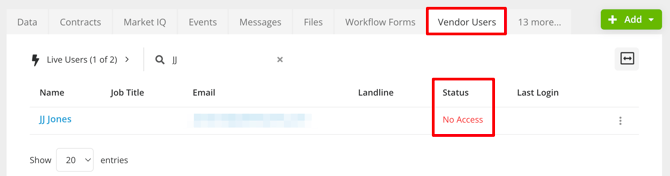
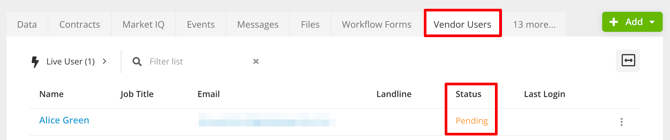
- The vendor user is trying to access a workflow form, but has not been invited to the Vendor Portal, or has not accepted their invitation yet. Check their status from the Vendor Users tab of the relevant vendor record.
- If the status is No Access, expand the 3 dots and select Edit. Then select the Invite into Gatekeeper checkbox, then click Save.
- If the status is Pending, it means the invitation was sent, but has not been accepted. Expand the 3 dots and select Edit. Then select the Resend the invitation email checkbox and click Save.
- If the status is No Access, expand the 3 dots and select Edit. Then select the Invite into Gatekeeper checkbox, then click Save.
-
- If the vendor user has not been created, follow the steps in Inviting Vendors to the Vendor Portal to rectify this issue.
- The vendor user is trying to access a workflow form, but the card has since moved to a different phase. This can happen if another user at their organisation has already taken action on the card. Check that the workflow card is on the expected phase.
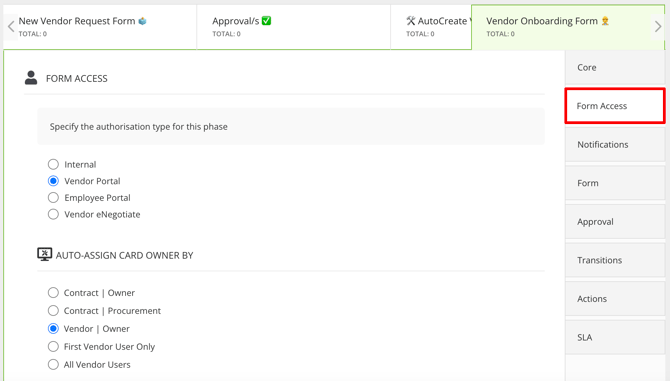
- The vendor user has not been granted access to the workflow phase. For example, the workflow may be configured to grant access to a specific vendor user rather than All Vendor Users of the relevant company. Check the Form Access section on the relevant workflow phase.
- A vendor user is trying to access an eNegotiate draft that has already been actioned. Another user at their organisation may have already taken action on the relevant card, for example rejecting or approving the draft. Check that the workflow card is on the expected phase.
If you still experience an issue after trying the above suggestions, please contact support with the relevant details.